EPCS Identity Verification in ID.me
Modified on: Thu, 30 Jan, 2025 at 1:07 PM
Once the provider has created the account in the ID.me portal, he/she must continue with the identity verification process as an individual.
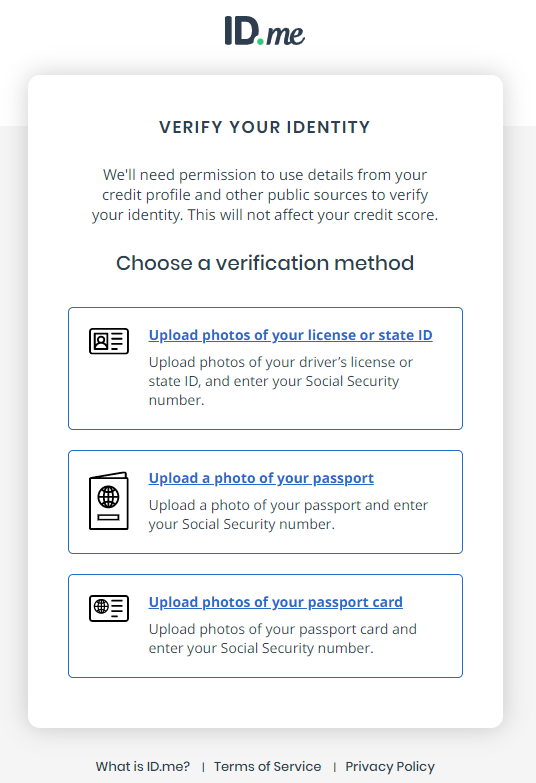
- The following screen will be displayed. The provider will be able to use the method of his preference.
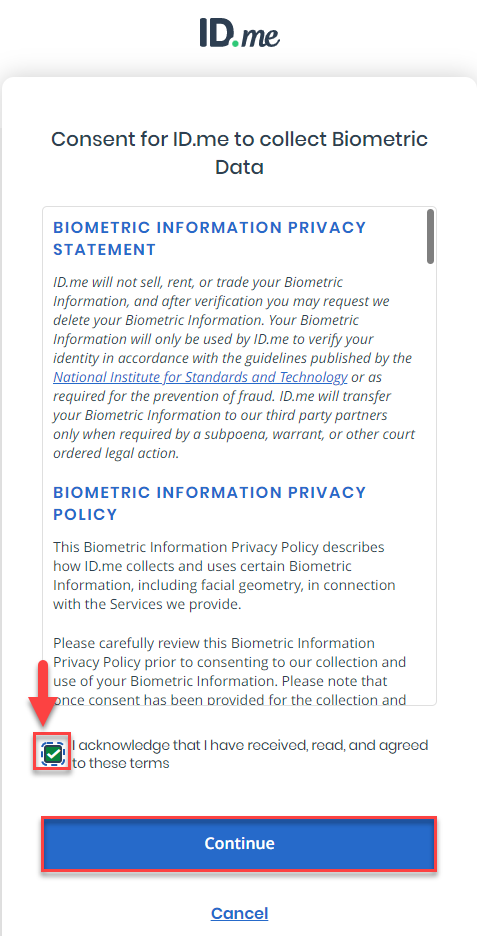
- In any of the selected methods, the following information will be displayed. You must select the I acknowledge that I have received, read, and agreed to these terms checkbox located at the bottom of the screen and then press the Continue button.
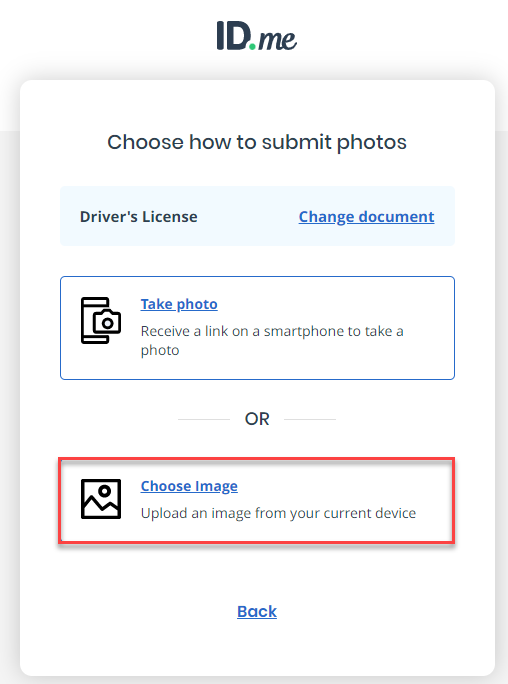
- The provider will be able to take a photo or download the image.
- The following screen will be displayed. Proceed to download the driver's license image front and back.
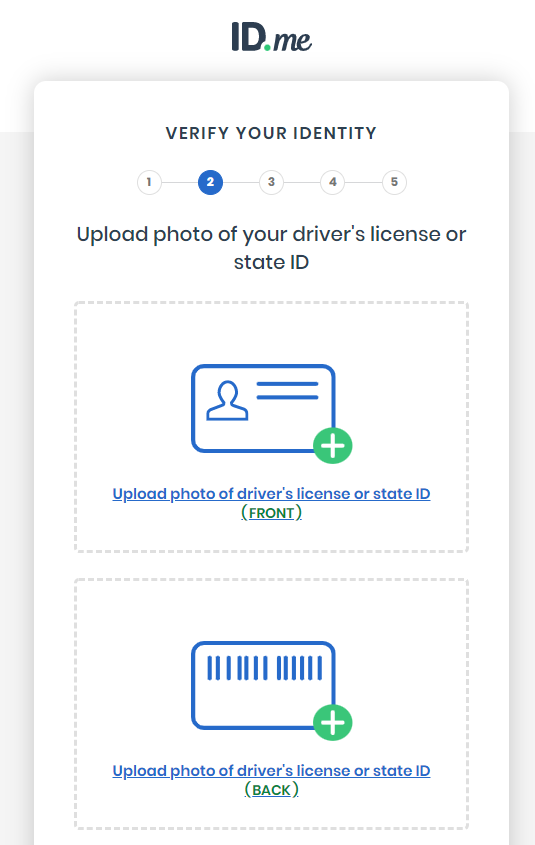
- Once you have downloaded the images, press the Continue button.
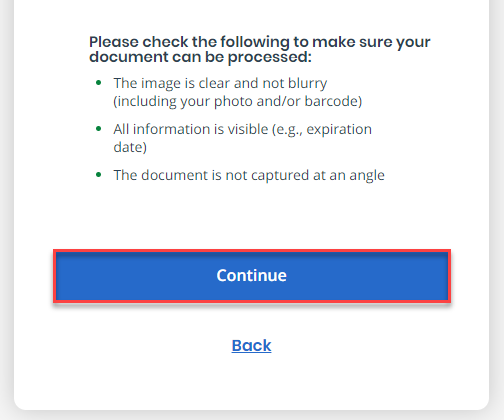
- The following screen will be displayed:
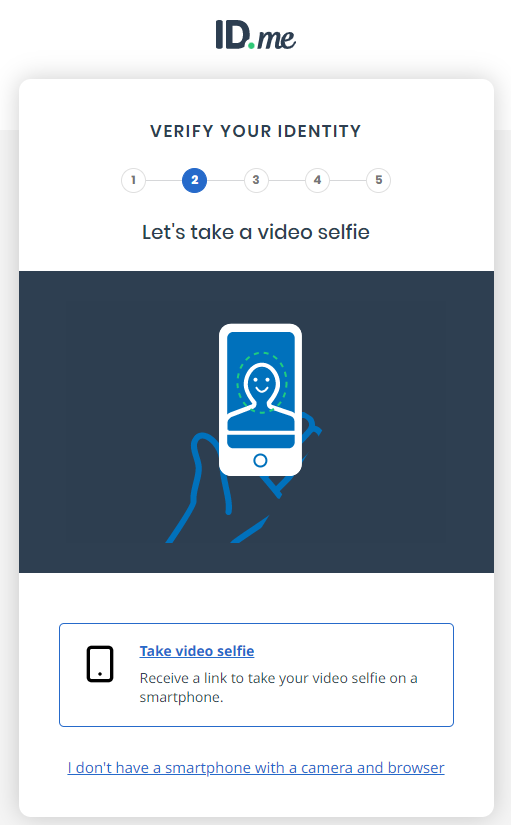
- The following screen will be displayed:
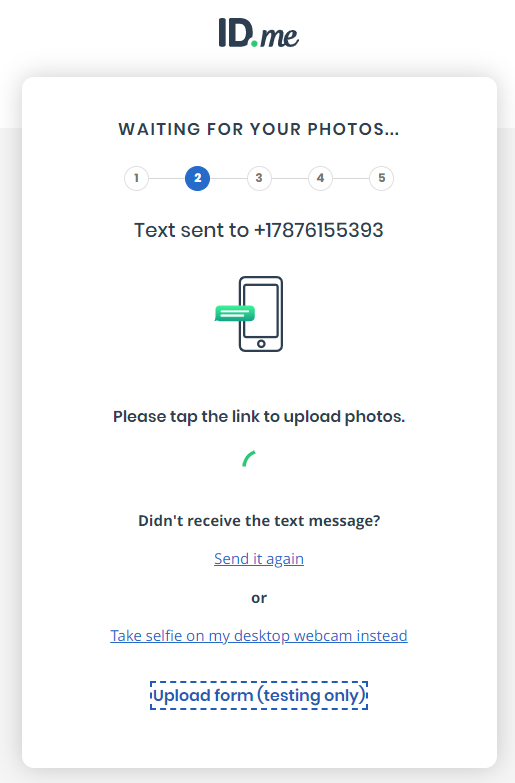
- Select the Upload form (testing only) option. Once you have clicked on the link, the following screen will be displayed:
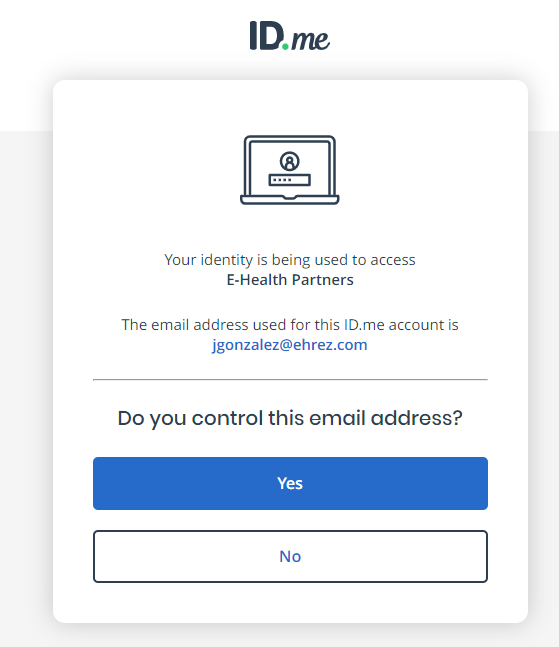
Press the Yes button to confirm that you are the one who manages the displayed e-mail address. 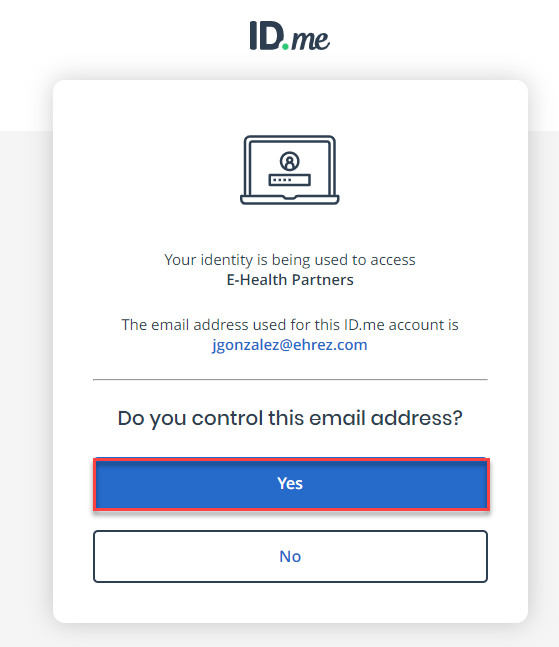
- Your information will be displayed:
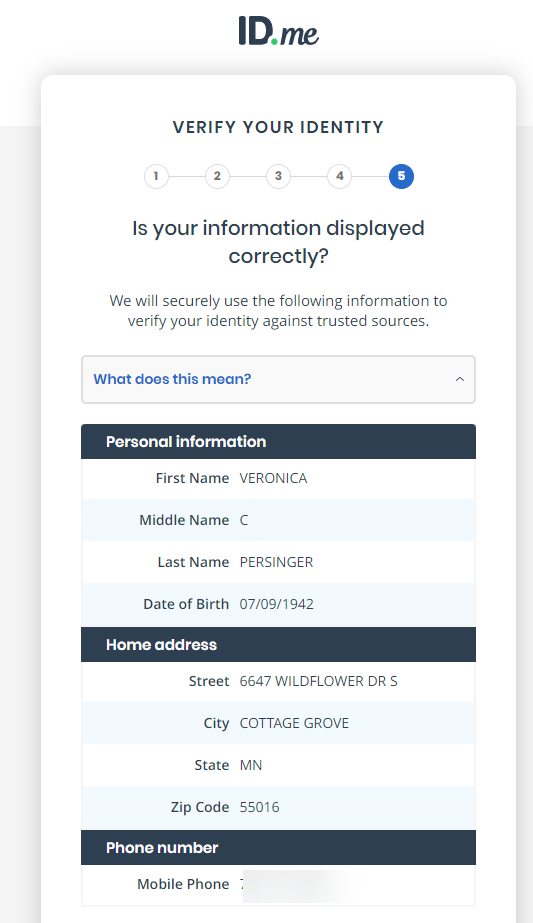
- Select the check box to confirm that the information displayed is correct and authorizes you to verify your identity.
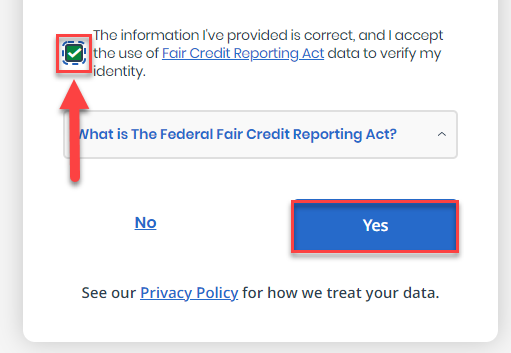
- Once you have completed the process, you will move on to the next process, verifying the provider's credentials, i.e. their DEA and NPI numbers.
- If for some reason, you do not complete the process, you can click on the Complete the verification link in the Ehrez application.
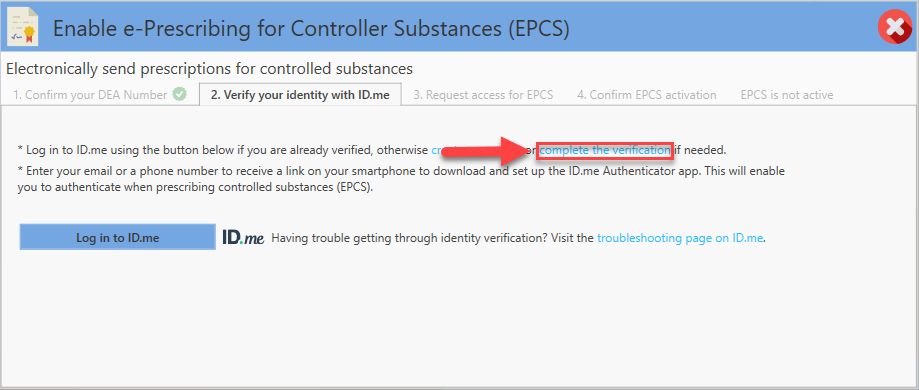
- The following screen will be displayed:
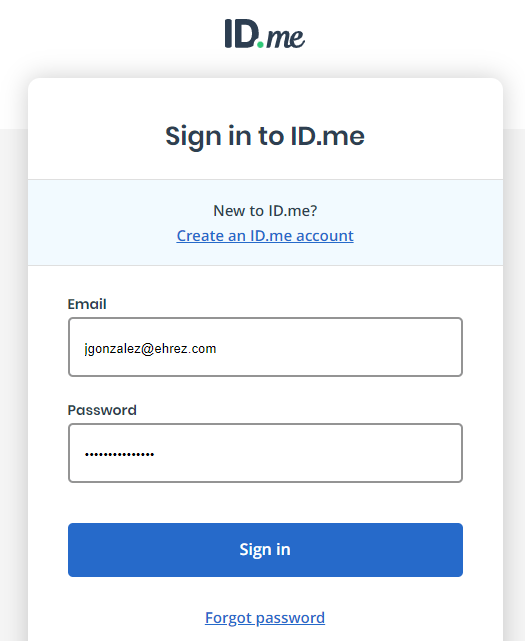
- Press Sign In. The following screen will be displayed:
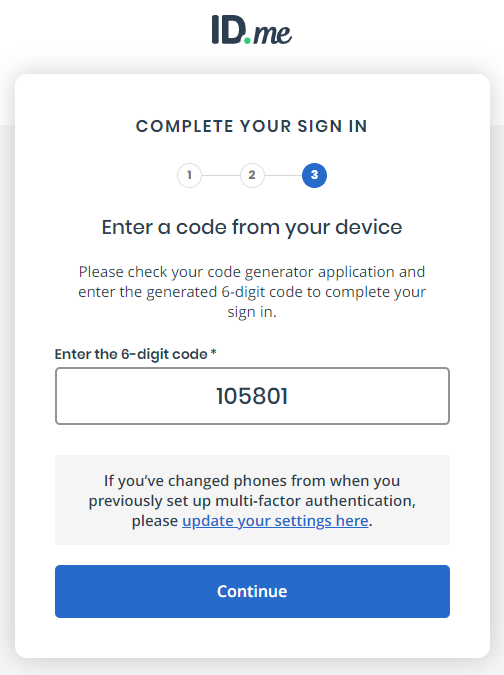
- Pressing the Continue button will display the last section, where the provider was left in the identity process.
Did you find it helpful? Yes No
Can you please tell us how we can improve this article?