How to create a patient's appointment through an internal referral?
Modified on: Fri, 31 Jan, 2025 at 10:29 AM
Navigate to the Clinical Records screen.
Choose the patient you wish to refer to an internal provider within the facility or office, accessible from any section of the screen.
- After selecting the patient, click on the Add Referral button located either in the Side Bar or the Search section.
- The following screen will be displayed:
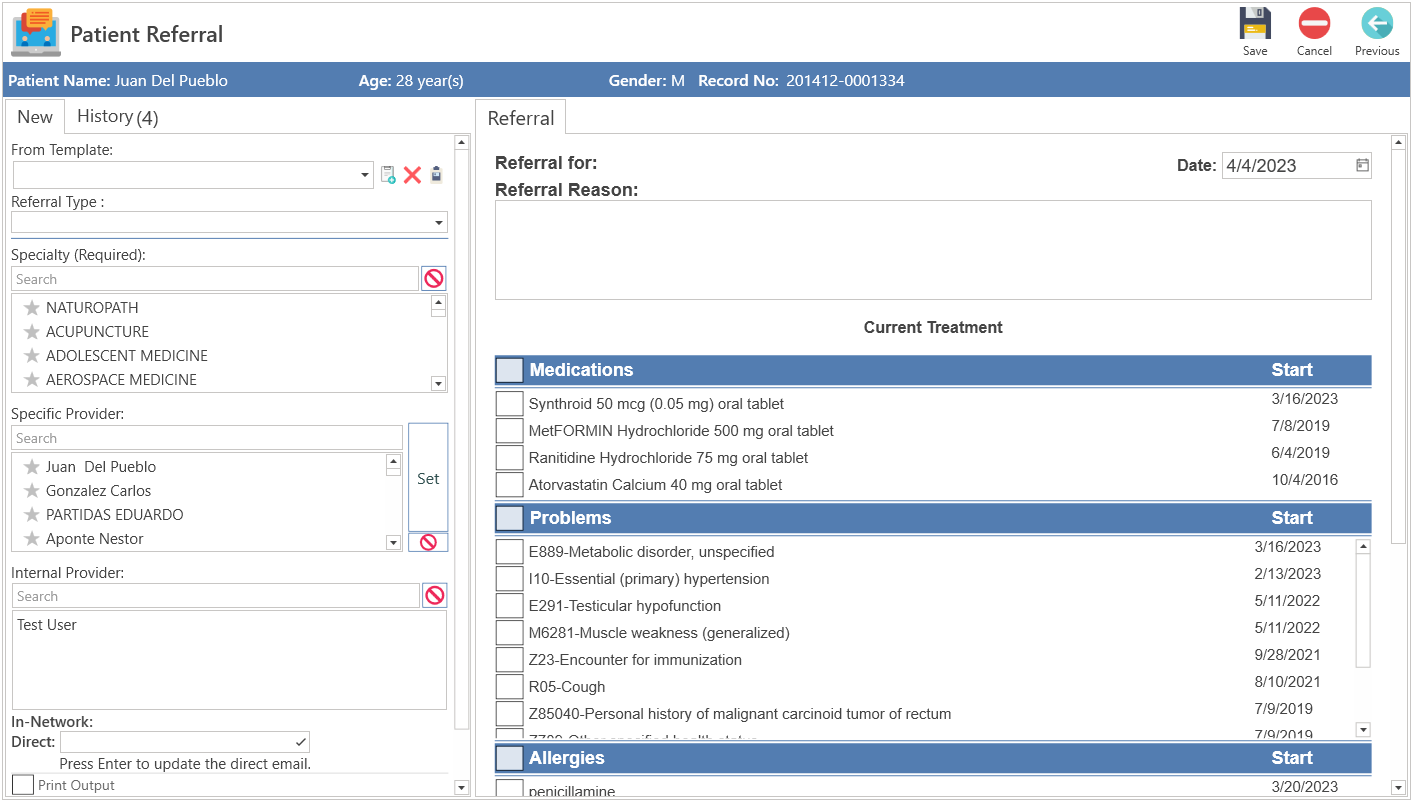
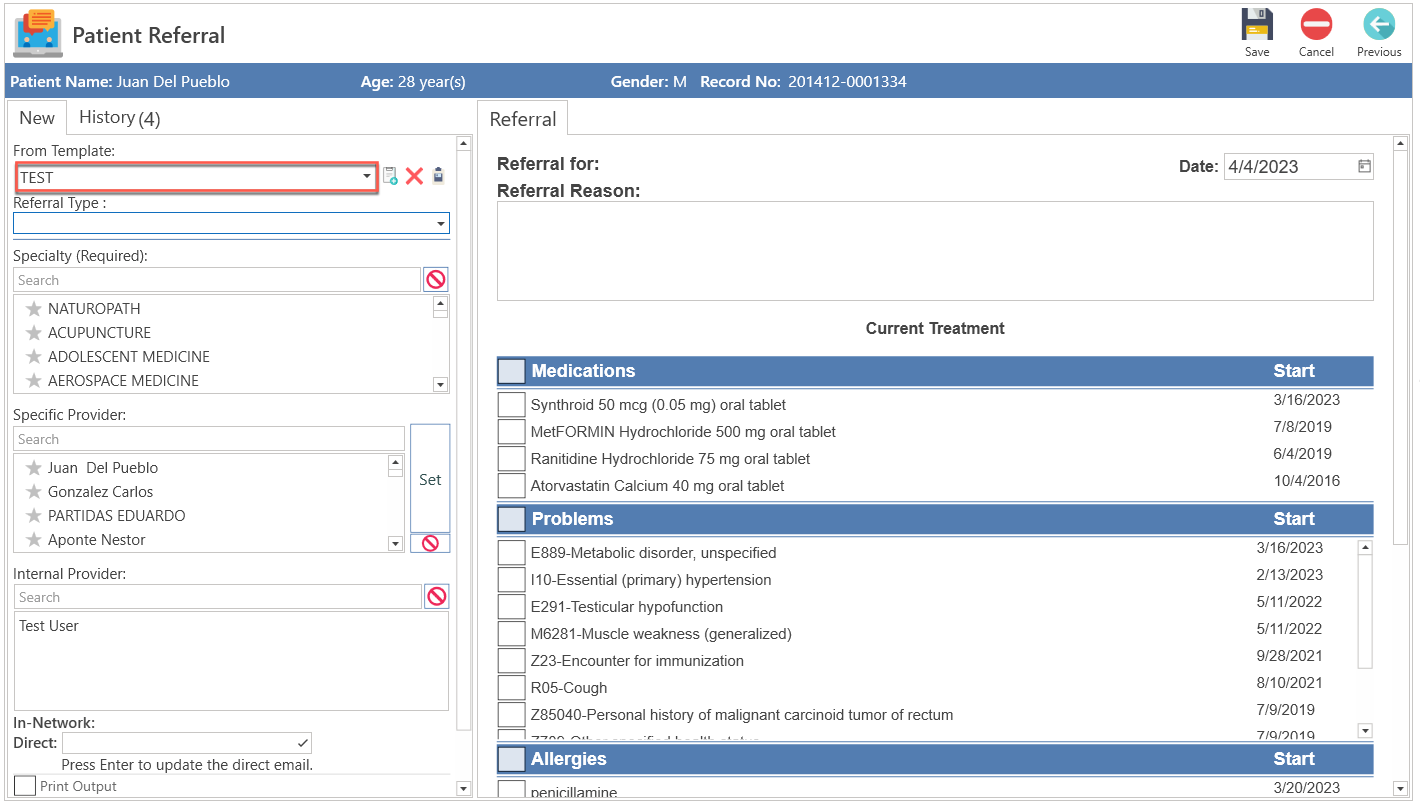
- Choose the referral Template.
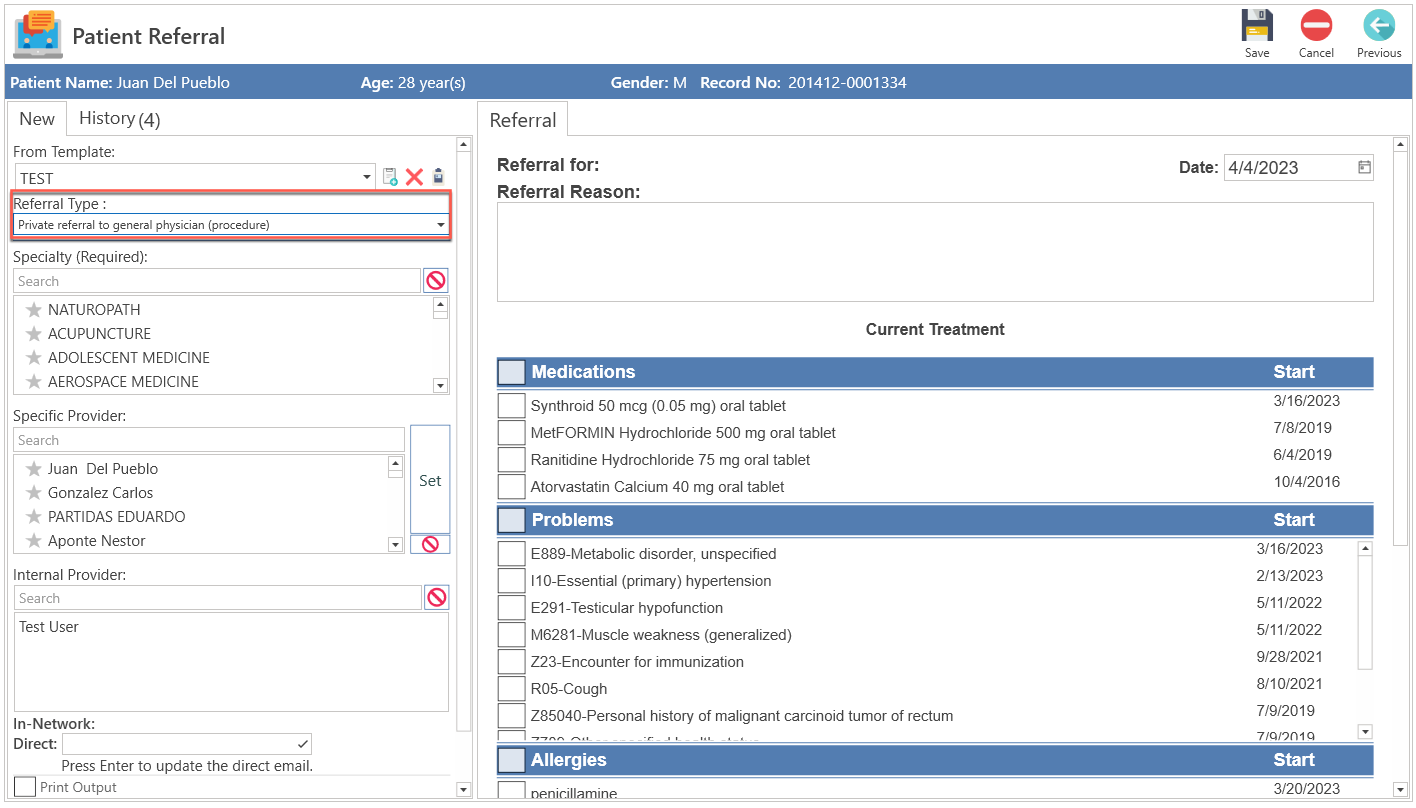
- Then choose the Referral Type option.
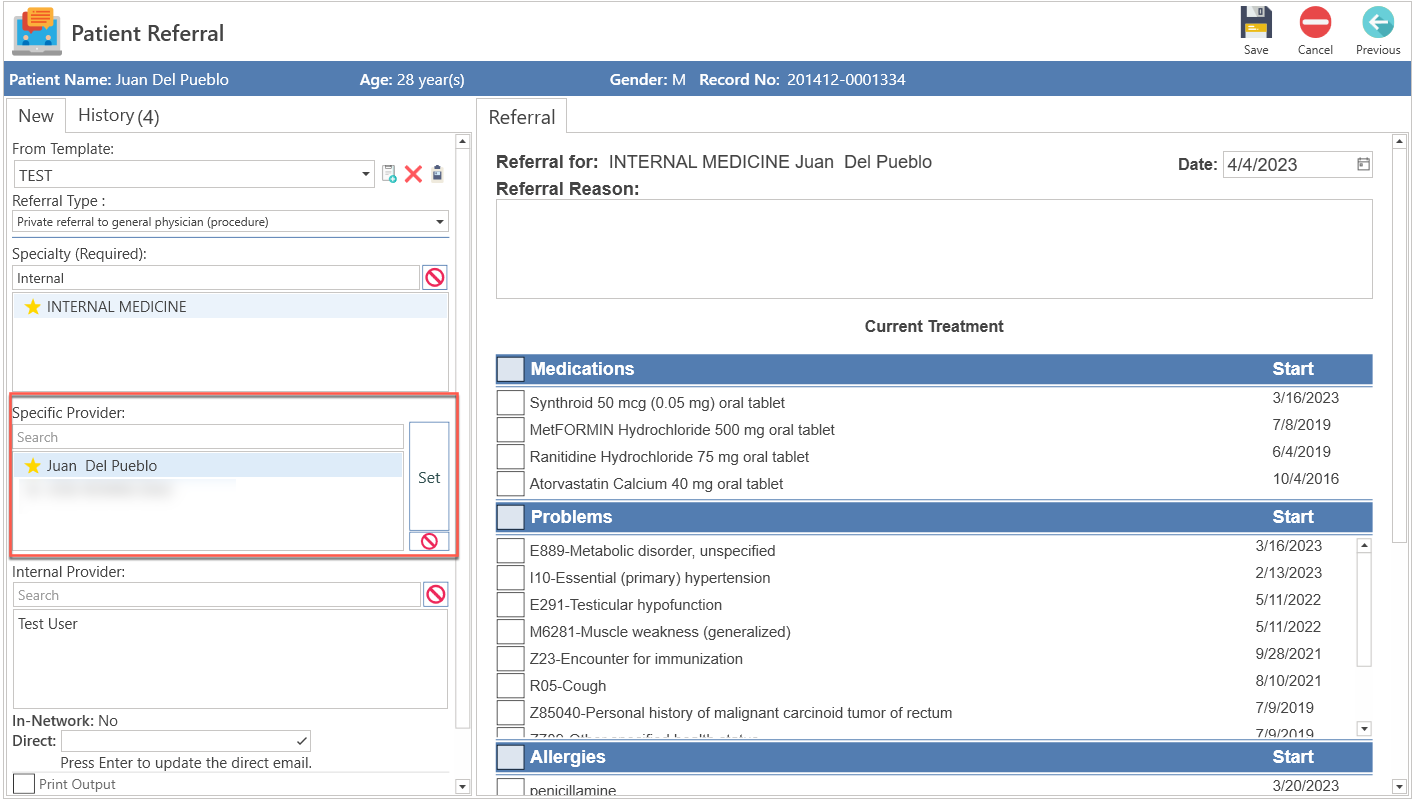
- Select the provider's Specialty.
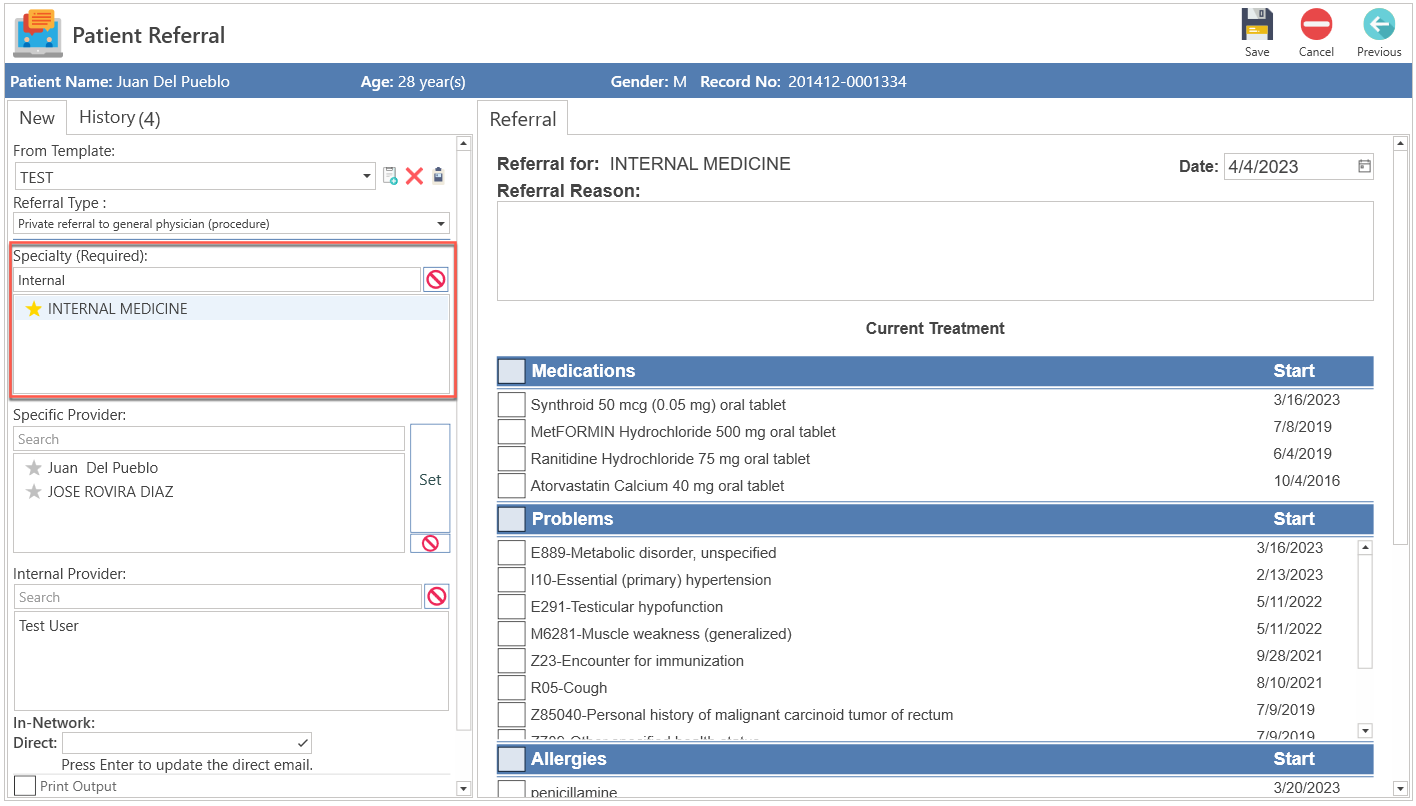
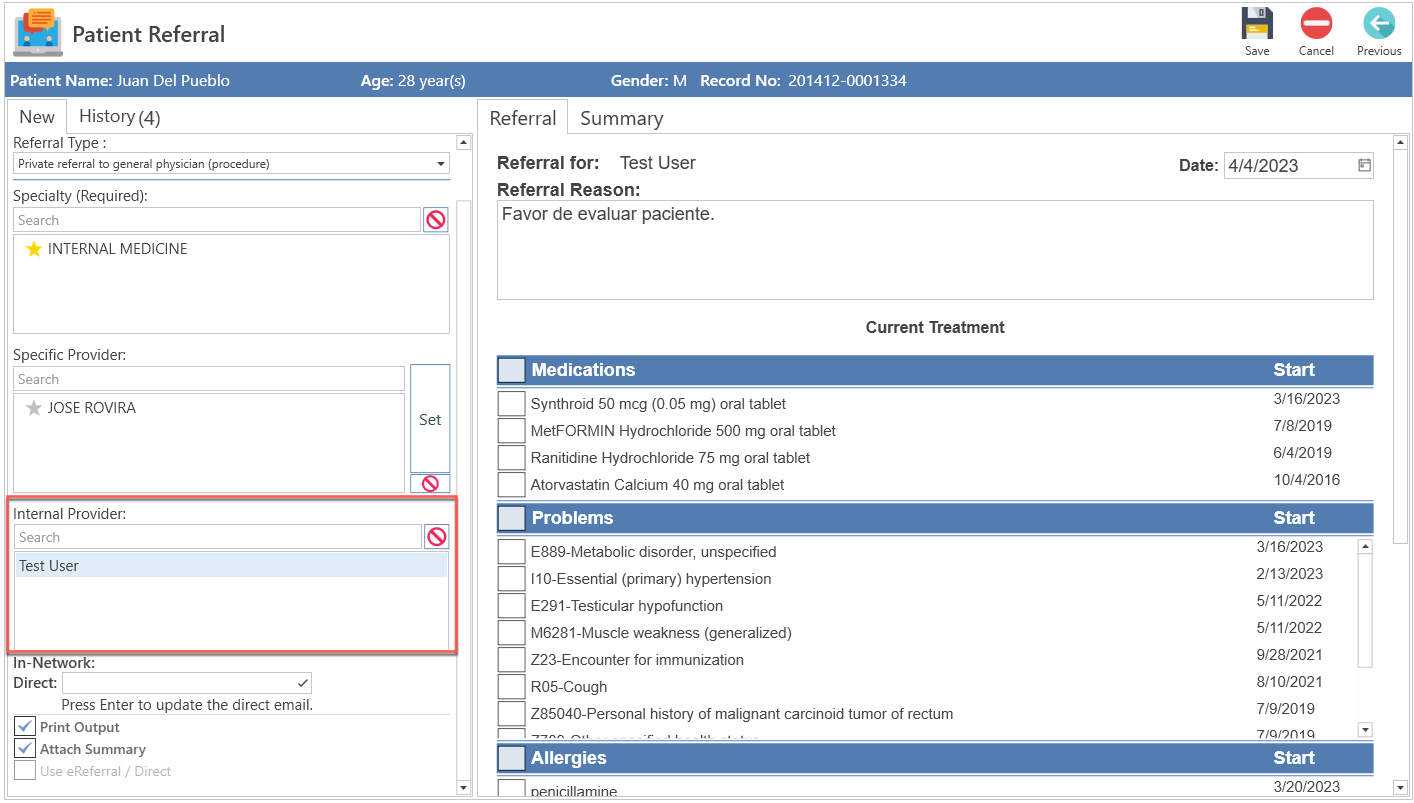
- Choose the provider in the Internal Provider section to whom you will refer the patient.
- Choose the internal provider to whom the patient will be referred.
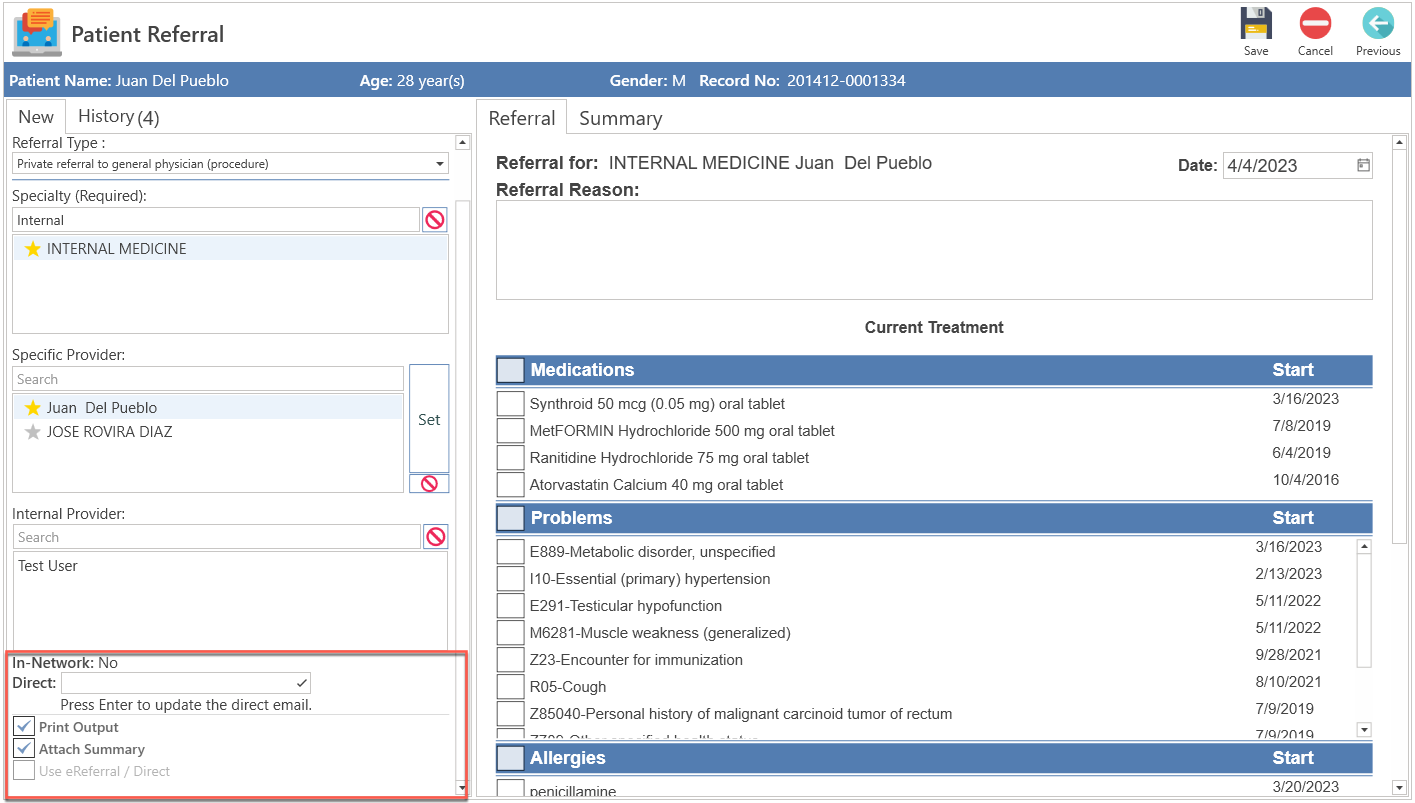
- Choose the options that match the referral: Print Output, Attach Summary, and Use eReferral/Direct.
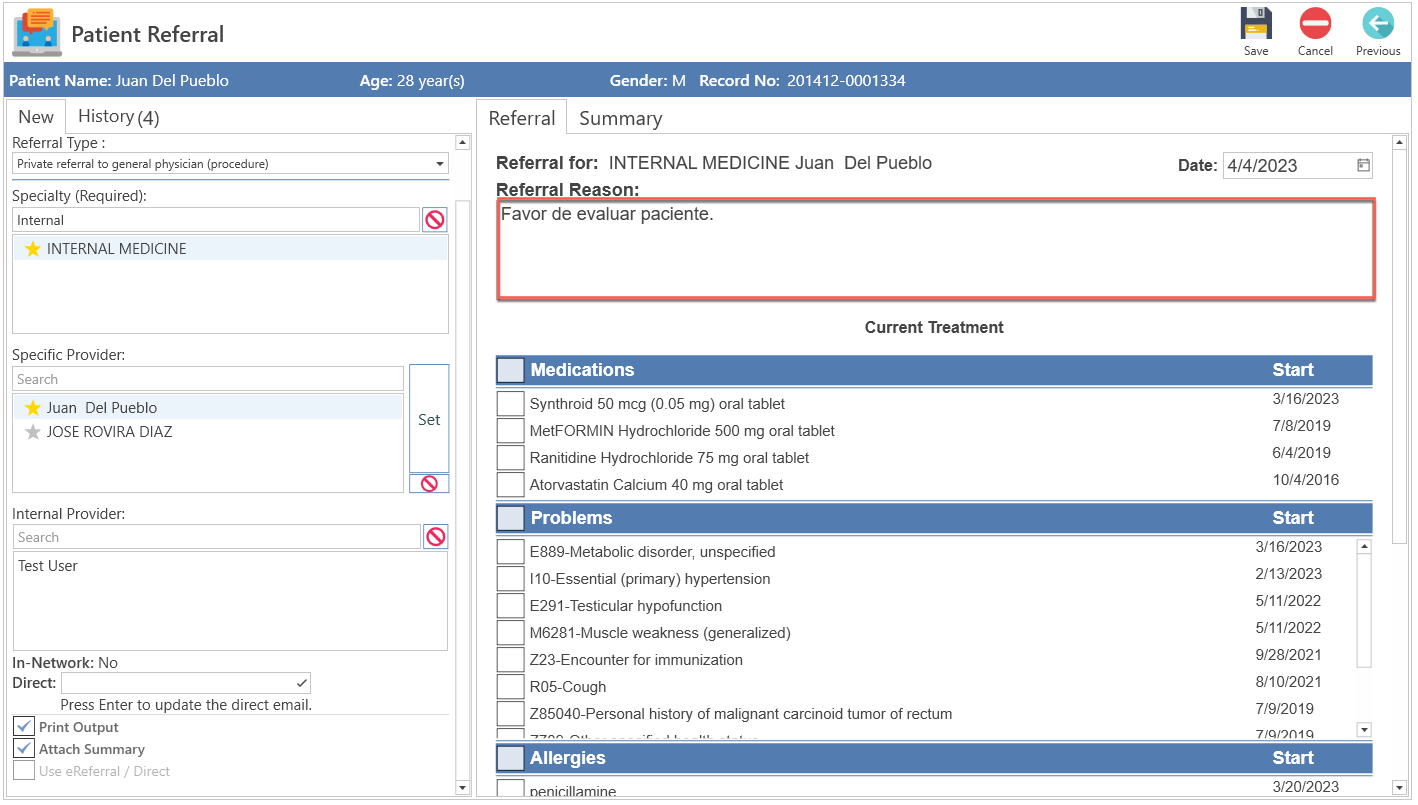
- Enter the reason for the referral in the Referral Reason field.
- After completing the referral, press the Save button located at the top of the screen.
- Next, proceed to the Appointments screen.
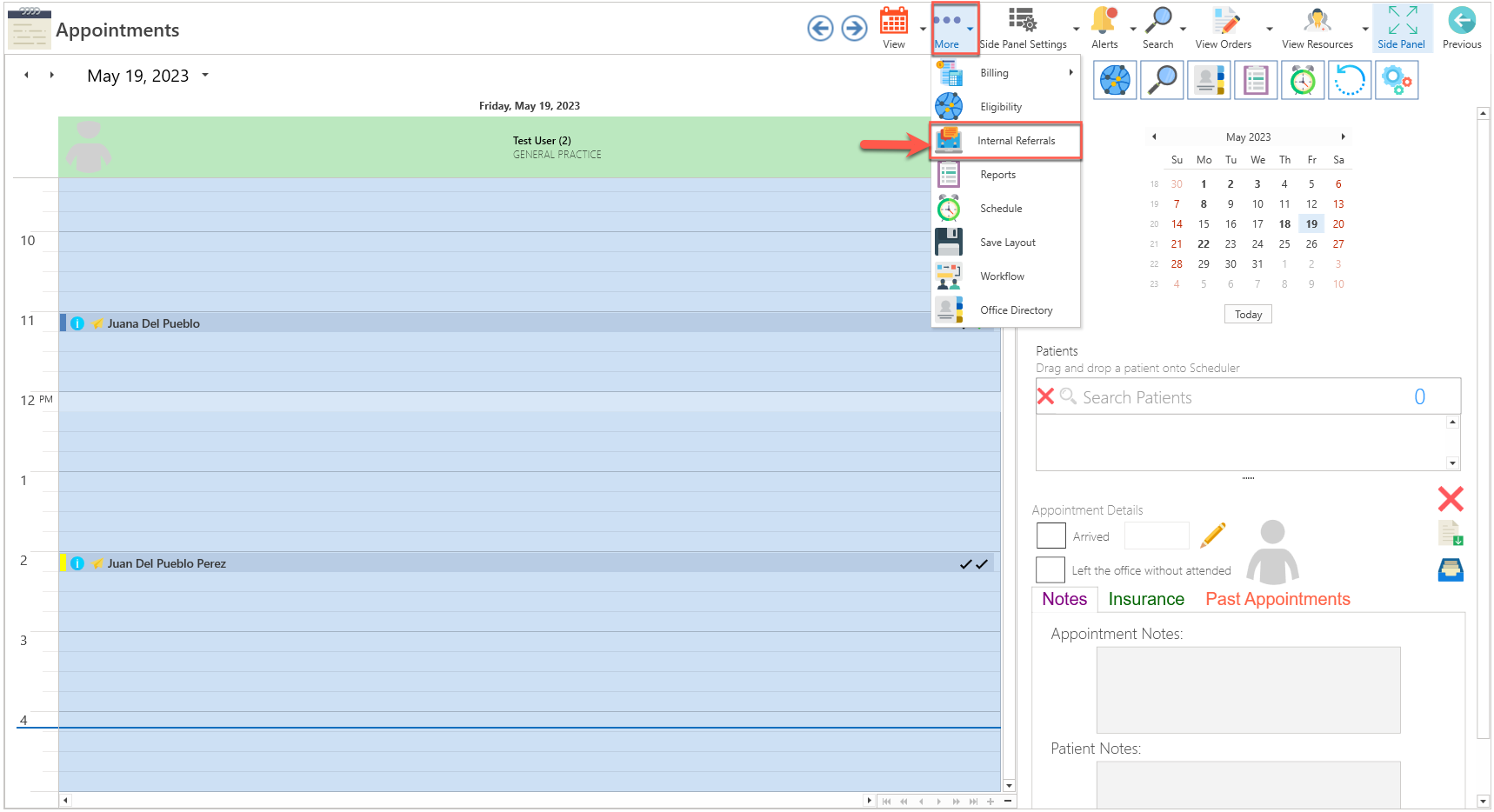
- Click on the More button located at the top of screen and select the Internal Referrals option.
- The following screen will be displayed:
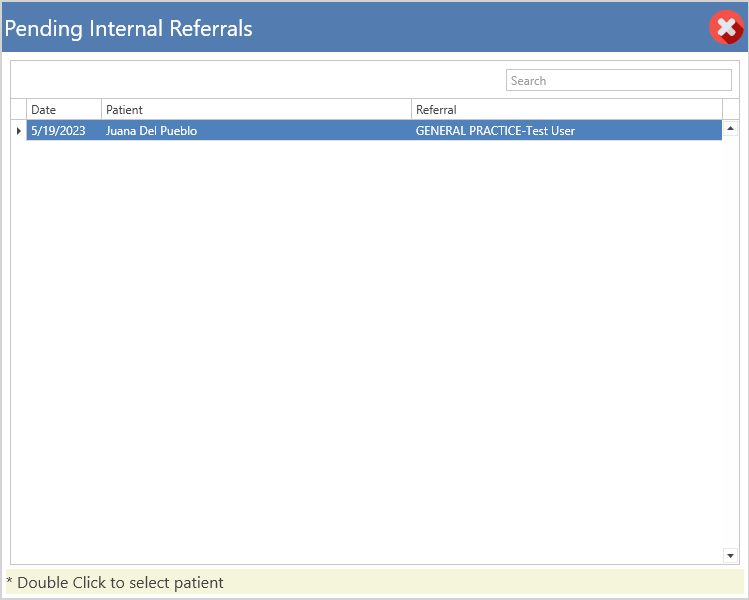
- If there were more patients, users can search by the referral date, patient's name, last name, or by the provider referred.
- Press twice on the patient you wish to create the appointment for. For example, we selected Juana Del Pueblo as the patient.
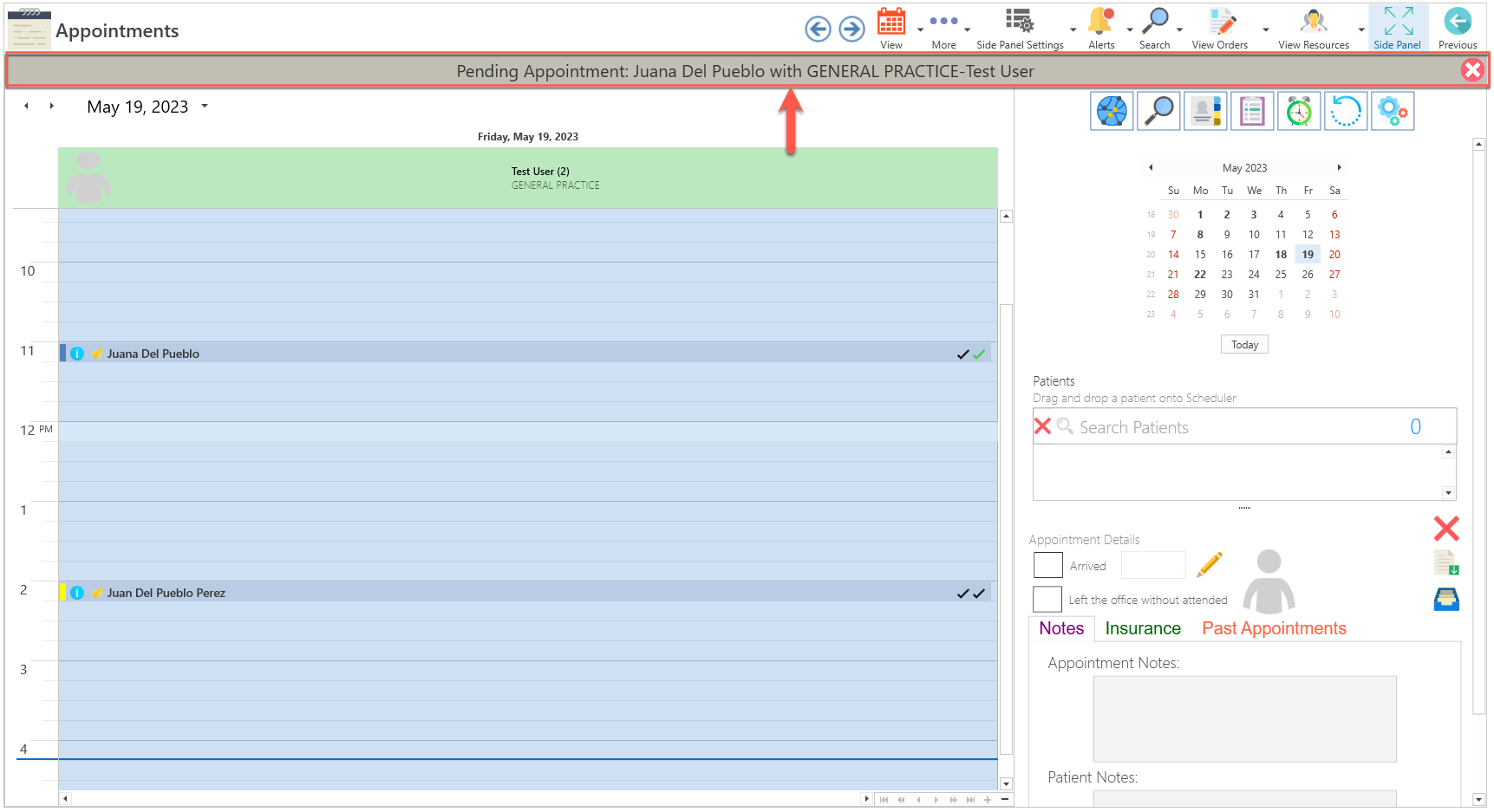
- To stop the notification, simply hit the Cancel button.
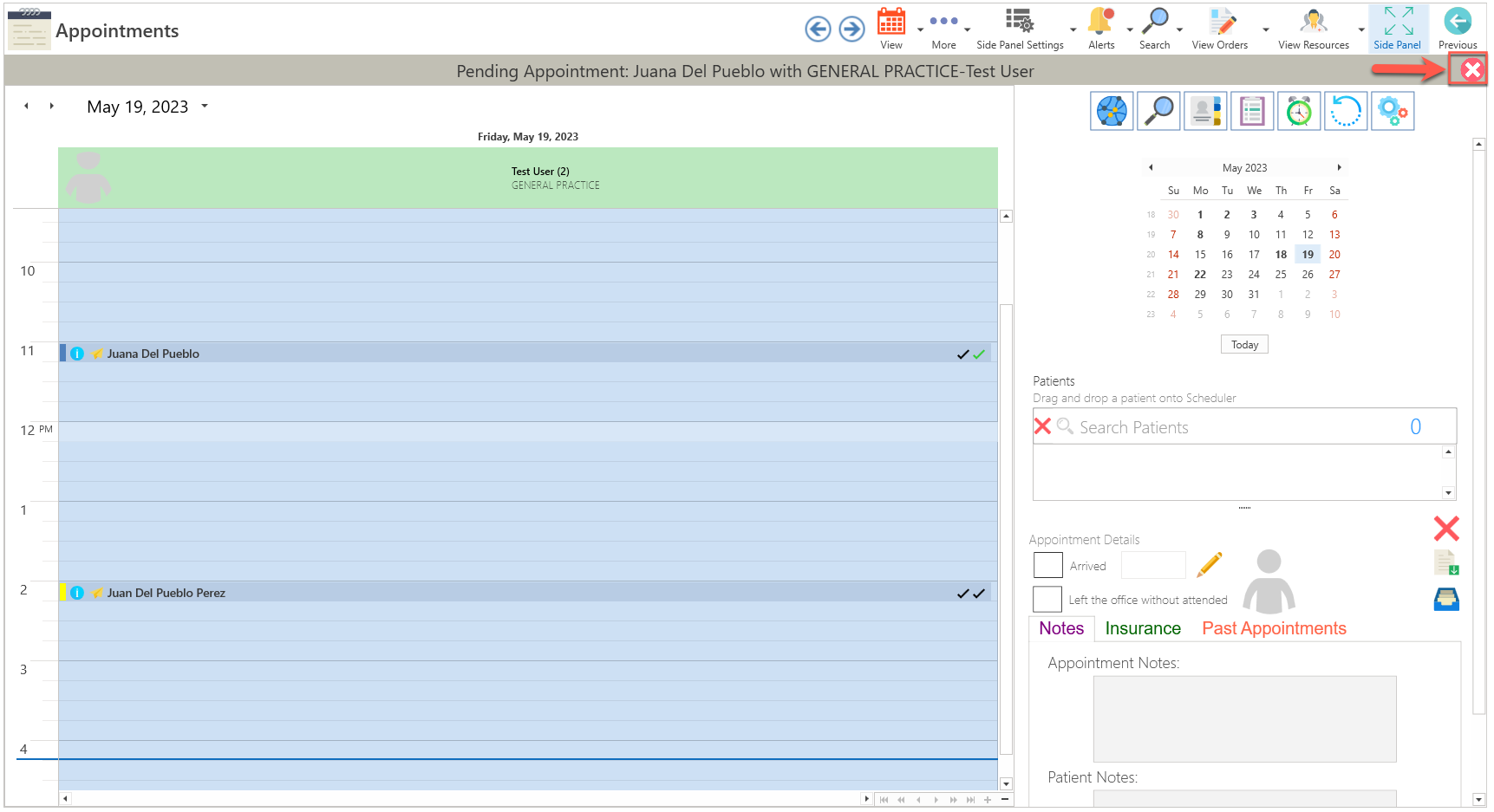
- This allows you to remove the on-screen notification, but not from the Pending Internal Referrals screen.
- When creating an appointment with the referred provider, it will be removed from the Pending Internal Referrals screen.
Did you find it helpful? Yes No
Can you please tell us how we can improve this article?