How to record the patient's signature upon arrival at the office?
Modified on: Thu, 13 Mar, 2025 at 3:24 PM
There are several options for recording the patient's signature upon arrival at the office.
Option #1
- In the main menu, press the Patients button.
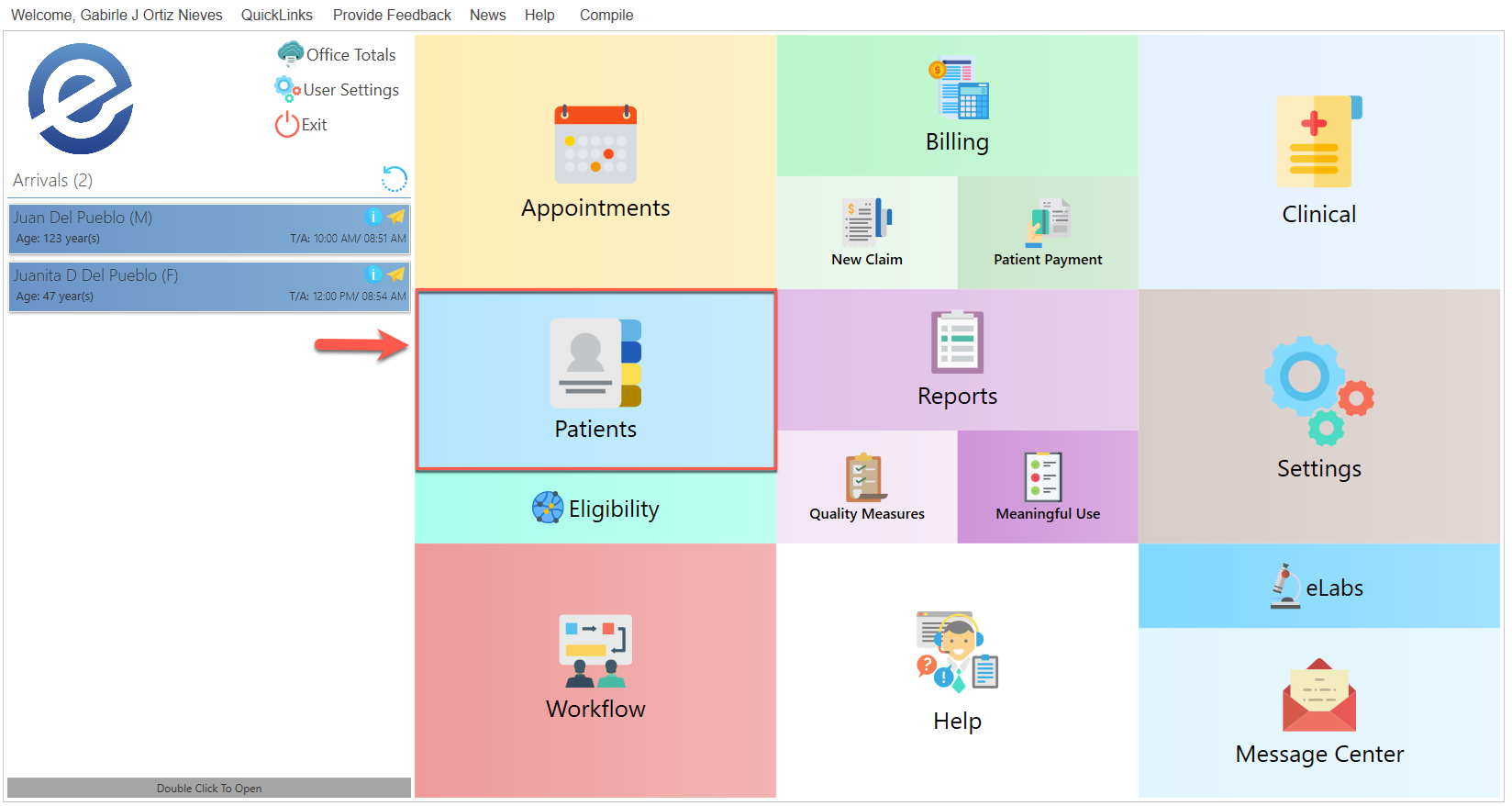
- The following screen will be displayed
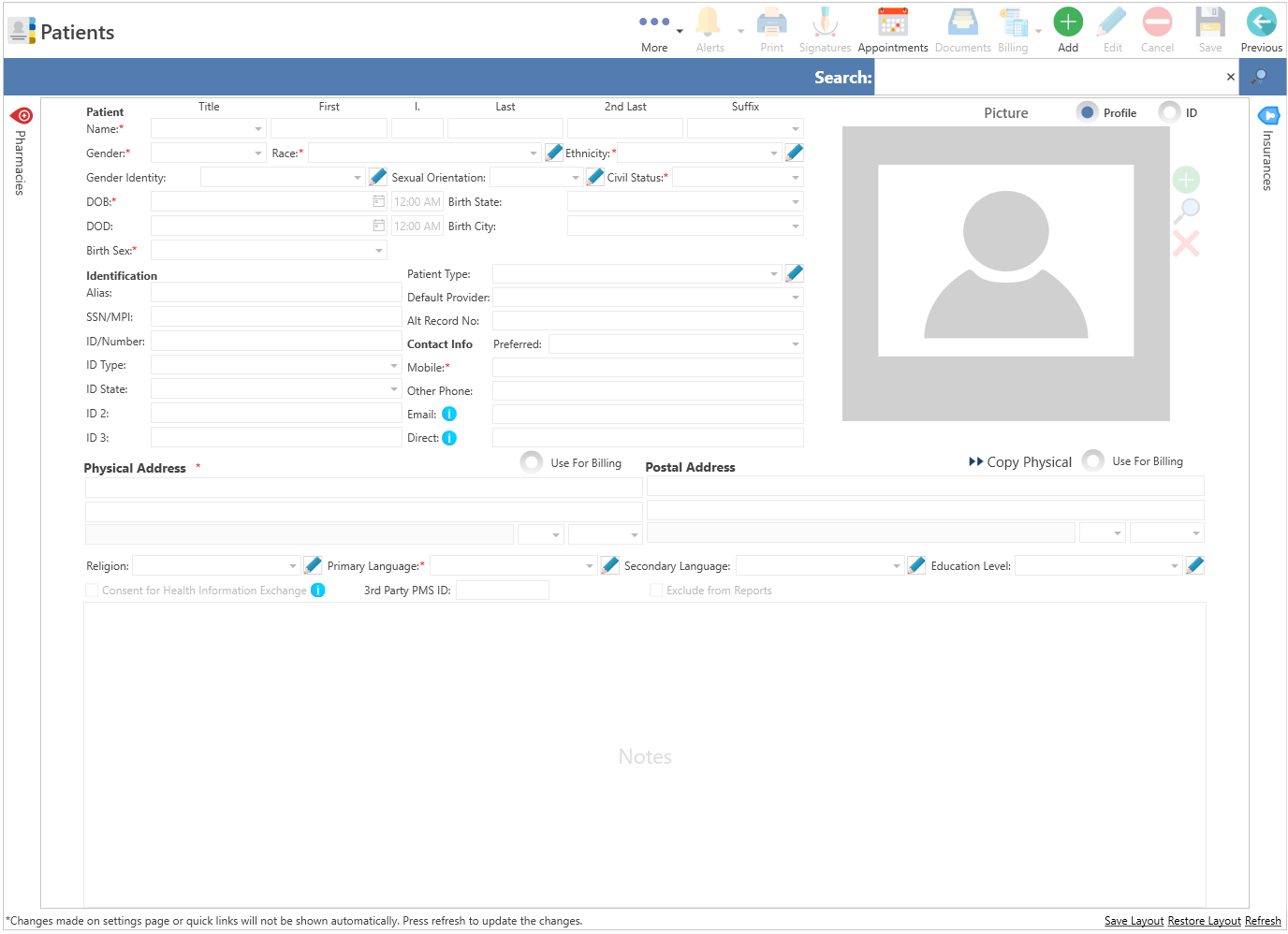
Select the patient, to whom you want to add the signature. (The patient must be cited and registered as having arrived at the center or office).
Press the Signatures button, located at the top of the screen.
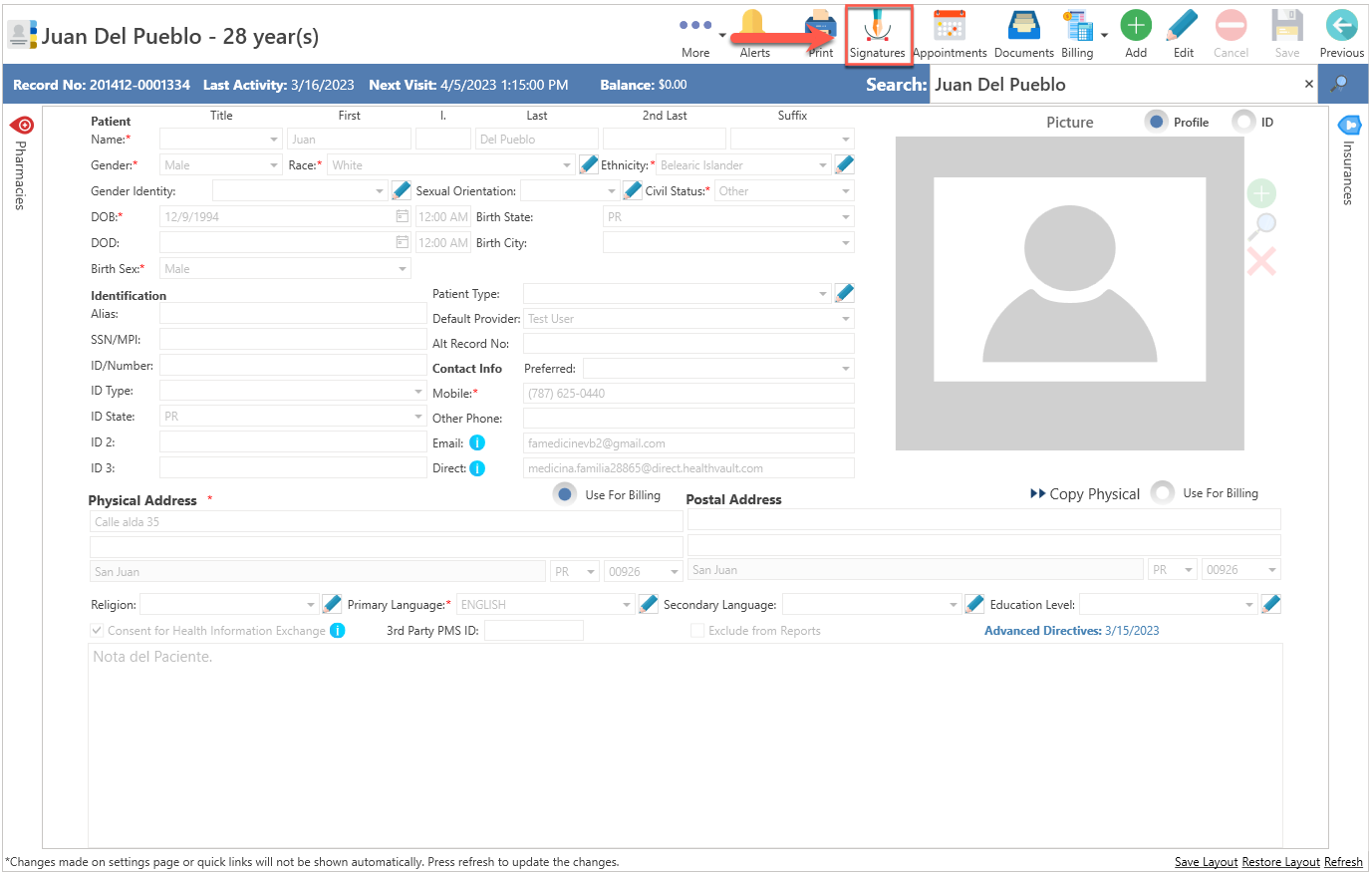
The following screen will be displayed:
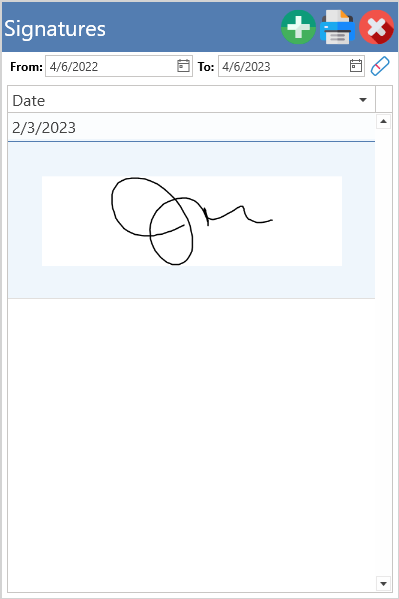
- Press the Add button, located at the top of the screen.
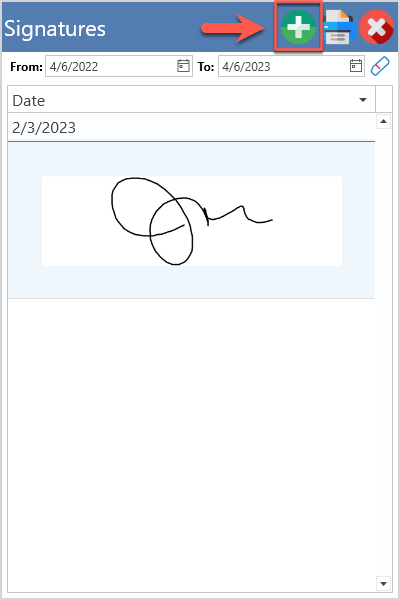
- The screen for the patient's signature, will be displayed.
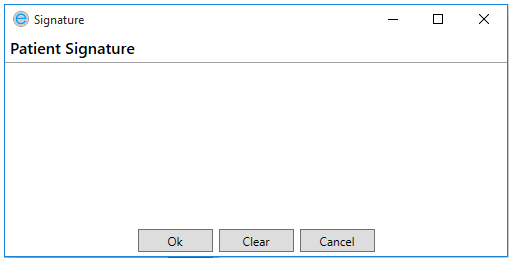
- Instruct the patient to record his/her signature on the Signature Pad connected to the computer.
- Press the Clear button to delete a signature and start over.
- Press the Ok button to save the signature.
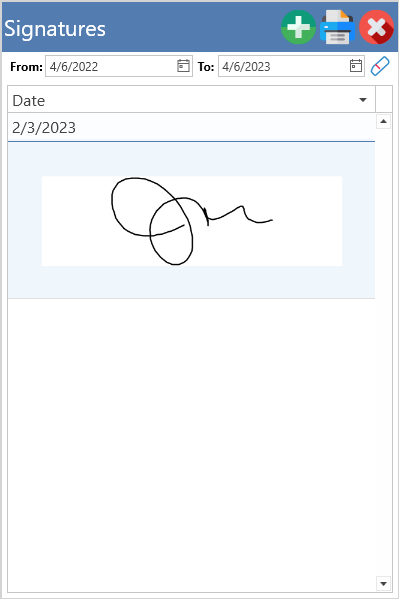
- The signature will be saved and displayed on the screen.
Option #2
- Click on the QuickLinks text, located at the top of the screen.
- Select the Patients option.
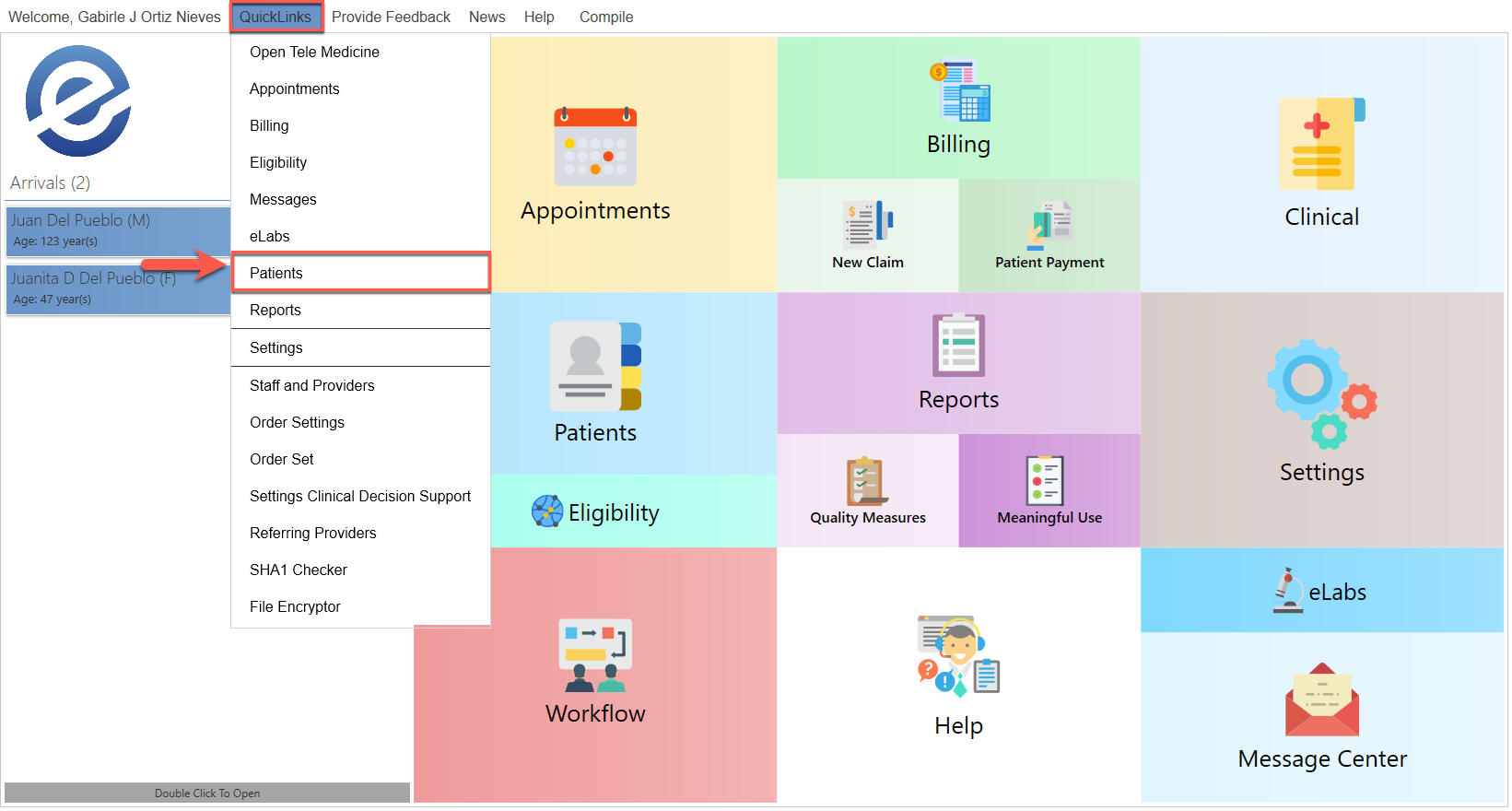
- The following screen will be displayed
Select the patient, to whom you want to add the signature. (The patient must be cited and registered as having arrived at the center or office).
Press the Signatures button, located at the top of the screen.
The following screen will be displayed:
- Press the Add button, located at the top of the screen.
- The screen for the patient's signature, will be displayed.
- Instruct the patient to record his/her signature on the Signature Pad connected to the computer.
- Press the Clear button to delete a signature and start over.
- Press the Ok button to save the signature.
- The signature will be saved and displayed on the screen.
Recommended Article:
- Learn More About: Patients / Signatures
Did you find it helpful? Yes No
Can you please tell us how we can improve this article?