Description
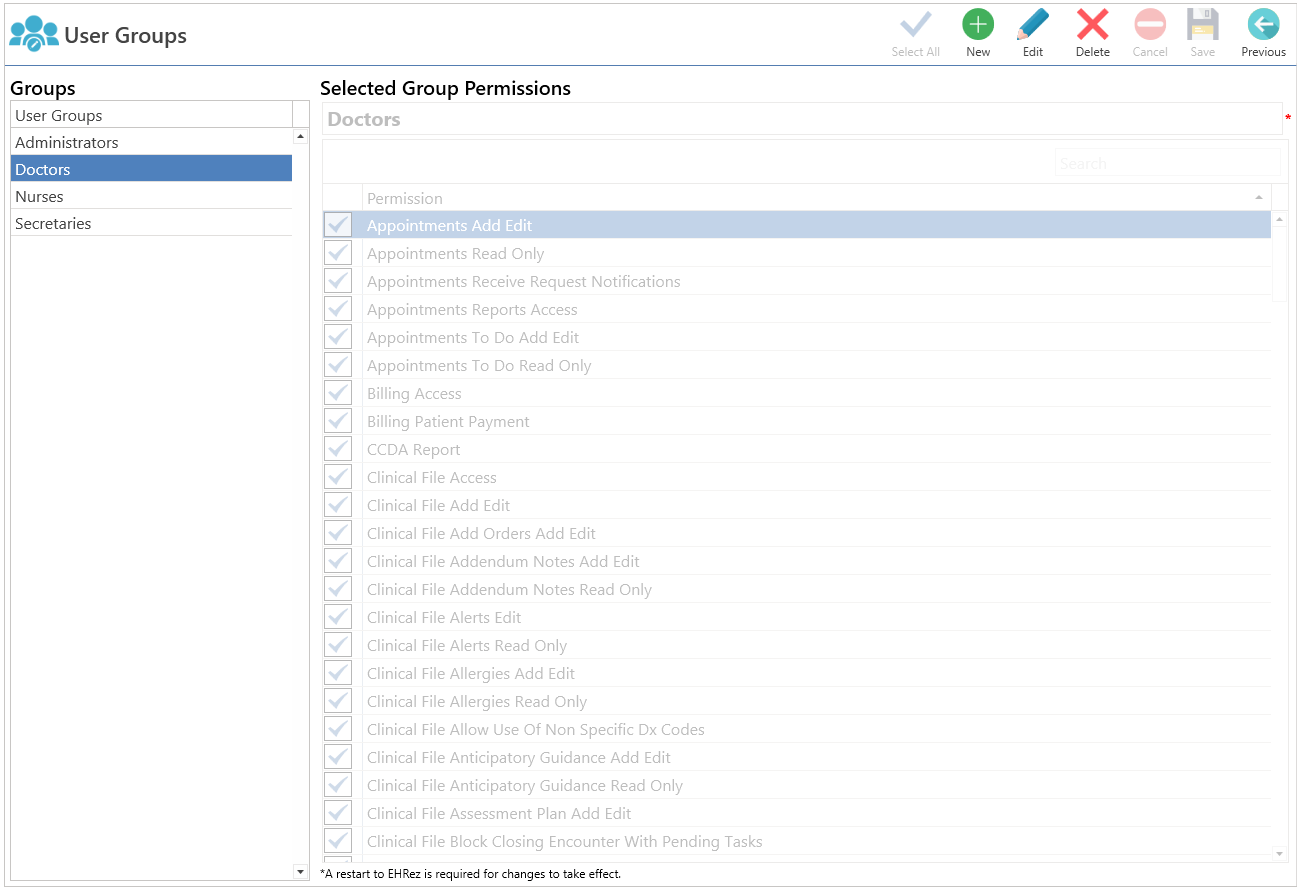
Screen used to create new user groups and/or to configure user group permissions.
Access
Through Settings
- In the Main Menu, press the Settings button.
- Press the General button and then select the Groups button.
Through QuickLinks
- In the main menu, click on the QuickLinks text, located at the top of the screen.
- Select the Settings option.
- Then press the General button and select the Groups button.
Sections
Buttons
- Select All: When pressed, all available permissions are selected and assigned to the selected group.
- New: Press to create a new group.
- Edit: Pressing it allows you to edit the selected group. The Auditor and Administrators groups cannot be edited.
- Delete: Pressing allows you to delete the selected group (not all groups can be deleted).
- Cancel: Pressing allows you to cancel any changes made on the screen.
Save: When pressed, saves the changes made on the screen.
Previous: Allows to close the screen.
Groups: Displays the list of all groups that can be assigned to users.
Selected Group Permissions: Displays the list of all available permissions in the program, according to the selection for each group.
Important Note:
** Any changes made on this screen, will take effect when the application is restarted. **
Recommended Article:
- FAQ's: Settings / General / Groups