Settings / Office / Referring Providers
Modified on: Tue, 28 Jan, 2025 at 3:58 PM
Description
Screen where you configure the register of suppliers, which refer to the office or center.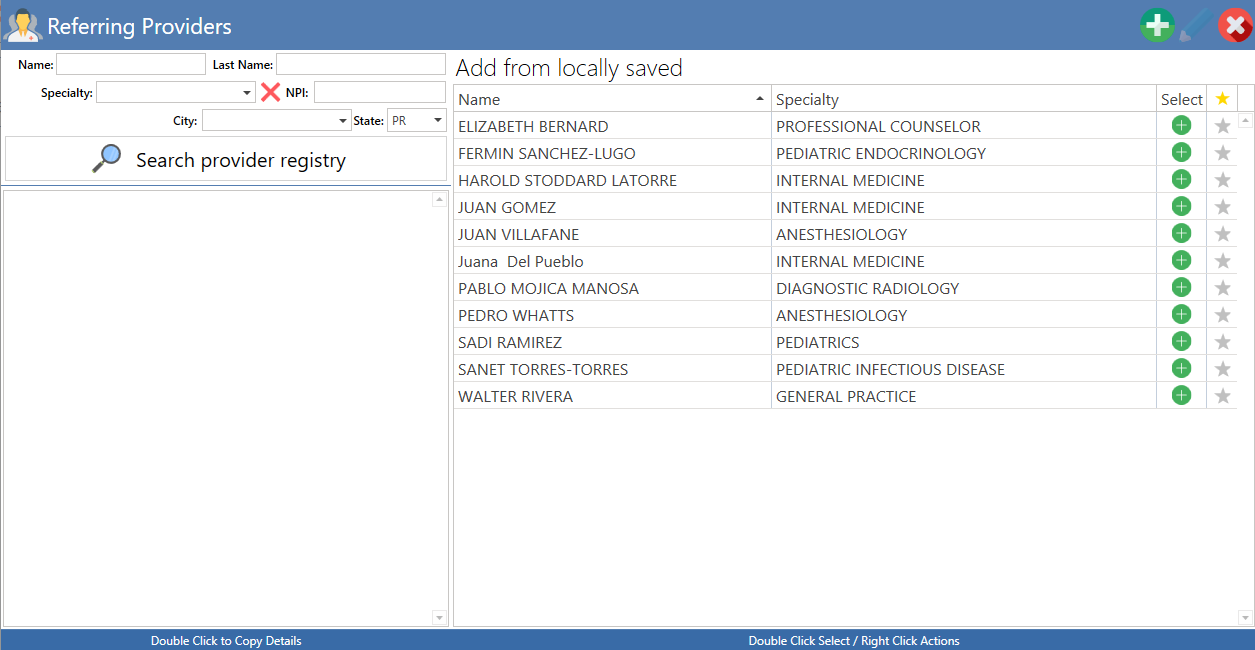
Access
Through Settings
- In the Main Menu, press the Settings button.
- Press the Office button and select the Referring Providers button.
Through QuickLinks
- In the main menu, click on the QuickLinks text, located at the top of the screen.
- Select the Referring Providers option.
Through QuickLinks
- In the main menu, click on the QuickLinks text, located at the top of the screen.
- Select the Settings option. Then press the Office button and then select the Referring Providers button.
Through Billing
- From the main menu, press the Billing button.
- On the Billing Claims and Aging screen, press the Settings button, located at the top of the screen.
- Select the Referring Providers option.
Through Clinical
- In the main menu, press the Clinical button.
- Select a patient, once selected, press the Referral button.
- Then press the Set button, located in the Specific Provider section of the Patient Referral screen.
Sections
Buttons
- Add: Allows you to add a new provider (When you press this button, the fields to enter the provider's data will be activated).
- Edit: Edit the selected provider in the table of already saved providers.
- Cancel: Cancel any changes to be made, then close the screen.
Search provider registry or NPI Registry Search: Designated section to search within the health provider network. Right now, you can search by NPI, City, zip code, provider name and specialty.
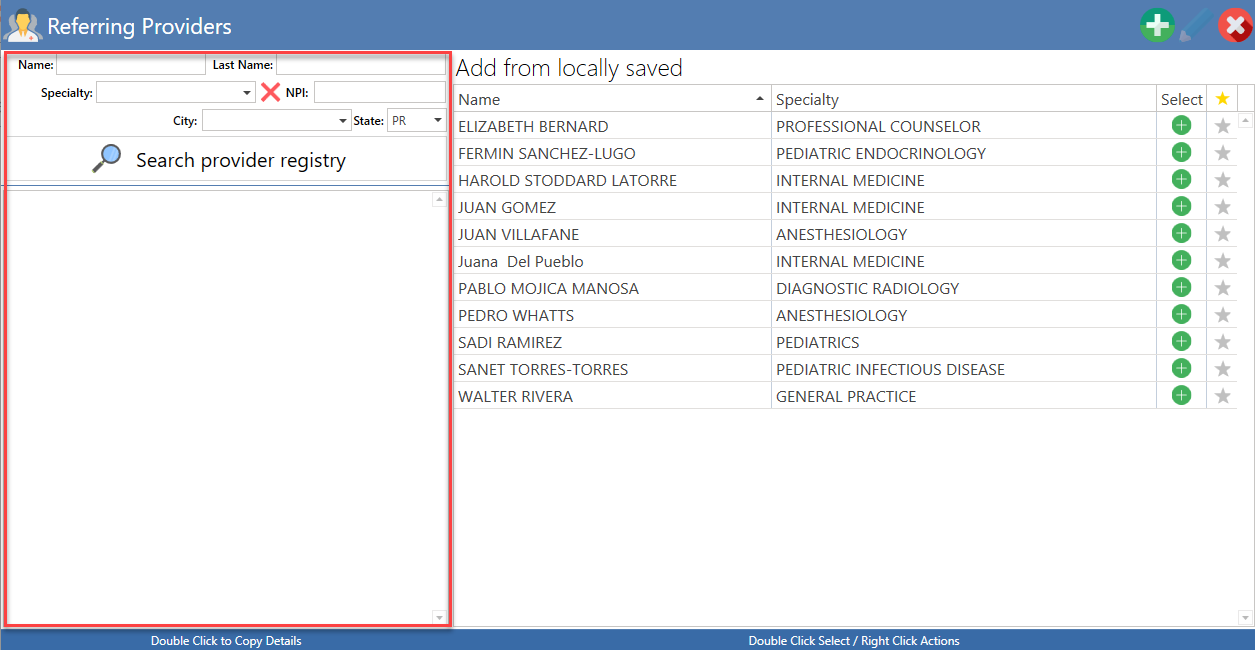
- Provider Details: Screen to edit the details of the selected provider. The following fields are the search fields: NPI, City, Zip, Name and Specialty.
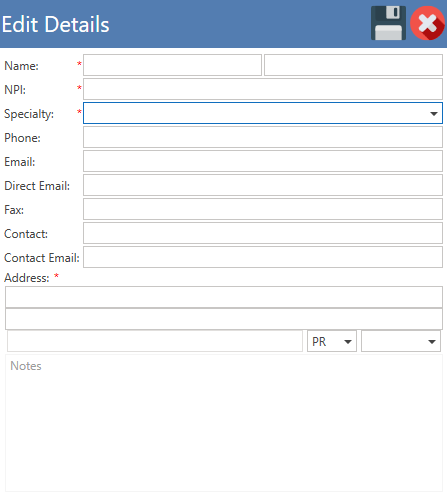
Details
- Name: Name of provider.
- NPI: Provider's NPI.
- Specialty: Provider's specialty.
- Phone: Provider's phone number.
- Email: Provider's email.
- Direct Email: Direct Address. The Direct address will be the NPI number followed by @patient.ehrez.com.
- Example: jdelpueblo@patient.ehrez.com
- Fax: Provider's fax telephone number.
- Contact: Provider's office contact number.
- Contact Email: Contact person's e-mail address.
- Address: Provider's address.
- Notes: Area where notes are written.
- Search: The referred suppliers will be displayed, as selected by the user.
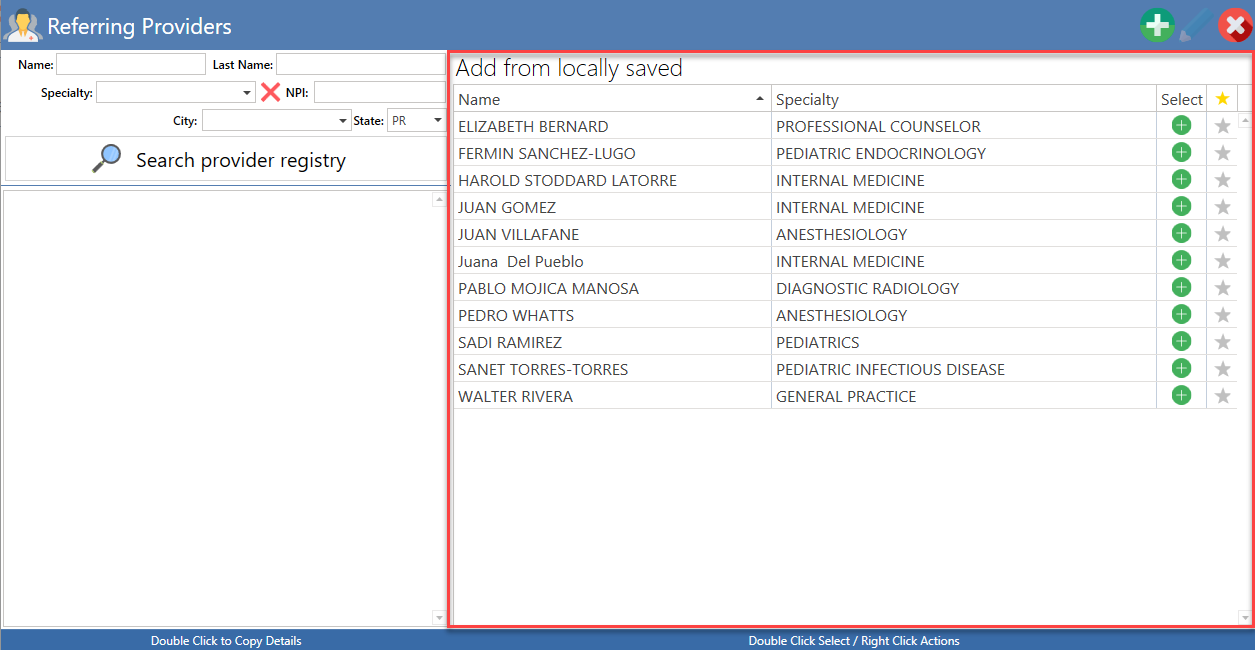
Note: To save one of the searched suppliers, simply left click twice on the name and automatically, the fields in the details section will be filled in, click the OK button. - Tabla de mis proveedores: In this section, you will find the suppliers that the office refers to the most.
Did you find it helpful? Yes No
Can you please tell us how we can improve this article?