How to edit a provider or nurse?
Modified on: Mon, 17 Mar, 2025 at 9:10 AM
There are several options for editing a provider or a nurse.
Option #1
- Click on the QuickLinks text, located at the top of the screen.
- Select the Settings option.
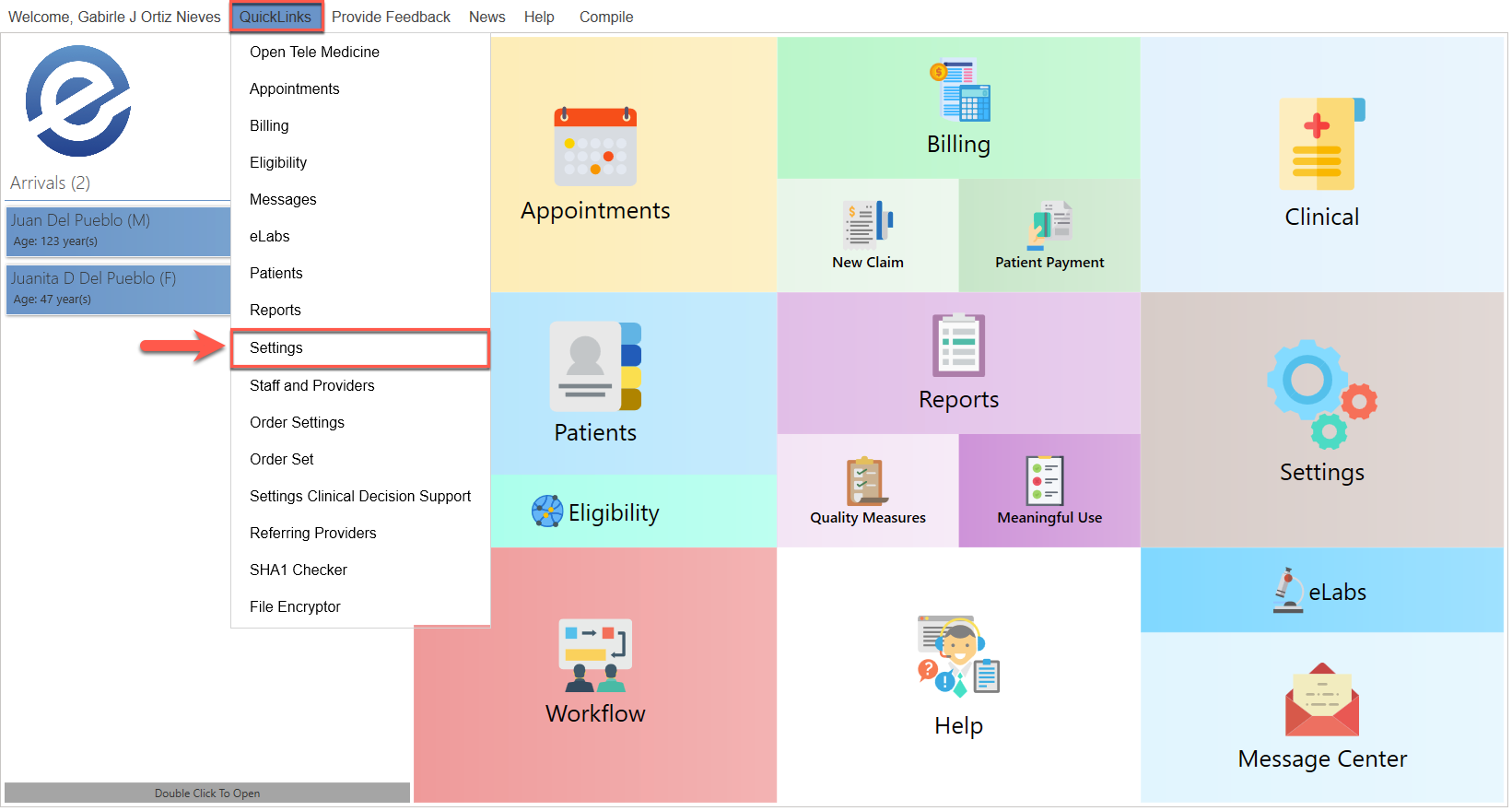
- The following screen will be displayed:
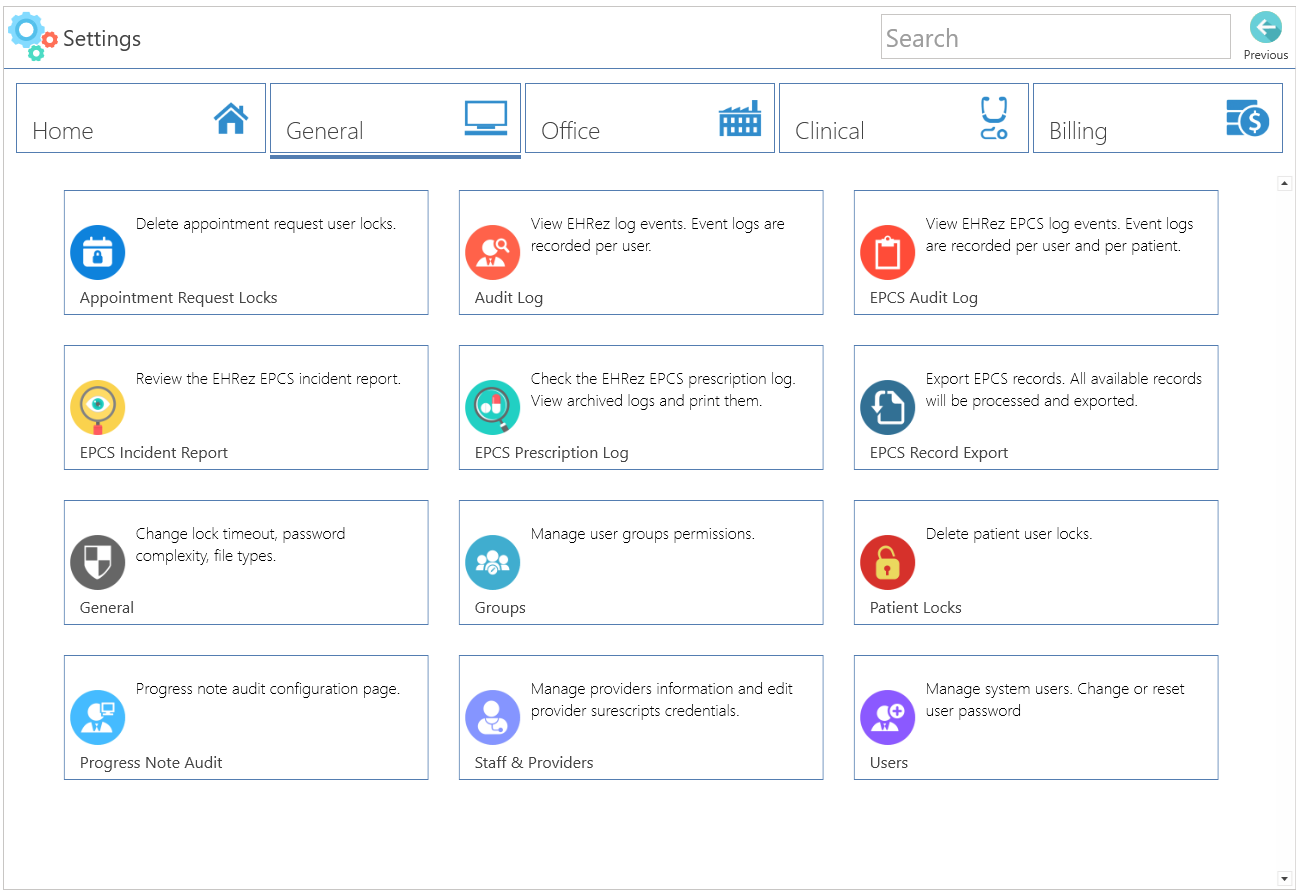
- Click on the General button and select the Staff & Providers option.
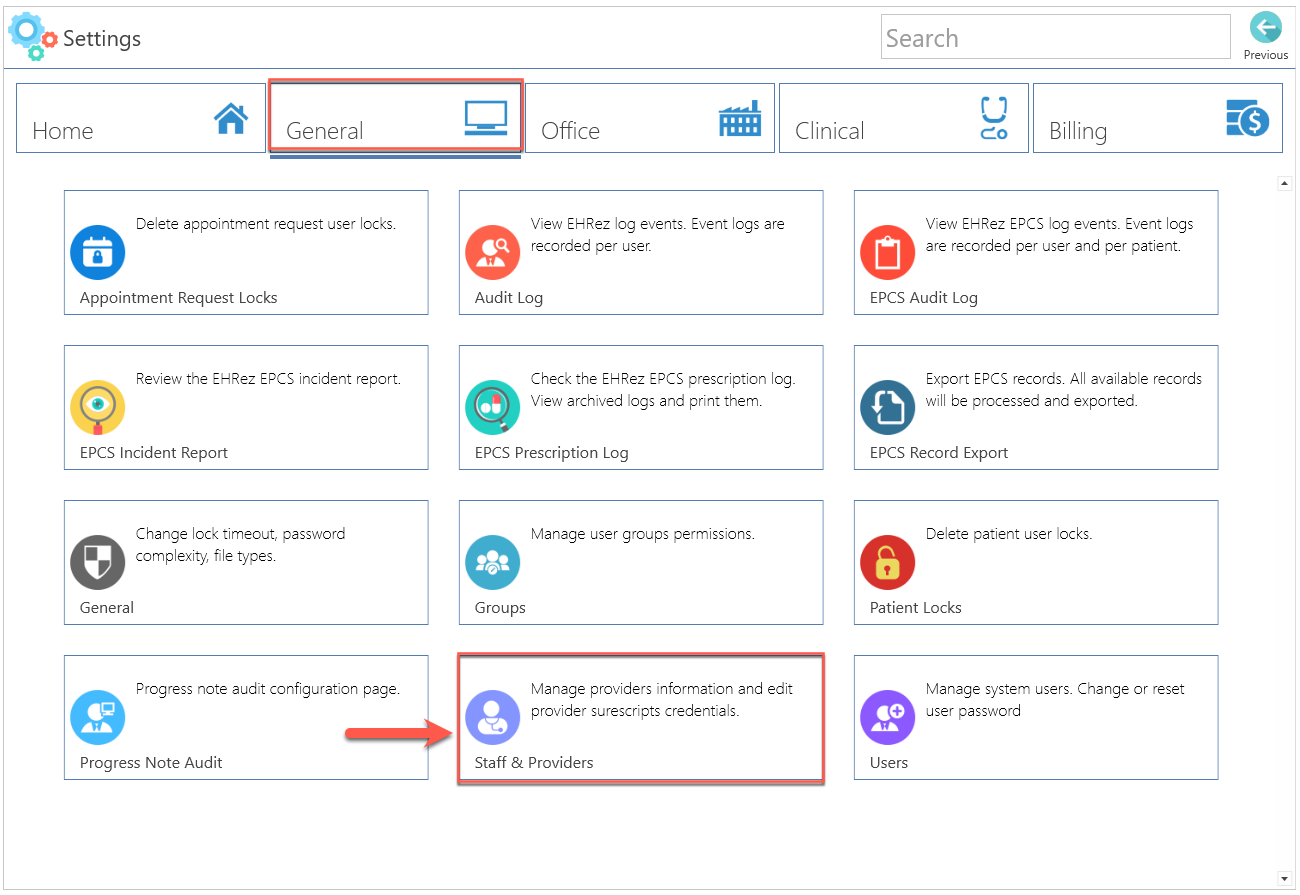
- The following screen will be displayed:
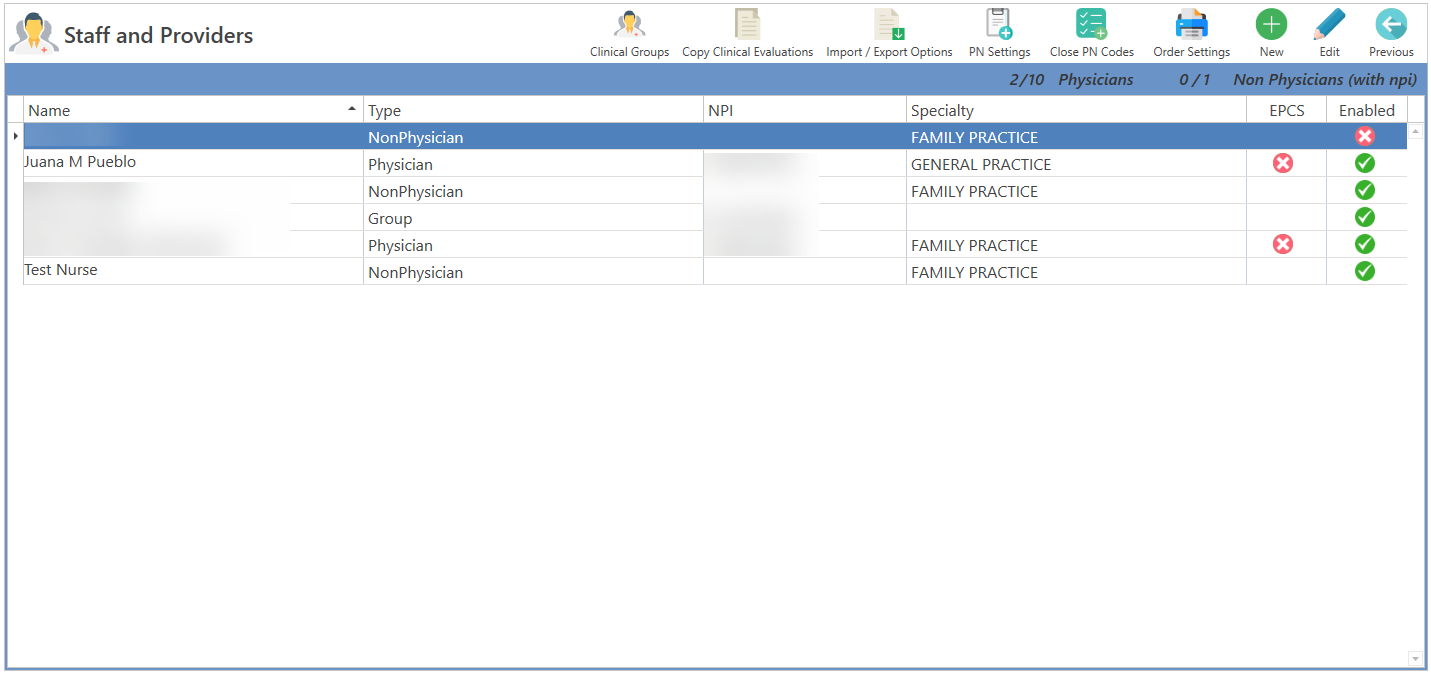
- Select the provider you wish to edit.
- Once selected, press the Edit button located at the top of the screen.
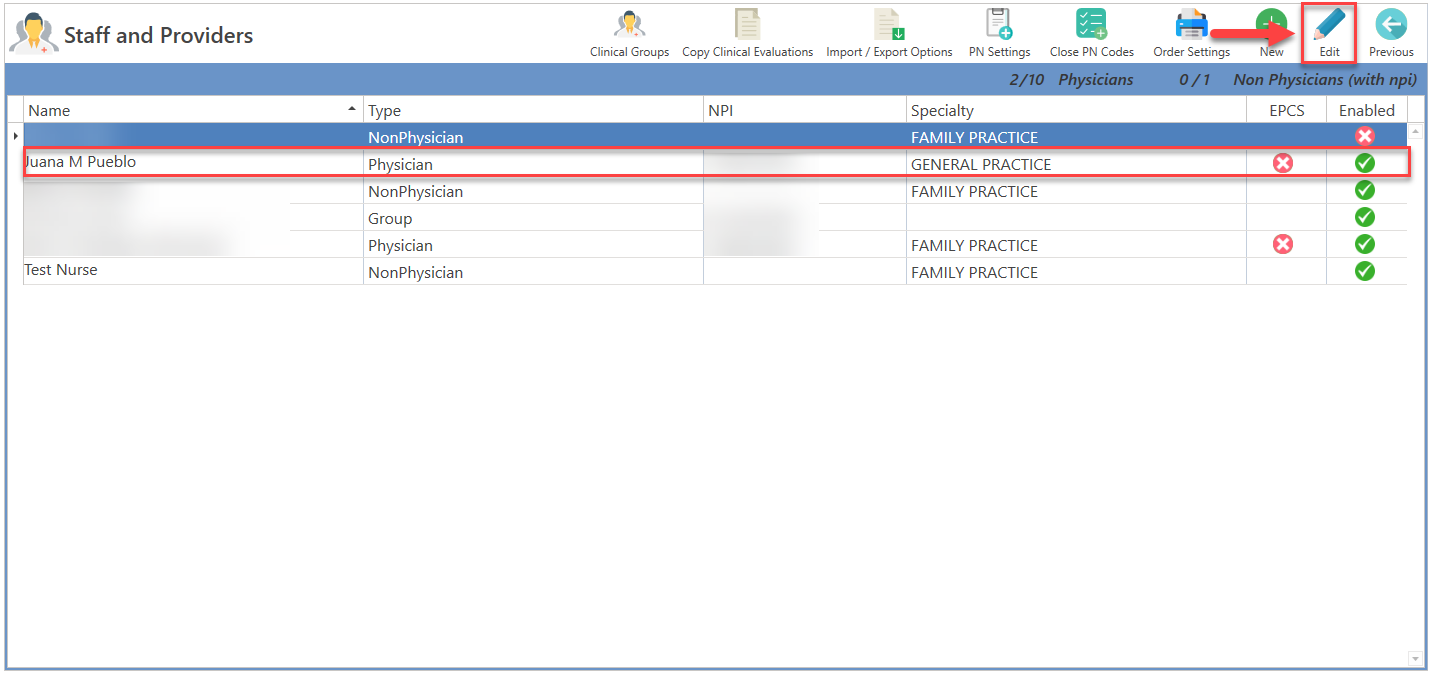
- The following screen will be displayed:

- Make the corresponding modifications.
- Once the modifications have been completed, press the Save button to save the changes.
- The following screen will be displayed:
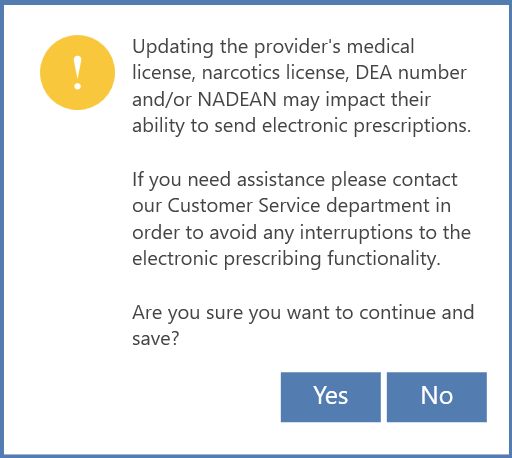
- Press the Yes button to continue and save the modifications.
- Press the No button to cancel the action.
Option #2
- Click on the QuickLinks text, located at the top of the screen.
- Select the Staff and Providers option.
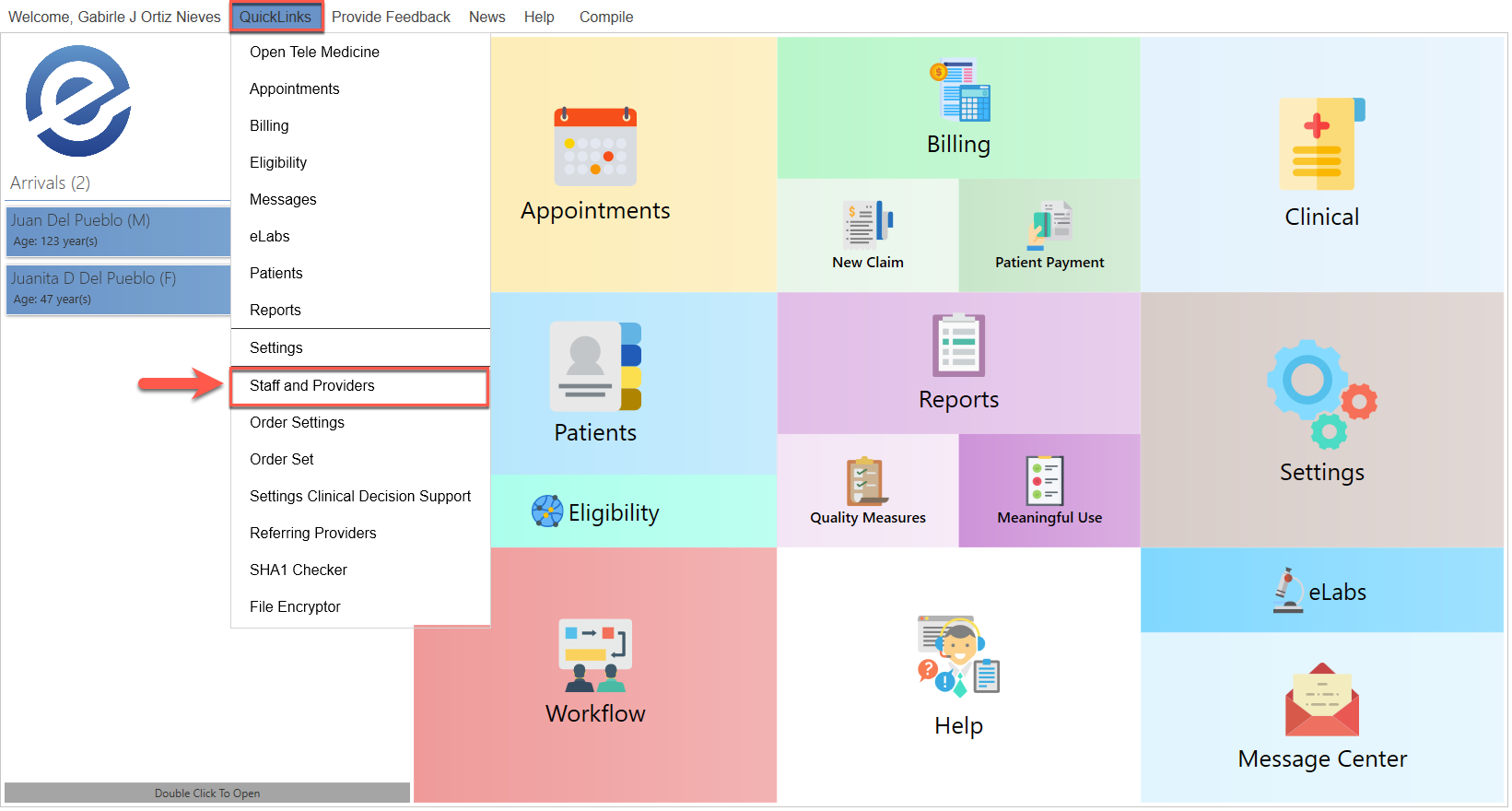
- The following screen will be displayed:
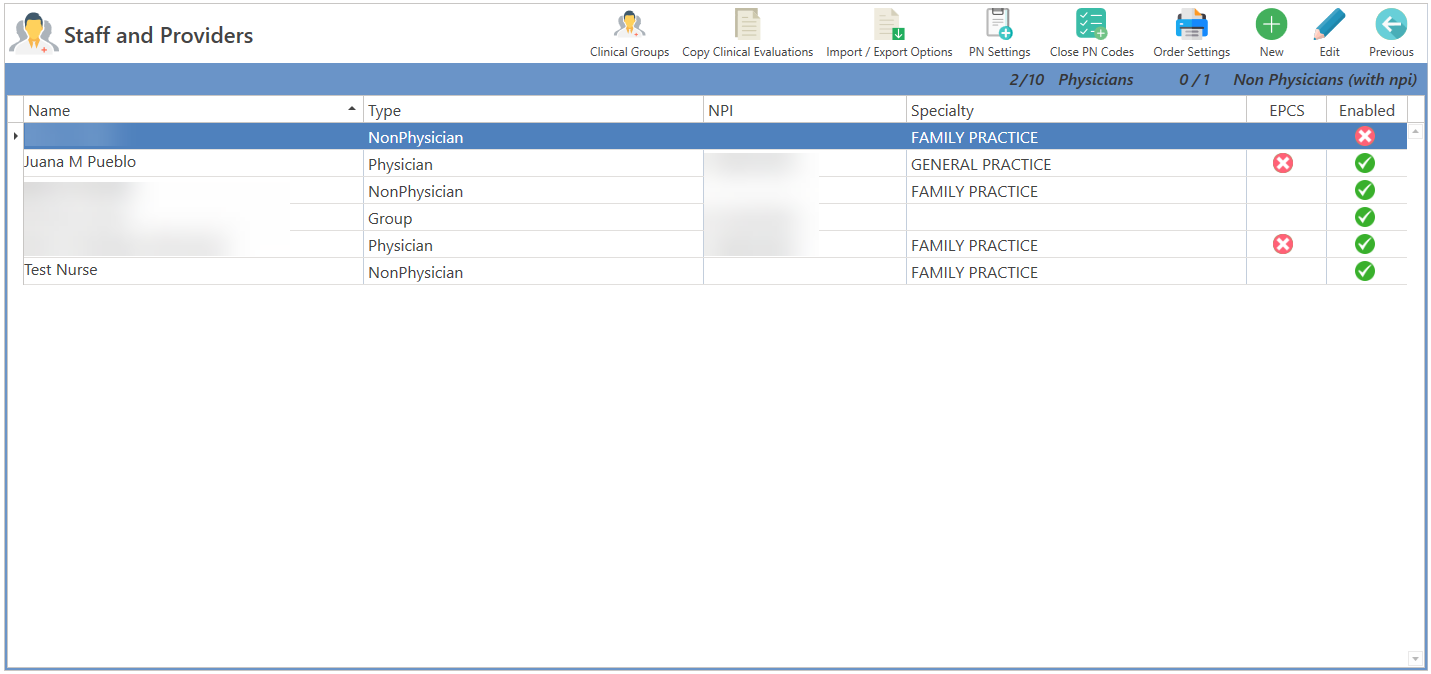
- Select the provider you wish to edit.
- Once selected, press the Edit button located at the top of the screen.
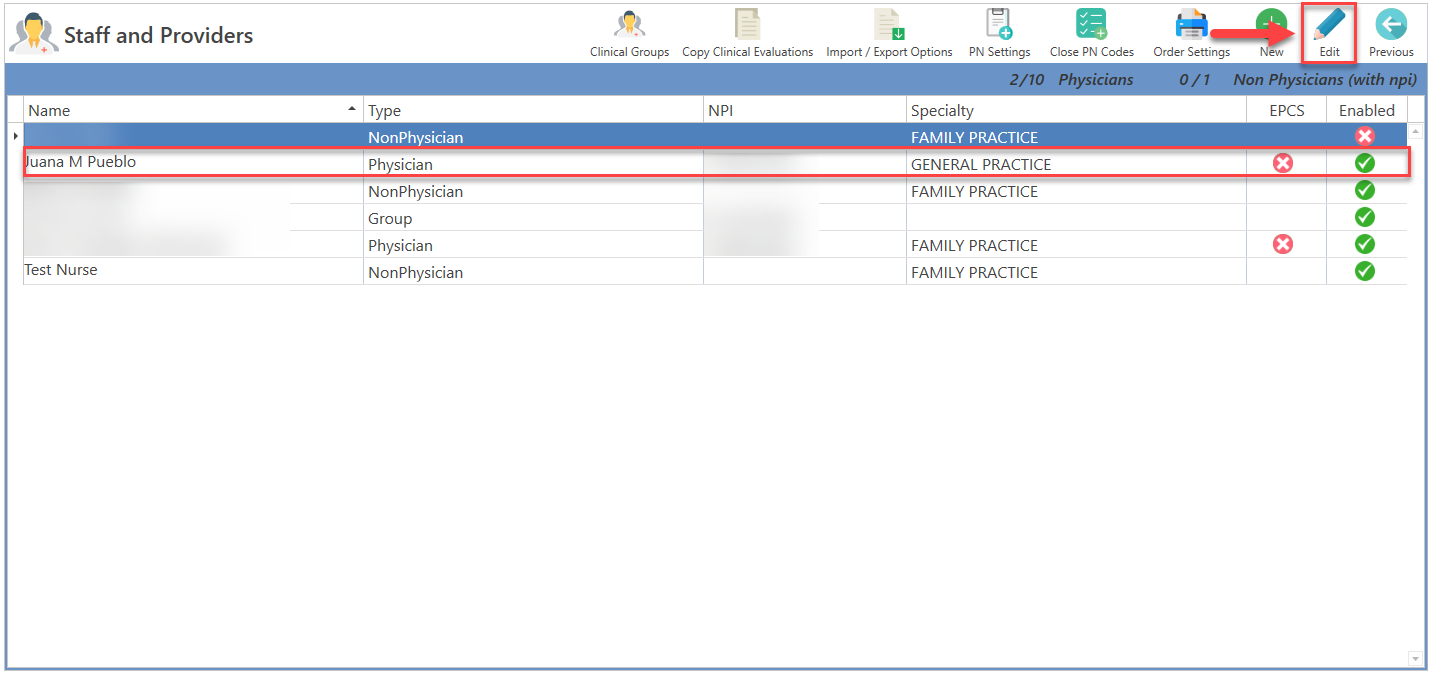
- The following screen will be displayed:

- Make the corresponding modifications.
- Once the modifications have been completed, press the Save button to save the changes.
- The following screen will be displayed:
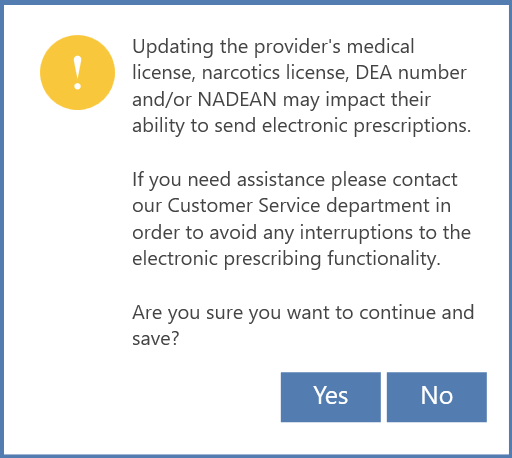
- Press the Yes button to continue and save the modifications.
- Press the No button to cancel the action.
Option #3
- Press the Settings button in the main menu.
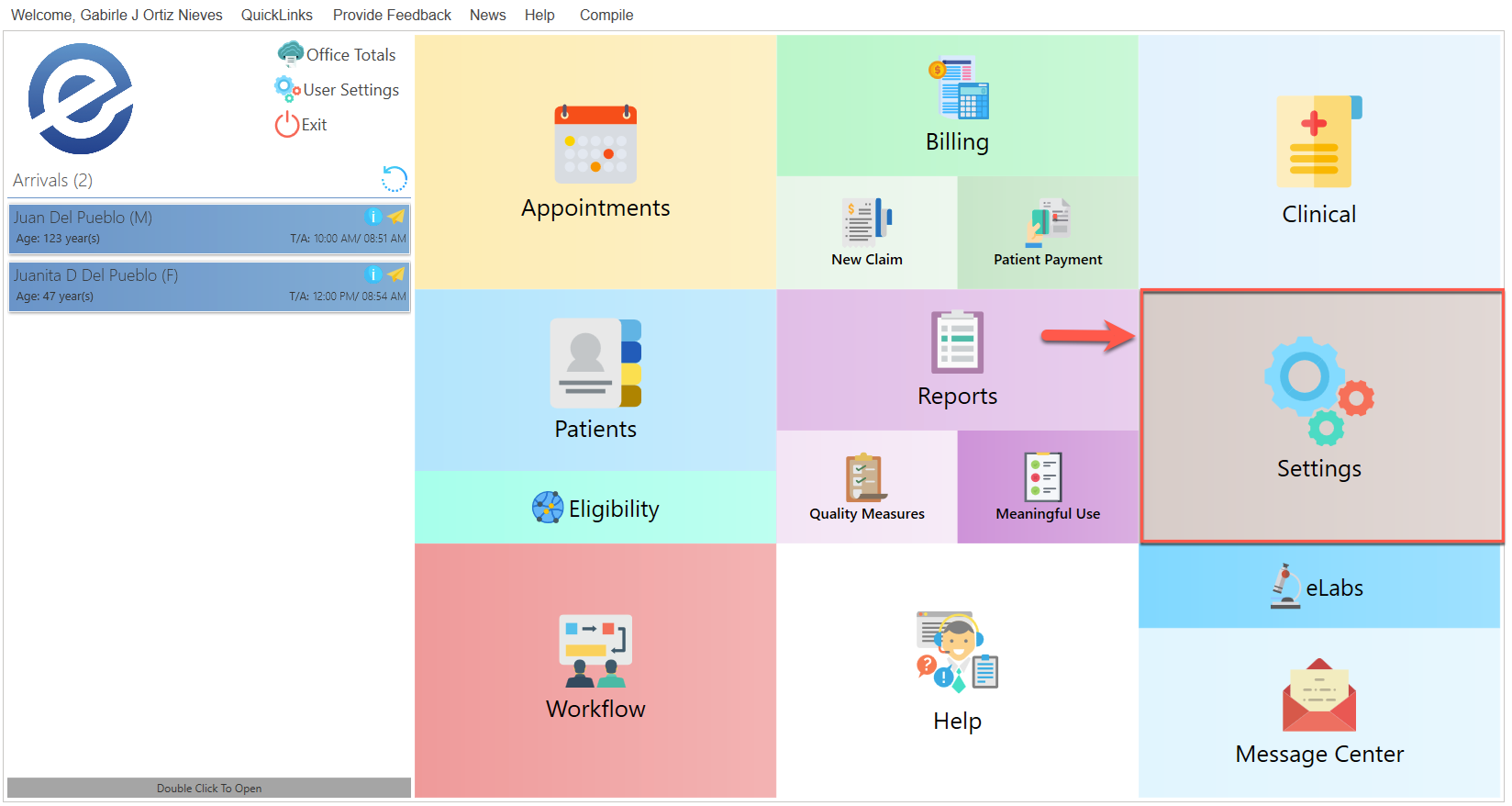
- The following screen will be displayed:
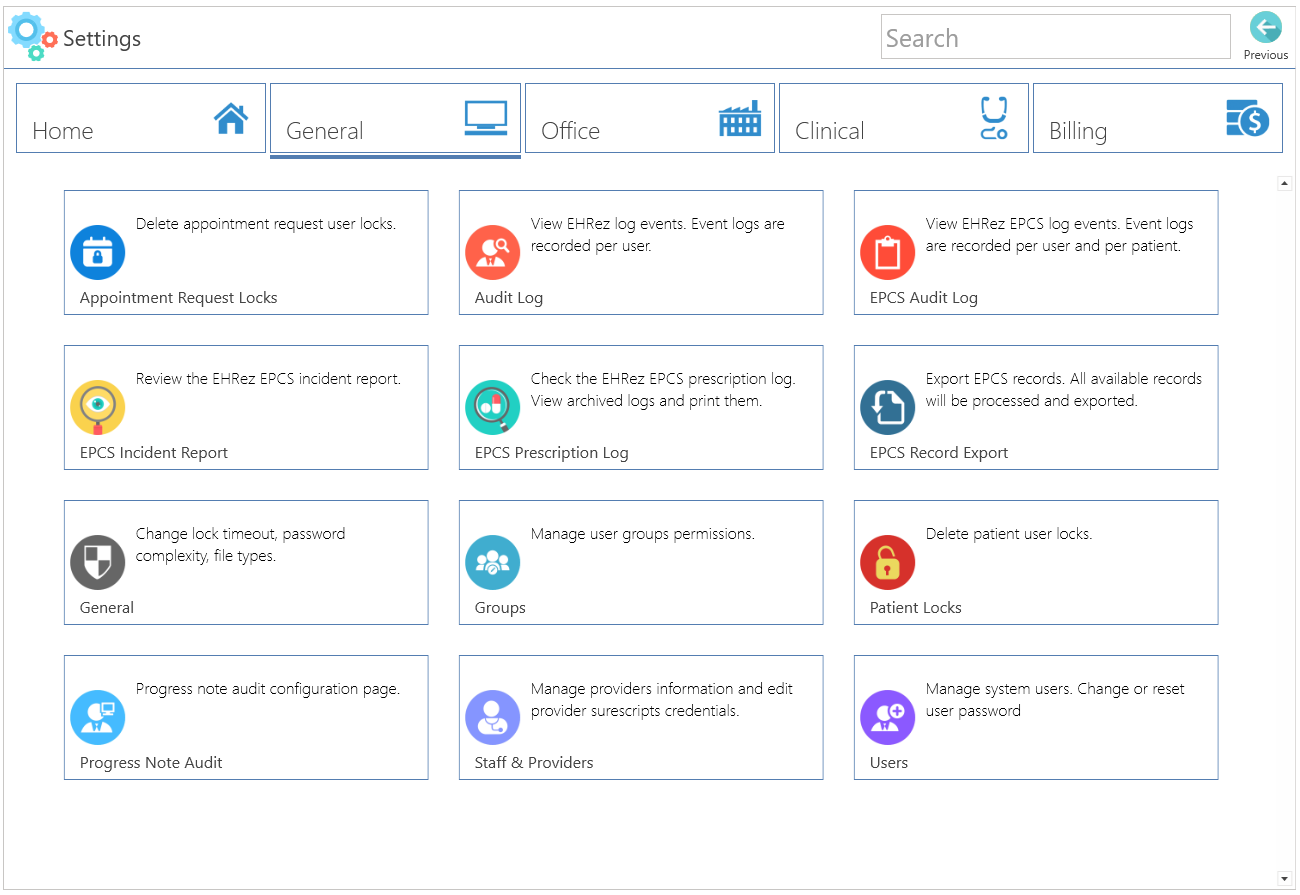
- Click on the General button and select the Staff & Providers option.
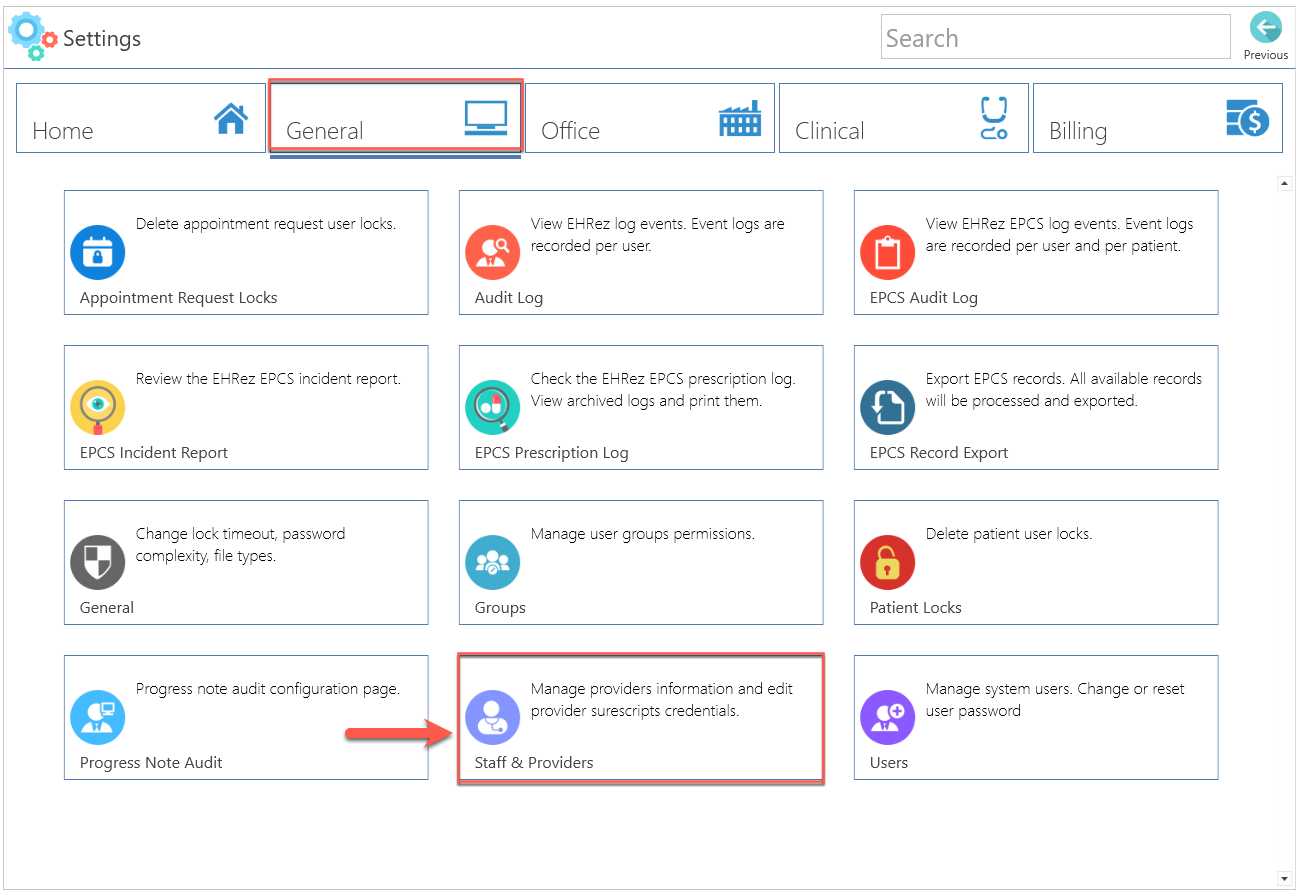
- The following screen will be displayed:
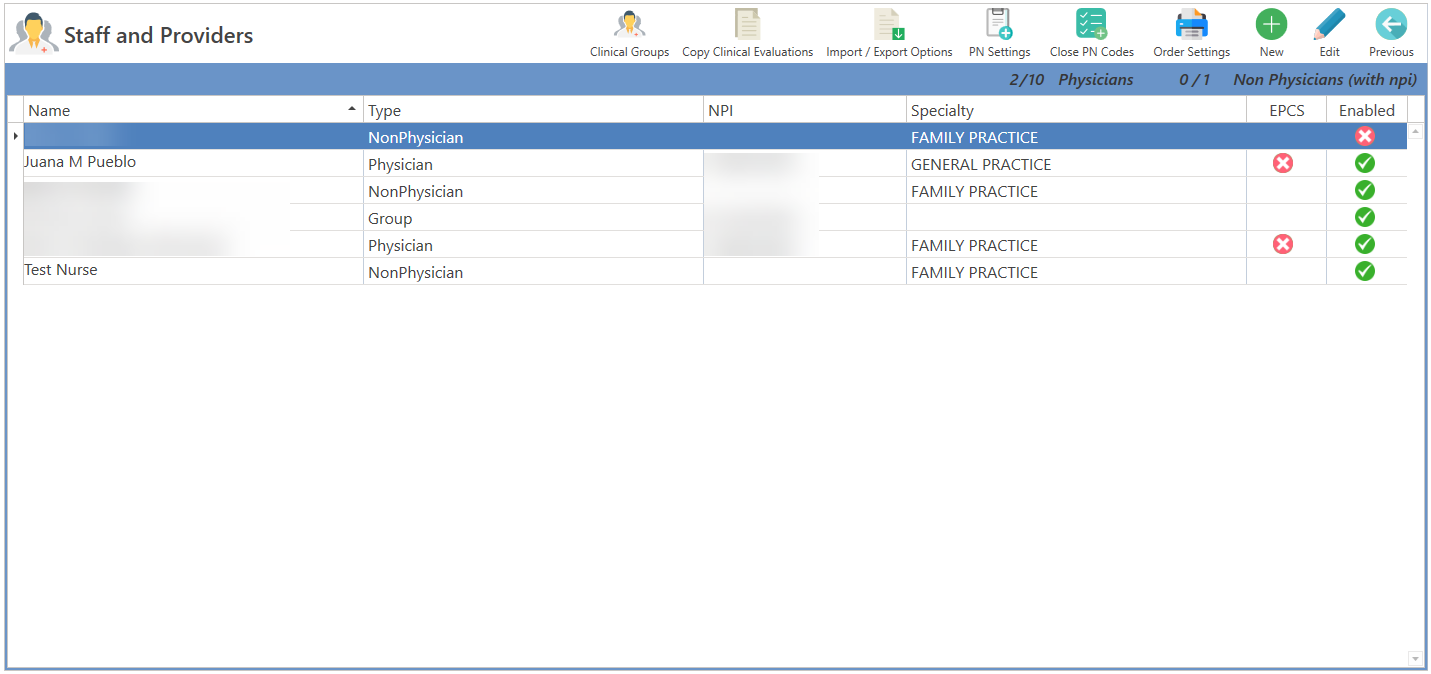
- Select the provider you wish to edit.
- Once selected, press the Edit button located at the top of the screen.
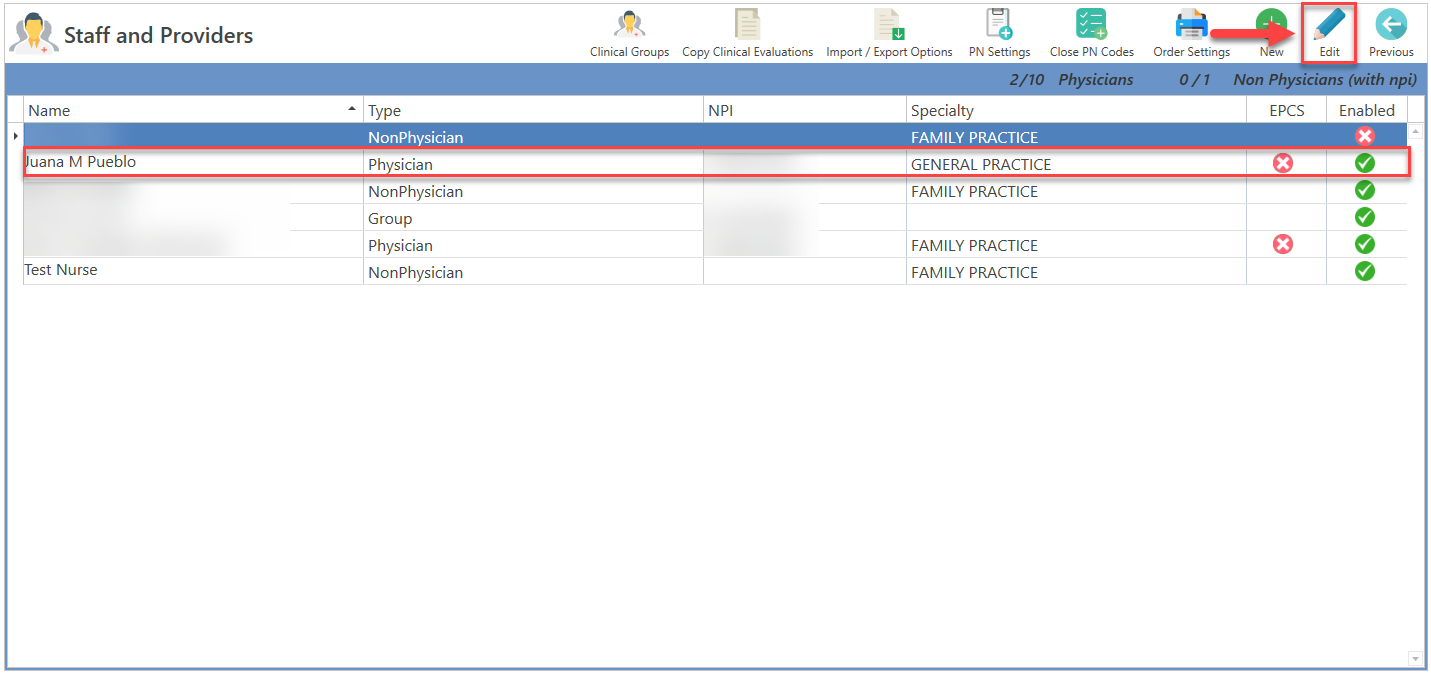
- The following screen will be displayed:

- Make the corresponding modifications.
- Once the modifications have been completed, press the Save button to save the changes.
- The following screen will be displayed:
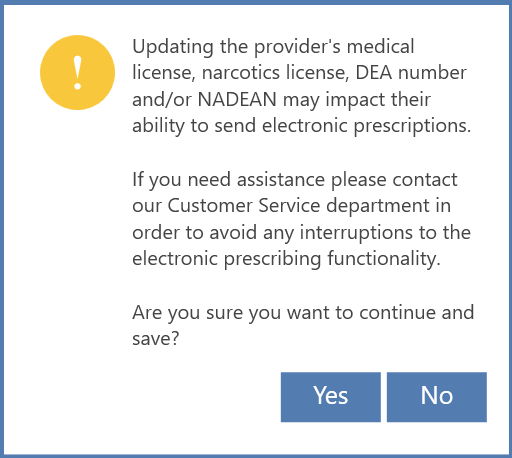
- Press the Yes button to continue and save the modifications.
- Press the No button to cancel the action.
Option #4
- Go to the Billing screen.
- Press the Settings button, located at the top of the screen.
- Select the Staff & Providers option.
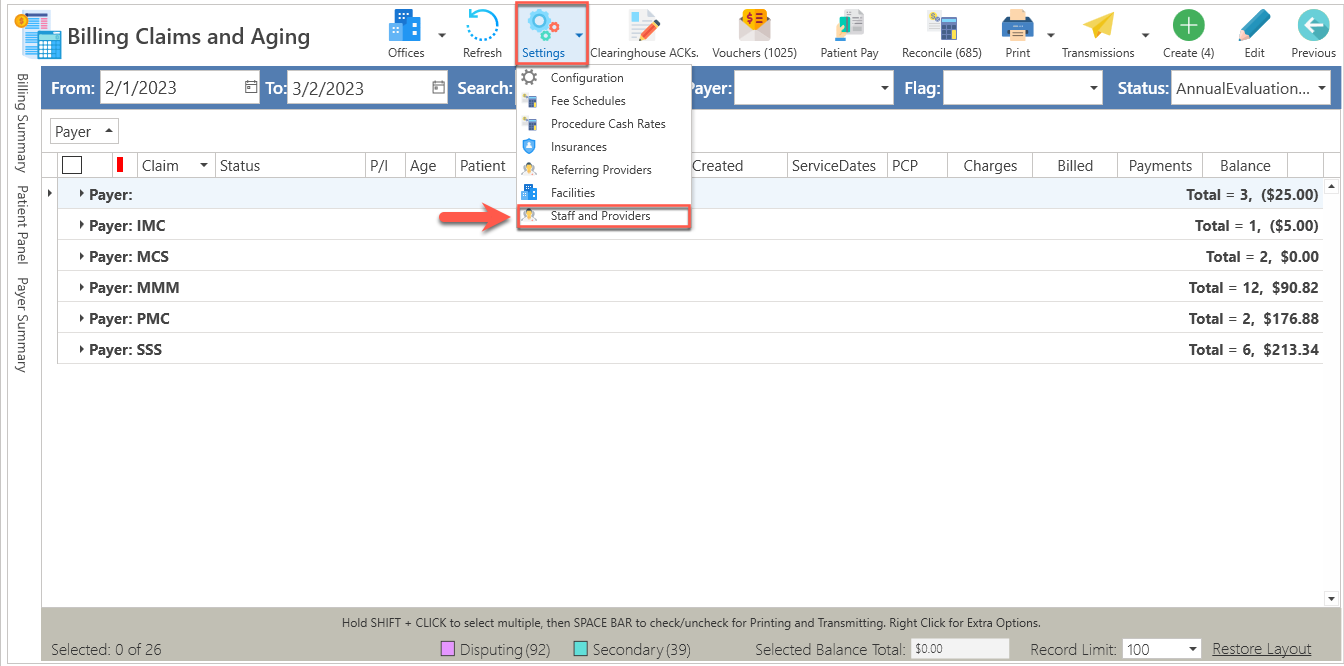
- The following screen will be displayed:
- Select the provider you wish to edit.
- Once selected, press the Edit button located at the top of the screen.
- The following screen will be displayed:
- Make the corresponding modifications.
- Once the modifications have been completed, press the Save button to save the changes.
- The following screen will be displayed:
- Press the Yes button to continue and save the modifications.
- Press the No button to cancel the action.
Recommended Article:
- Learn More About: Settings / General / Staff and Providers
Did you find it helpful? Yes No
Can you please tell us how we can improve this article?