How to change th colors to be displayed in the system according to the user's preference?
Modified on: Thu, 13 Mar, 2025 at 10:46 AM
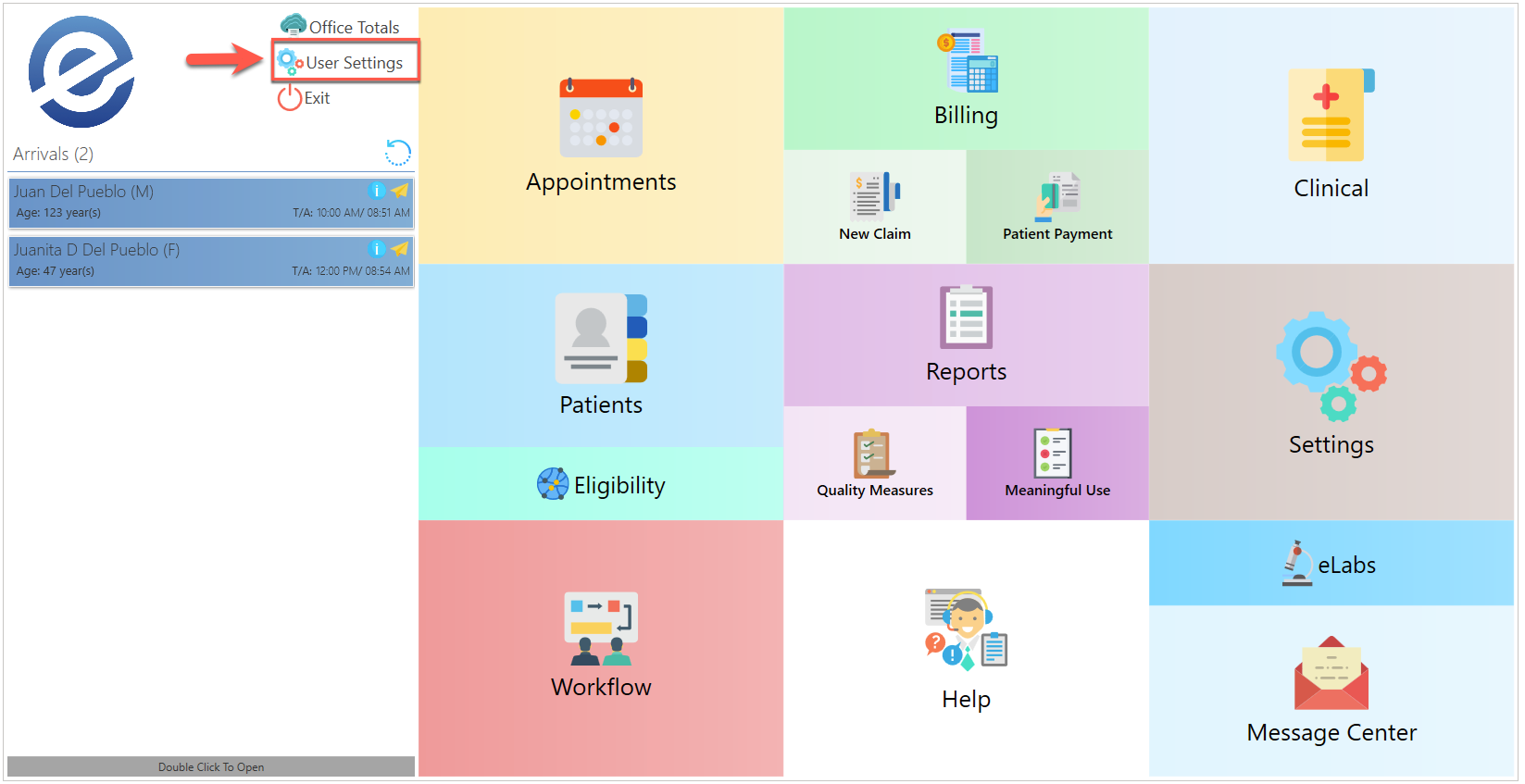
- Navigate to the Main Menu screen.
- Press the User Settings button, located in the left panel of the screen.
- The screen that will appear is as follows:
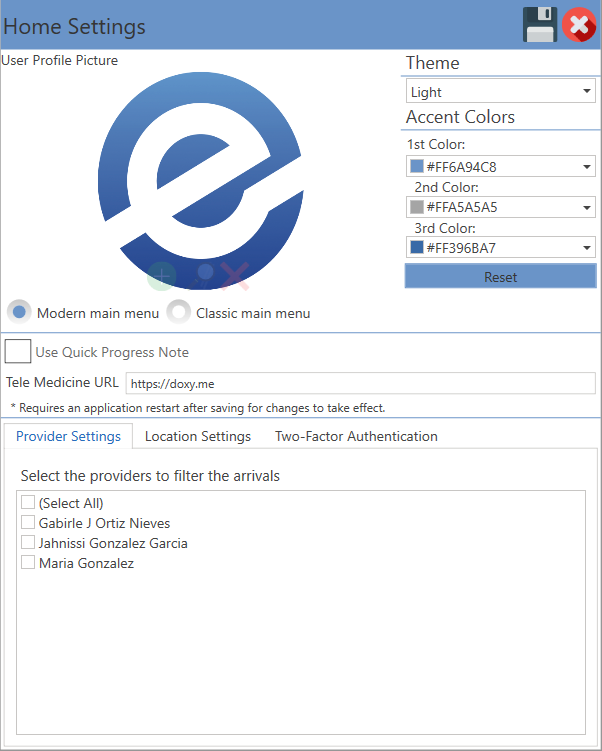
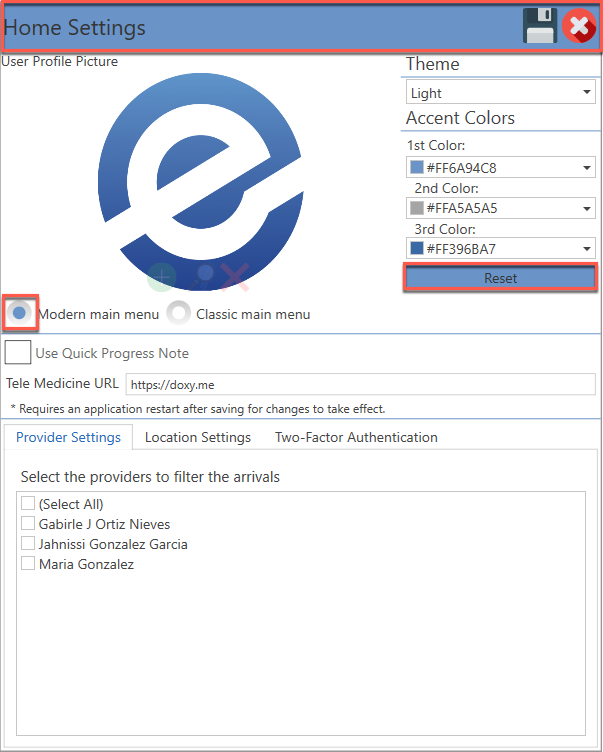
- First Color: Choose the color for the menu bar within the window. For instance:
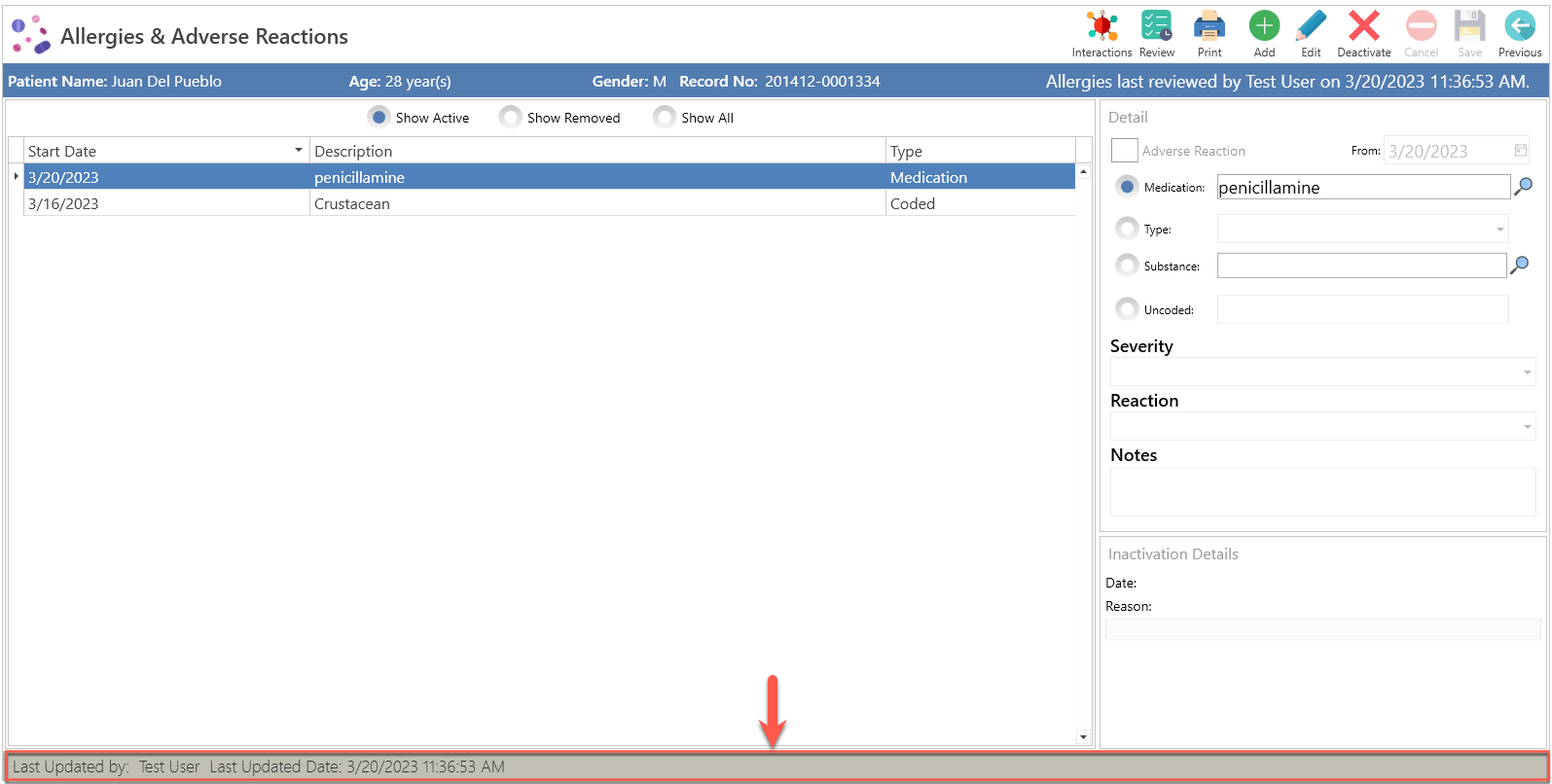
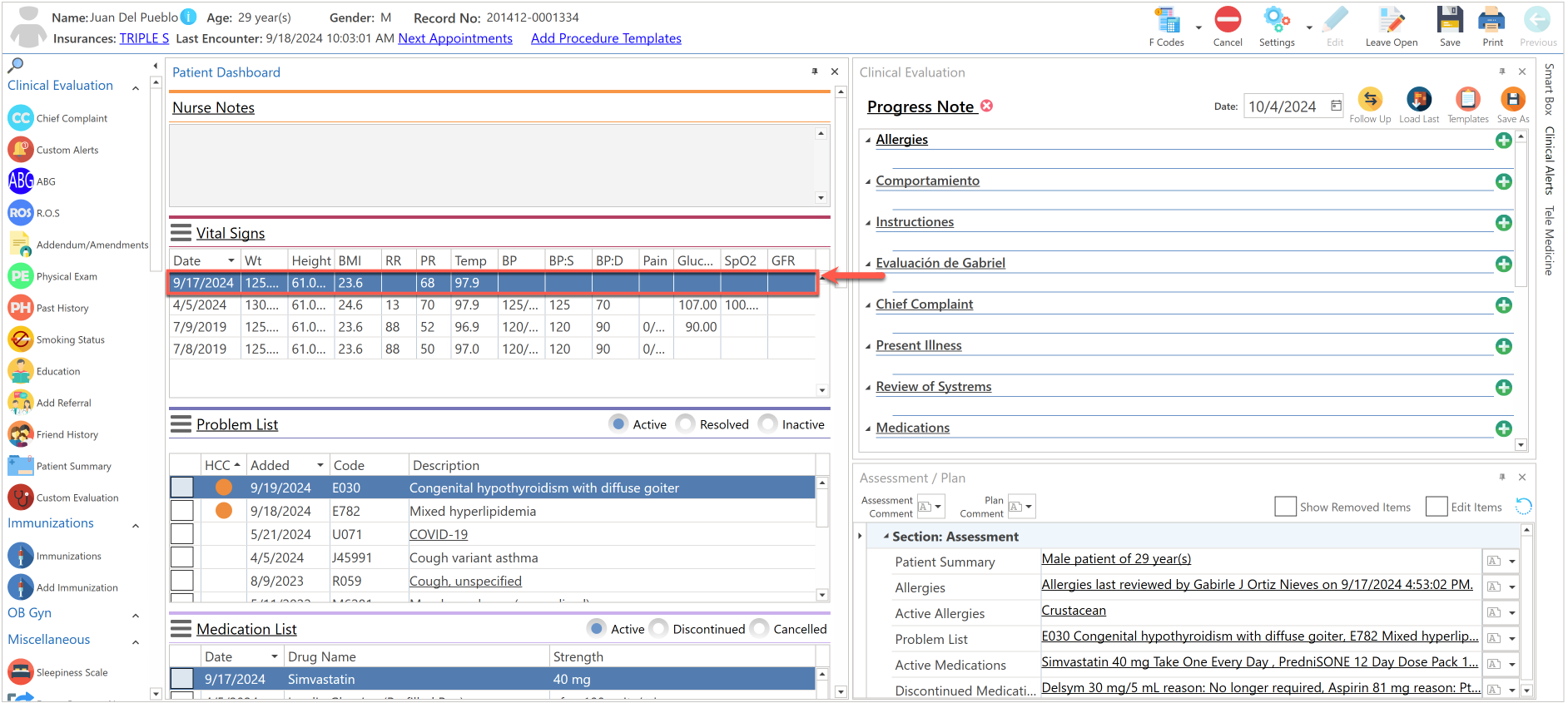
- 2nd Color: To select the bottom bar color in clinical controls, navigate to settings such as Allergies, Immunizations, Problem List, Procedures, Medications, and Vital Signs screens. For example:
- 3rd Color: Select the list item highlights color and hover accents. Example:
Recommended Article:
- Learn More About: Main Menu / Activity / User Settings / Home Settings
Did you find it helpful? Yes No
Can you please tell us how we can improve this article?