How to configure the available procedures to be performed in the emergency room?
Modified on: Tue, 18 Mar, 2025 at 9:24 AM
There are several options to configure the available procedures to be performed in the emergency room.
Option #1
Click on the QuickLinks text, located at the top of the screen.
Select the Settings option.
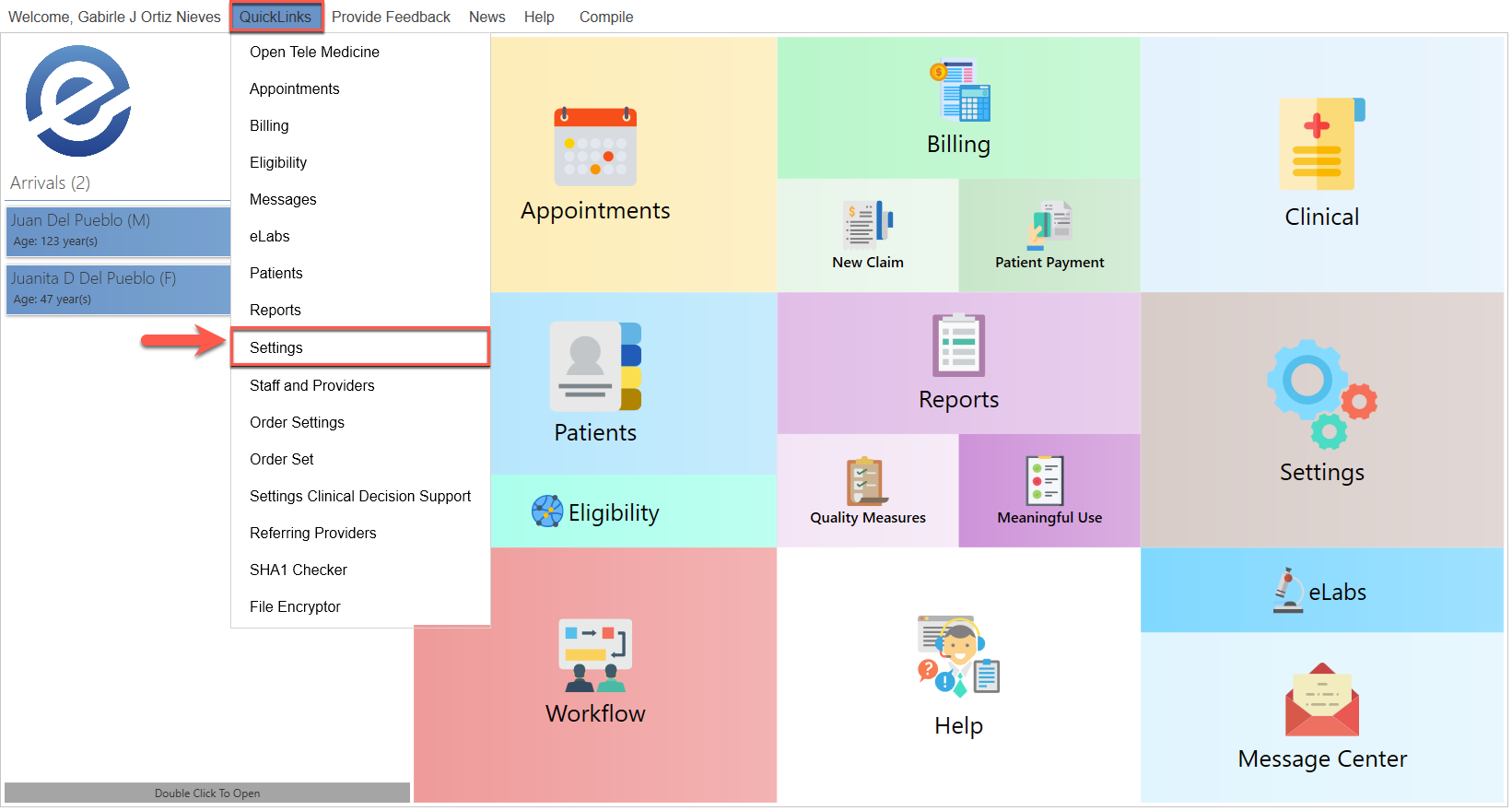
- The following screen will be displayed:
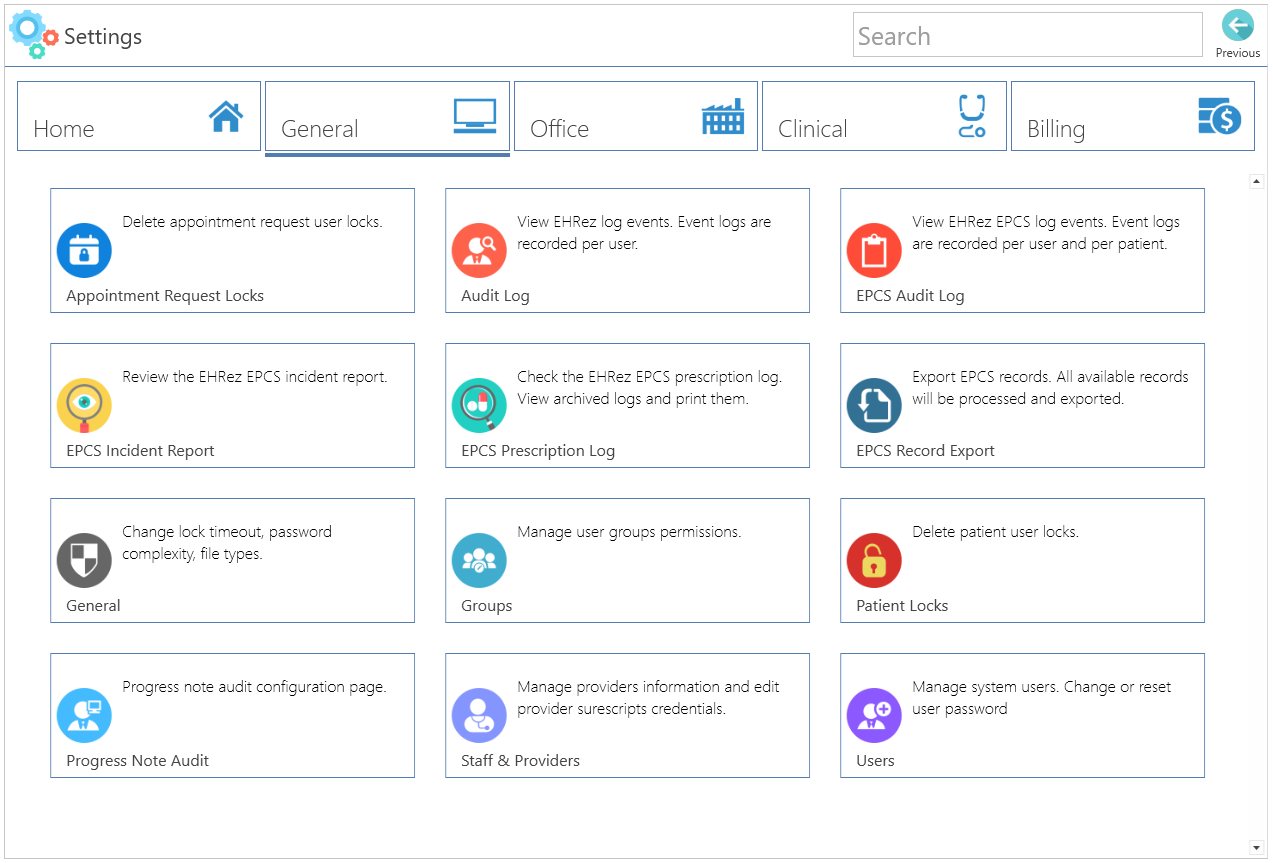
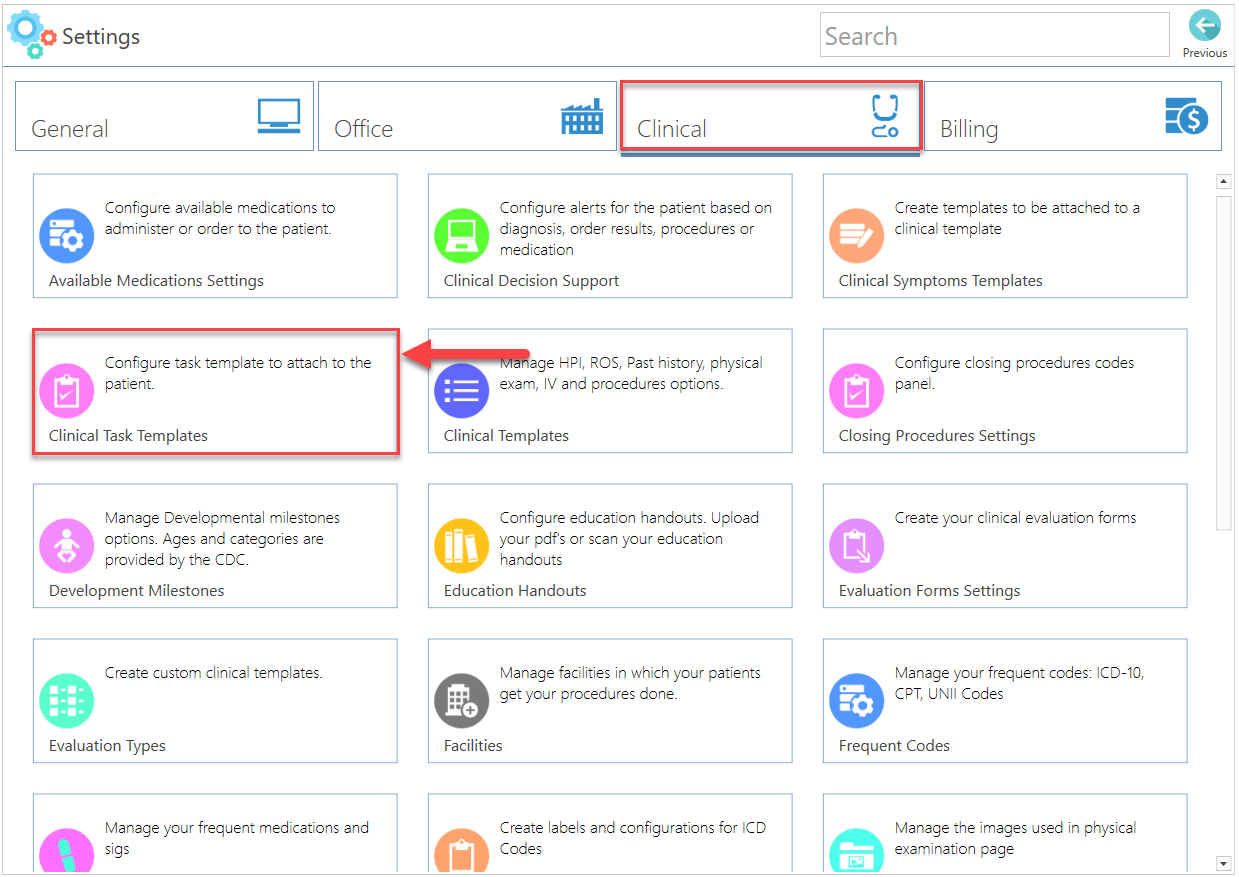
- Click on the Clinical button and then select the Clinical Task Templates option.
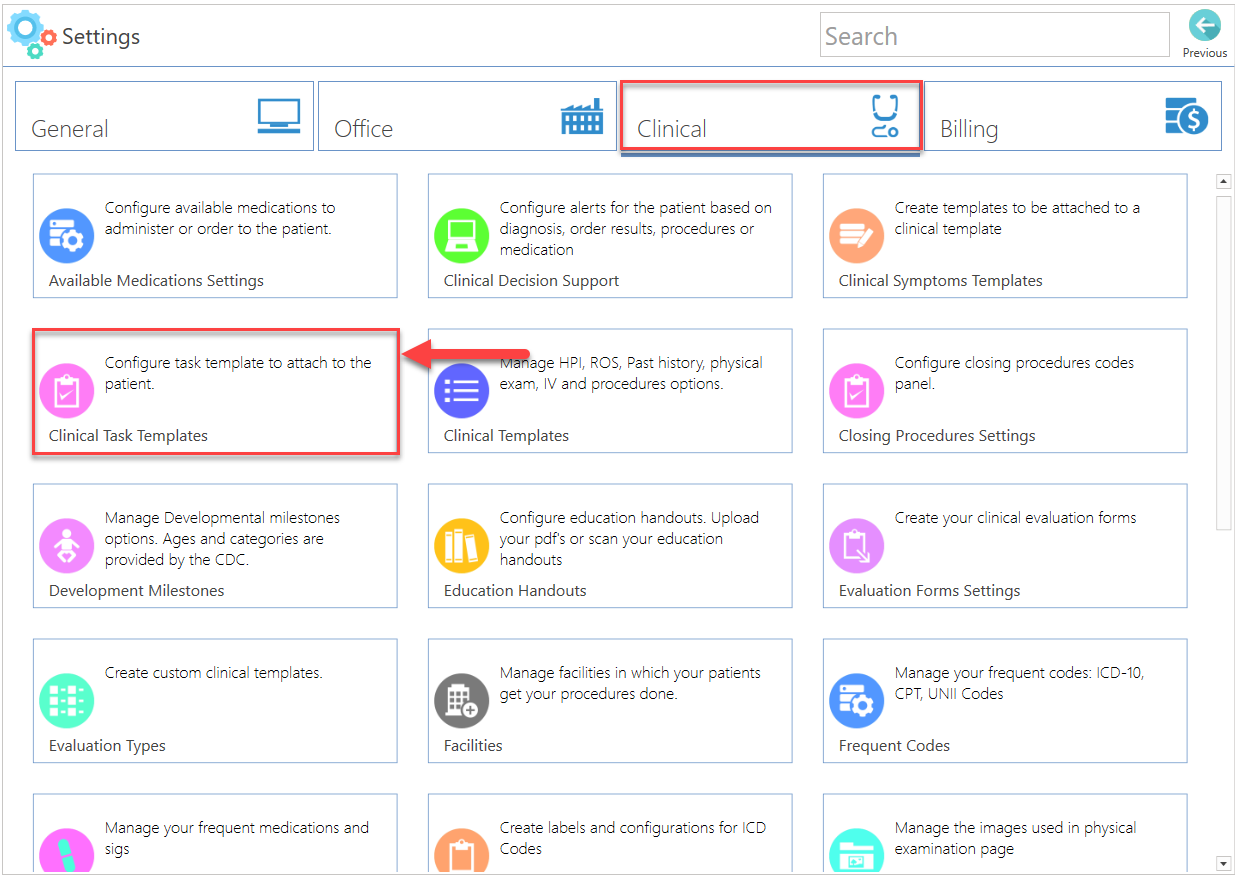
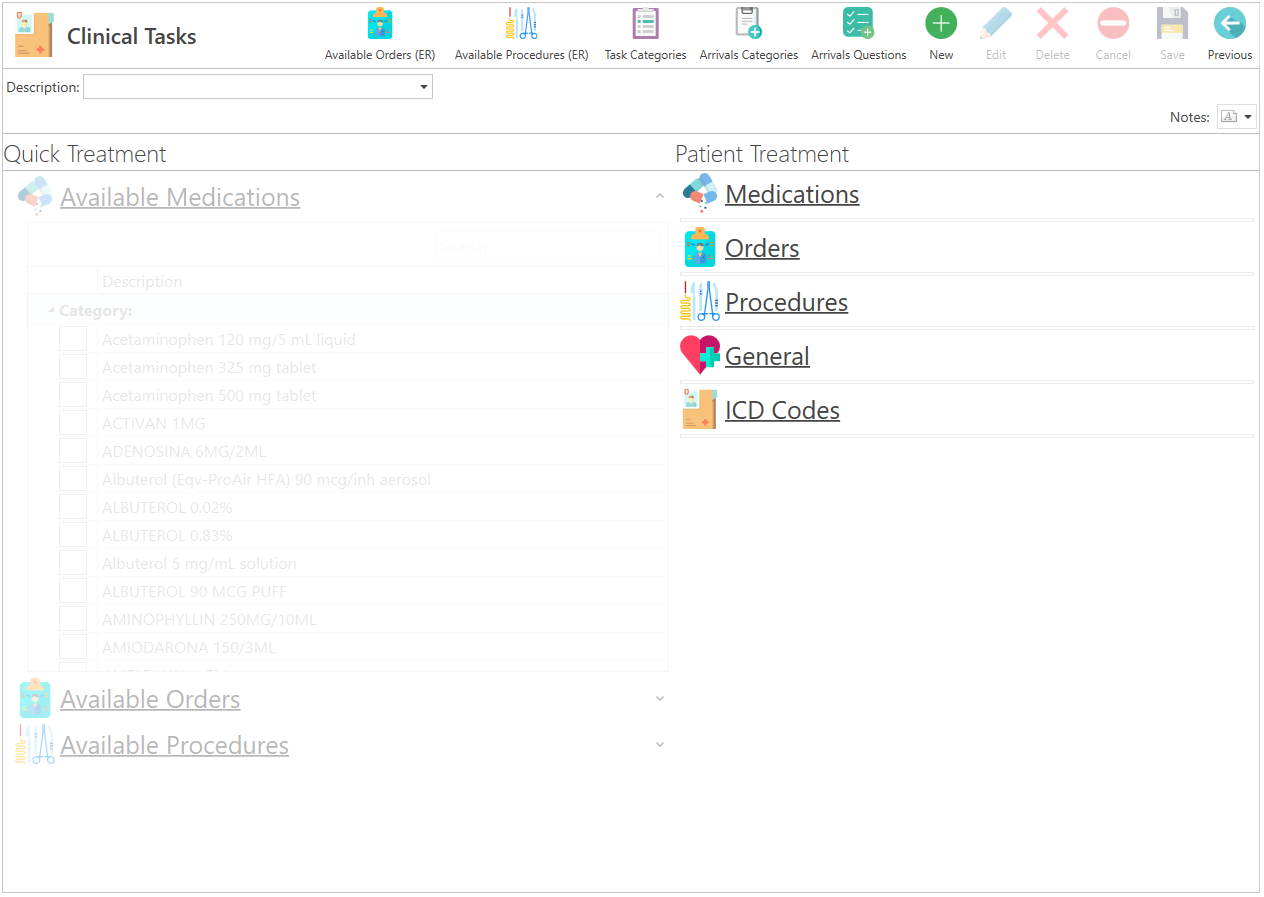
- The following screen will be displayed:
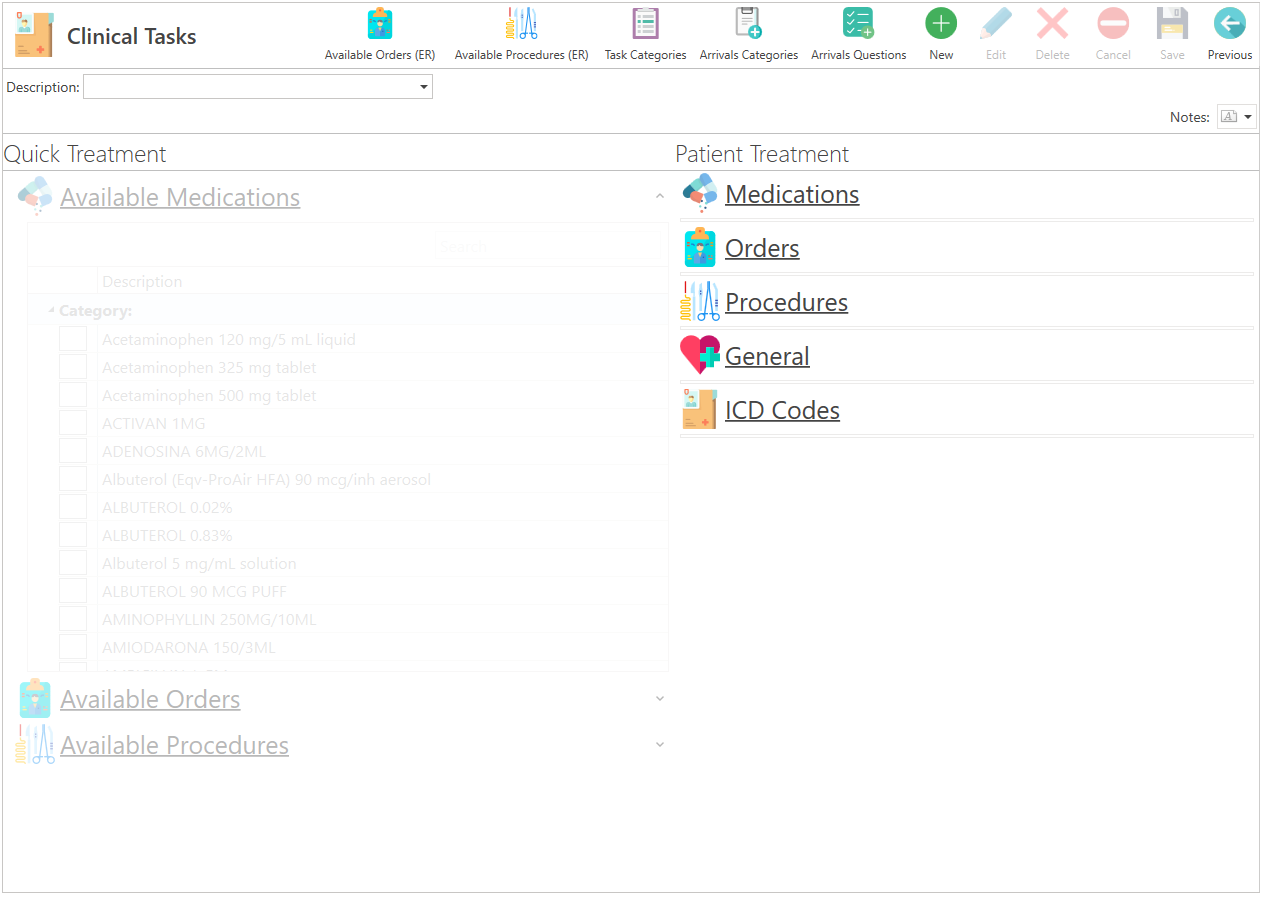
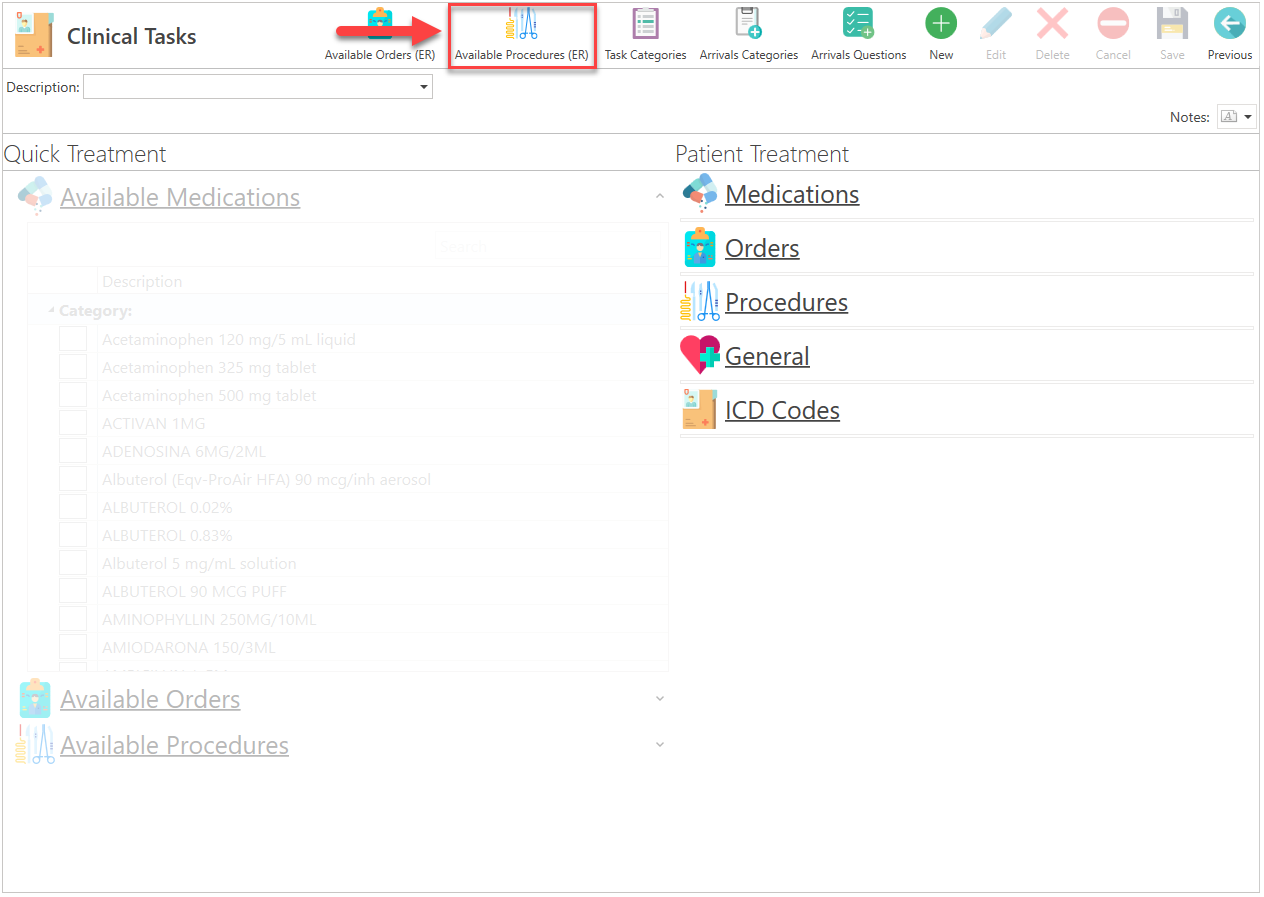
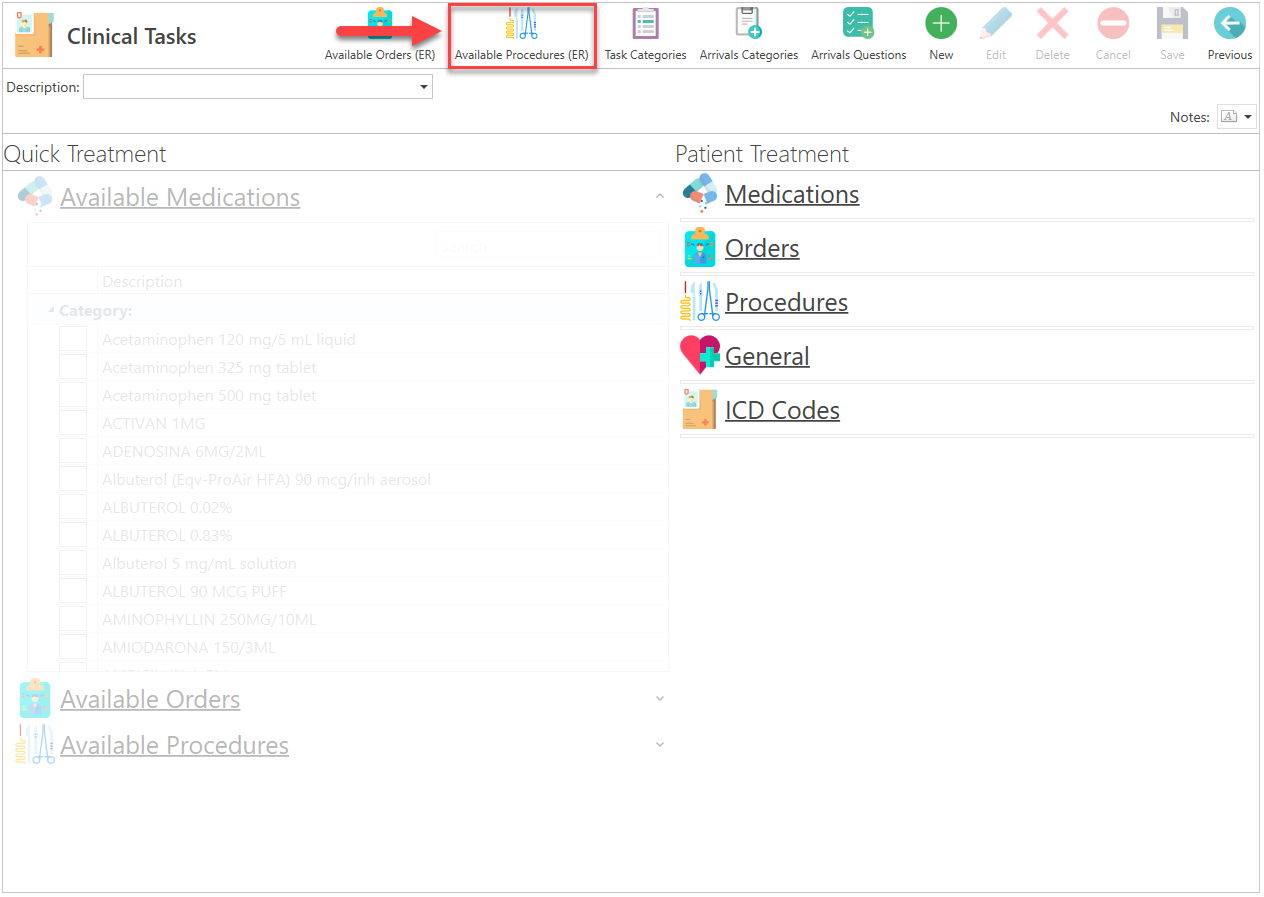
- To configure the available procedures, press the Available Procedures button, located at the top of the screen.
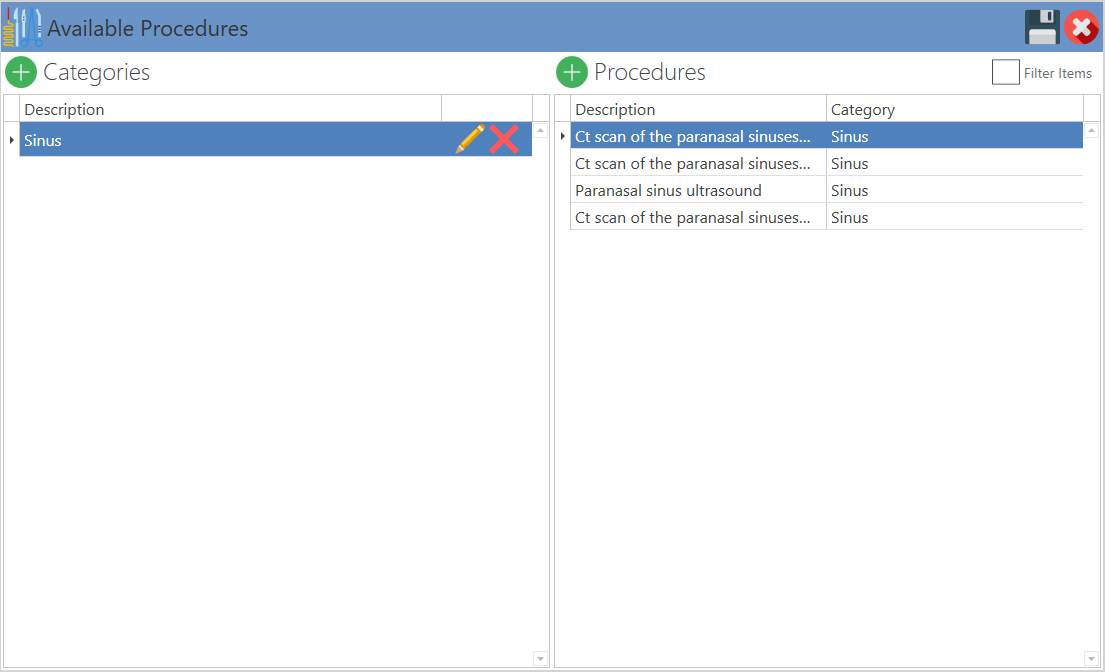
- The following screen will be displayed:
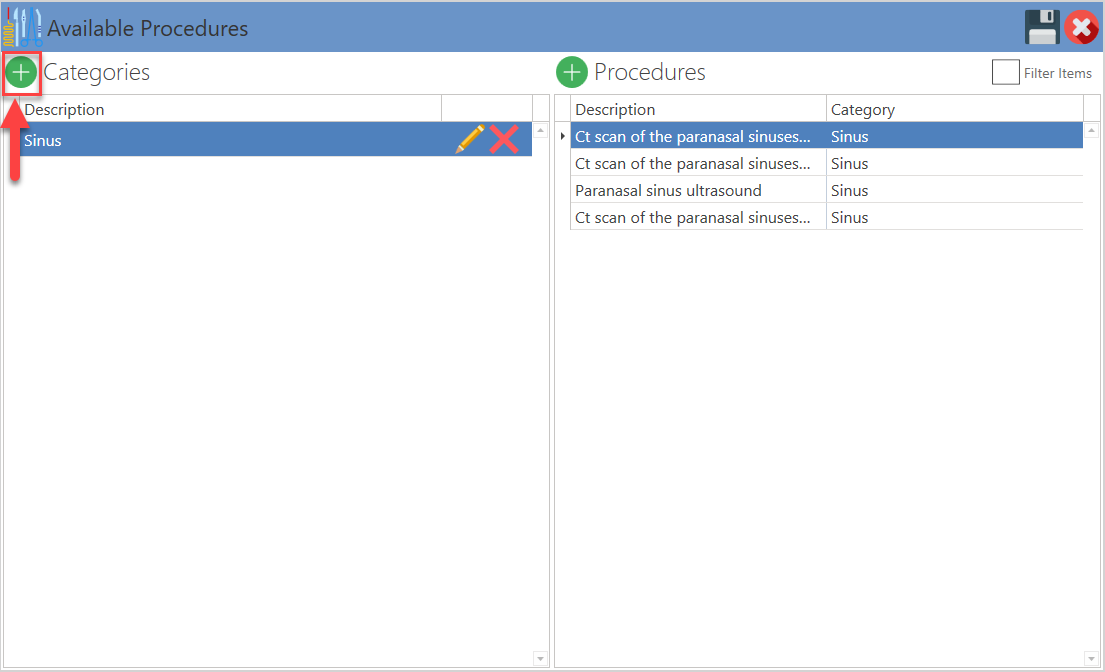
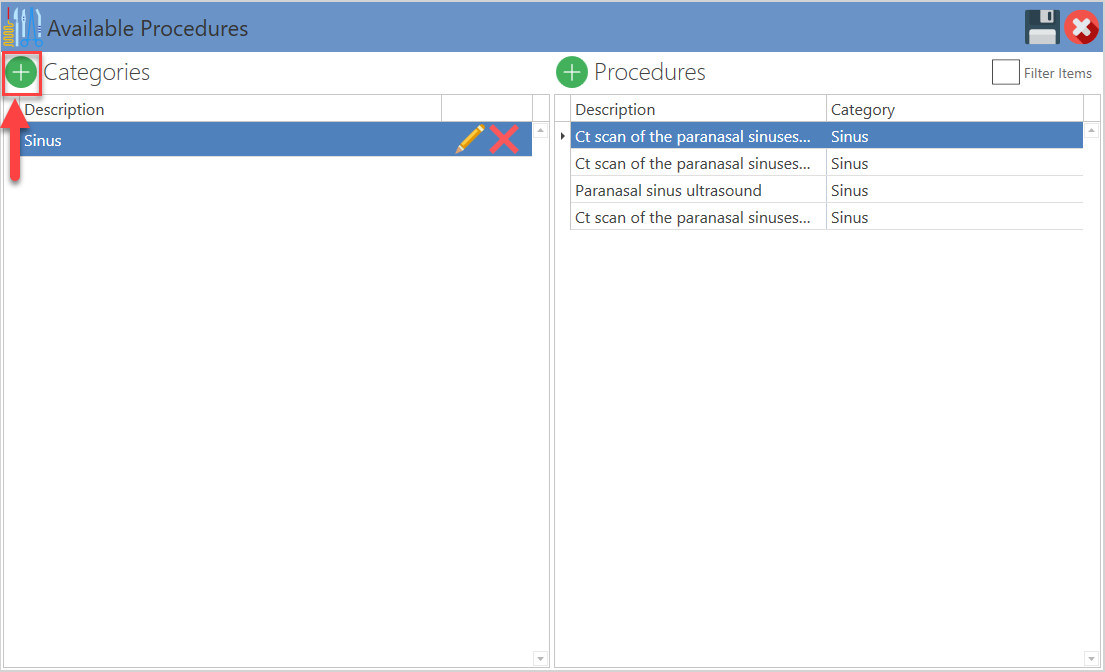
- Click on the Add button in the Categories section to configure a procedure category.
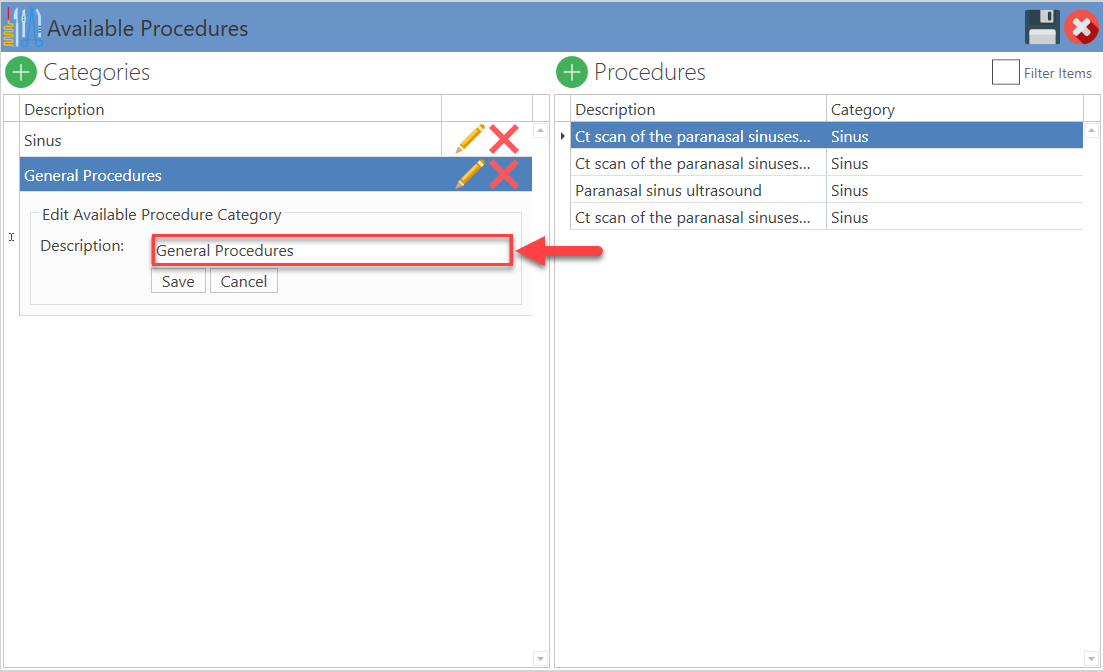
- Type the description of the category, which you want to add.
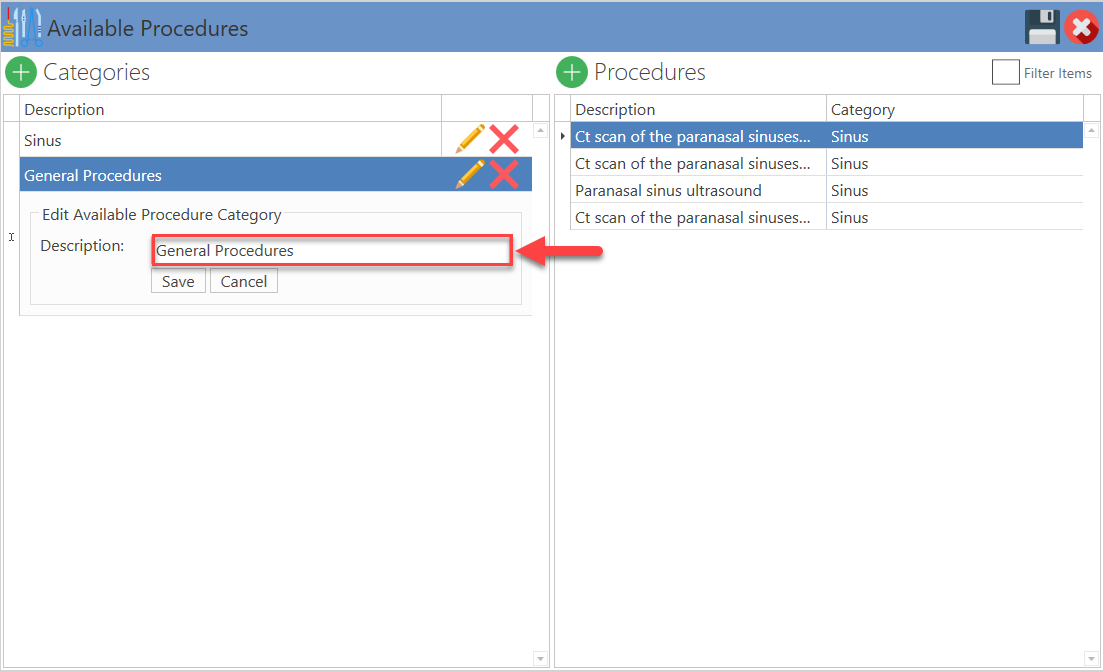
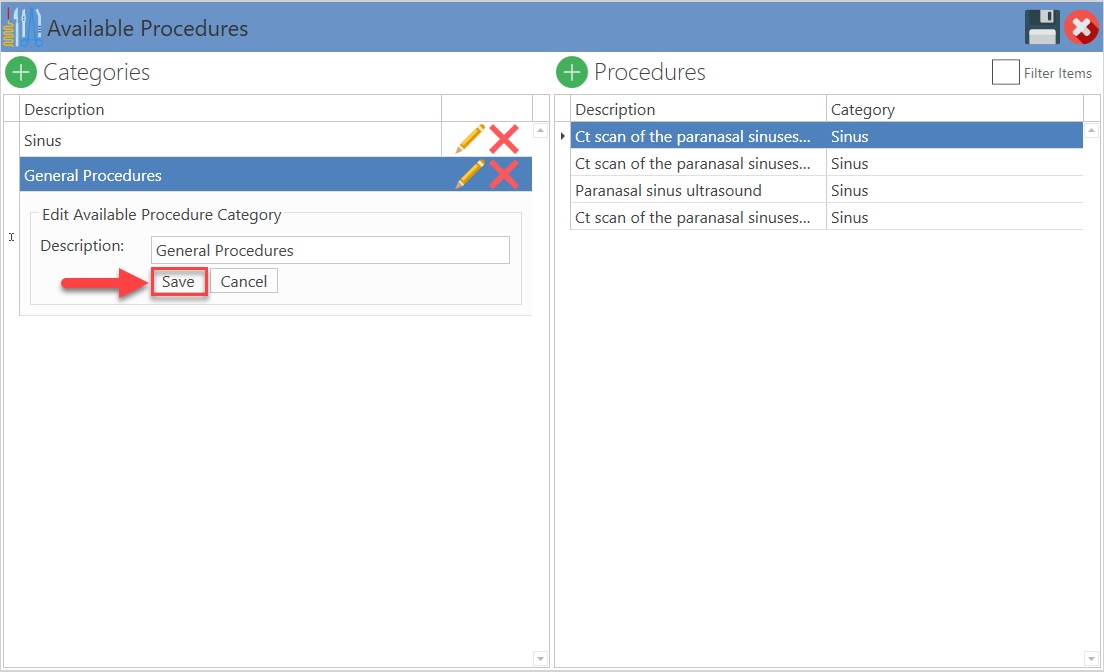
- Then, press the Save button to save the category description.
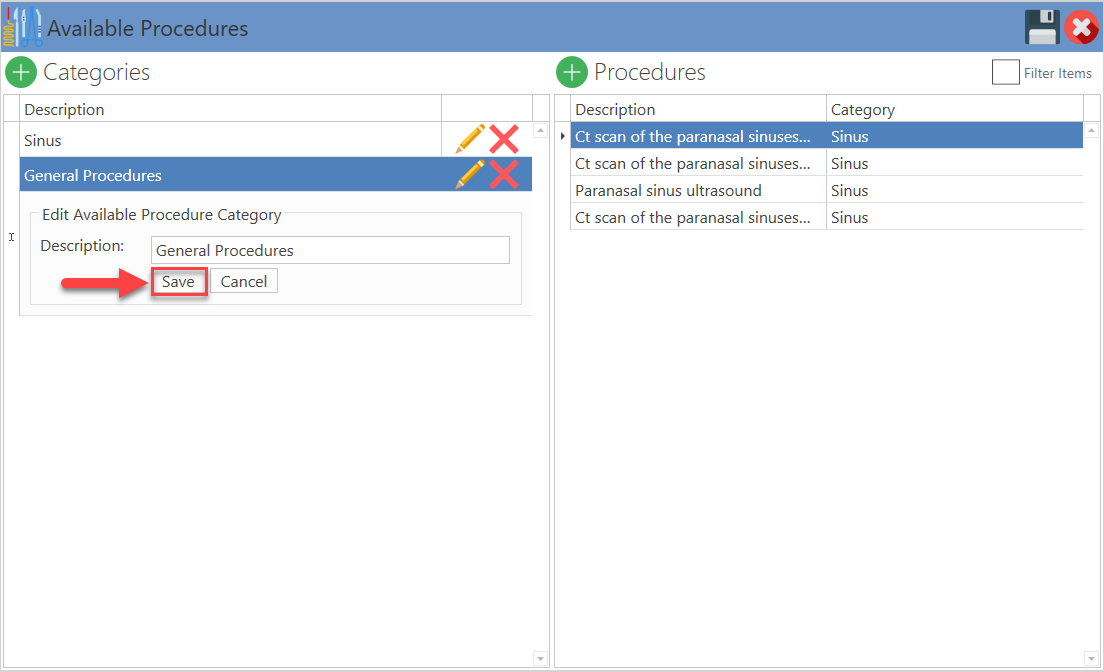
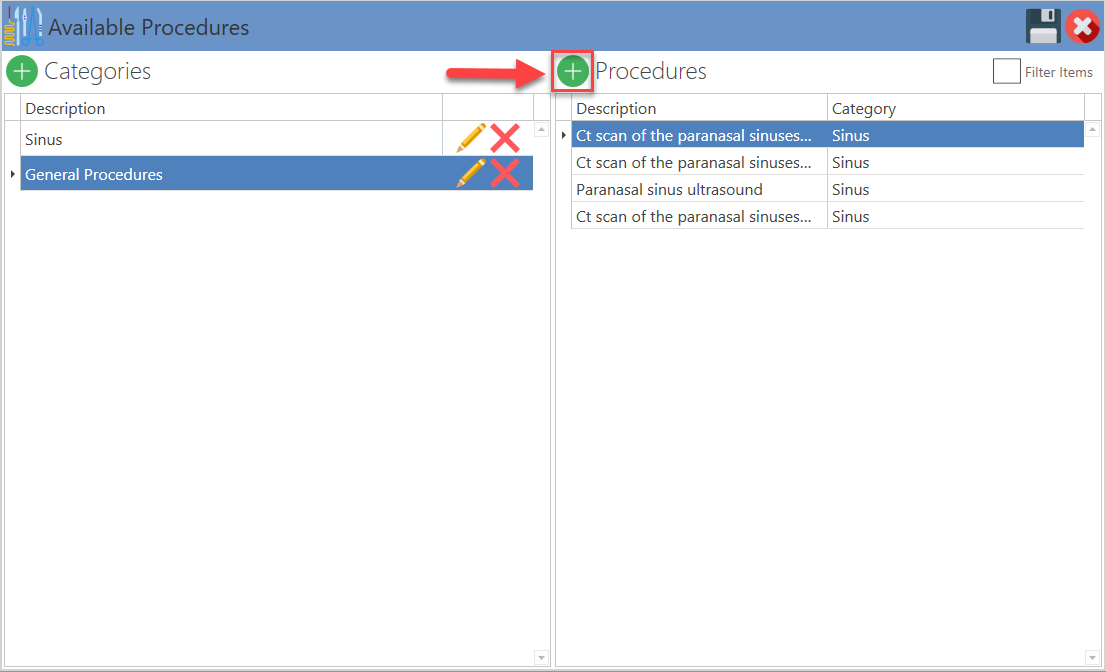
- To add procedures to the configured or previously configured category, select it in the Categories column and then press the Add button in the Procedures section.
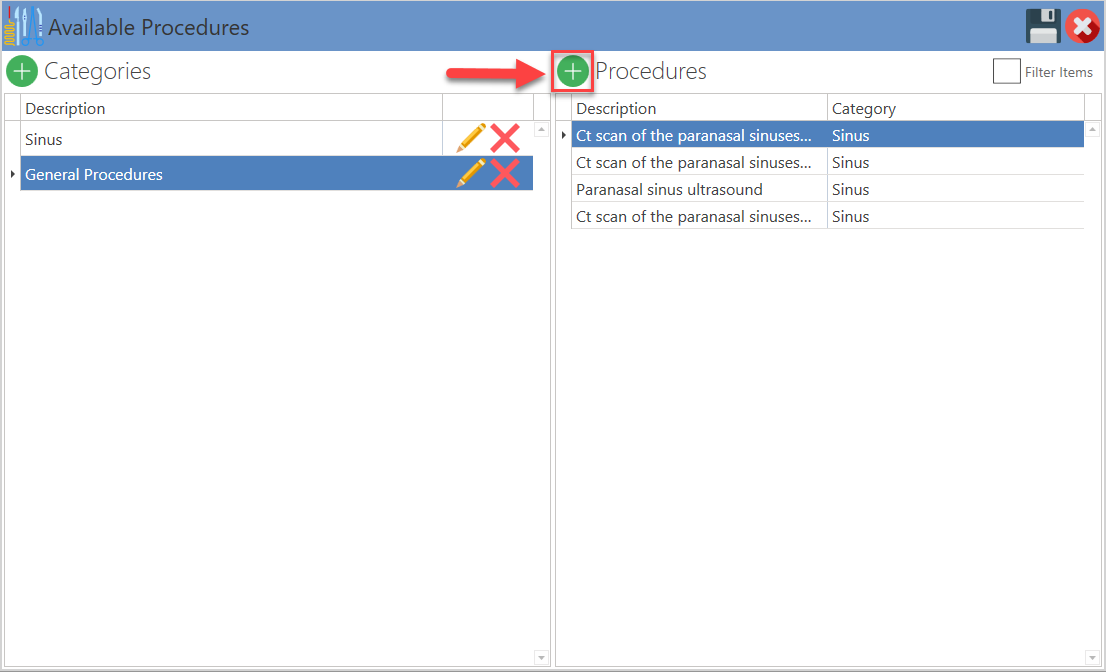
- The following confirmation message will be displayed:
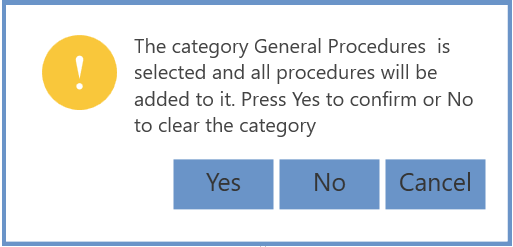
- Press the Yes button to add the procedure to be configured in the selected category.
- Press the No button to not add the order to be configured in the selected category.
- Press the Cancel button to cancel the action.
- If you press the Yes button, the following screen will be displayed:
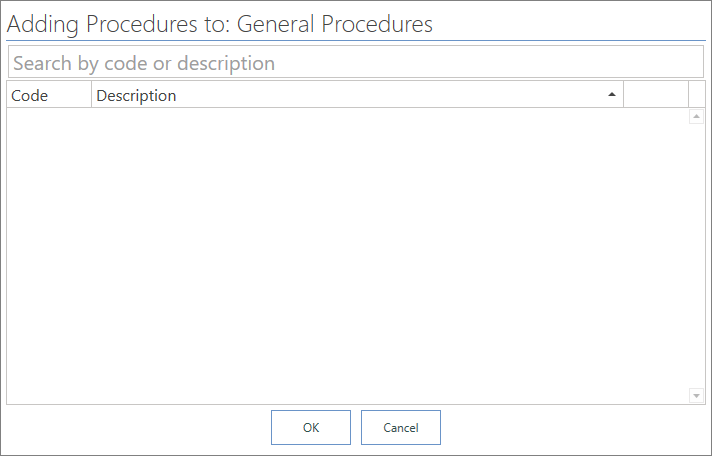
- Search for the procedure to be added to the selected category.
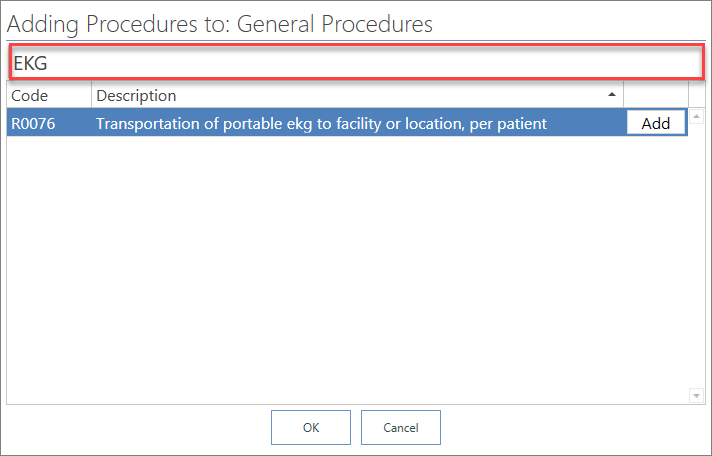
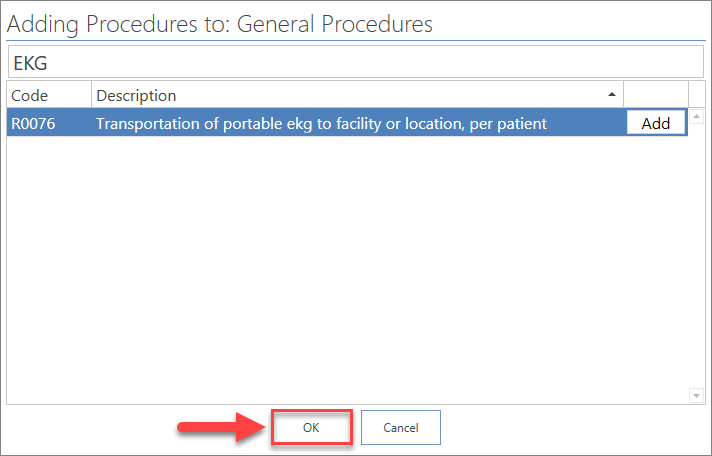
- Once selected, press the OK button.
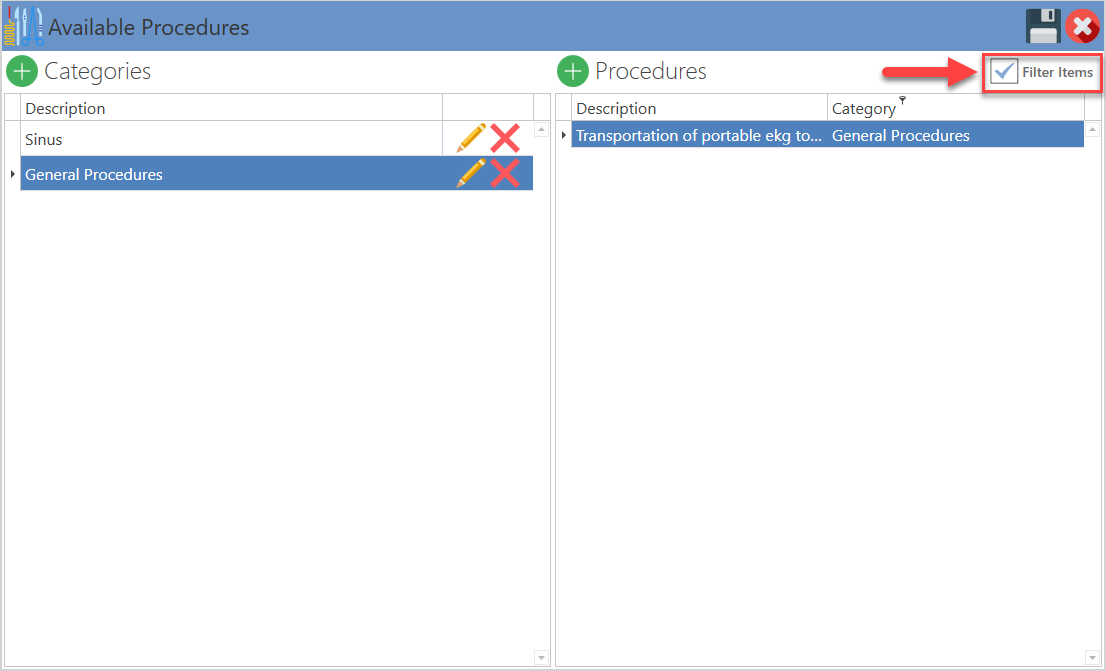
- Automatically, the procedure in the selected category will be displayed.
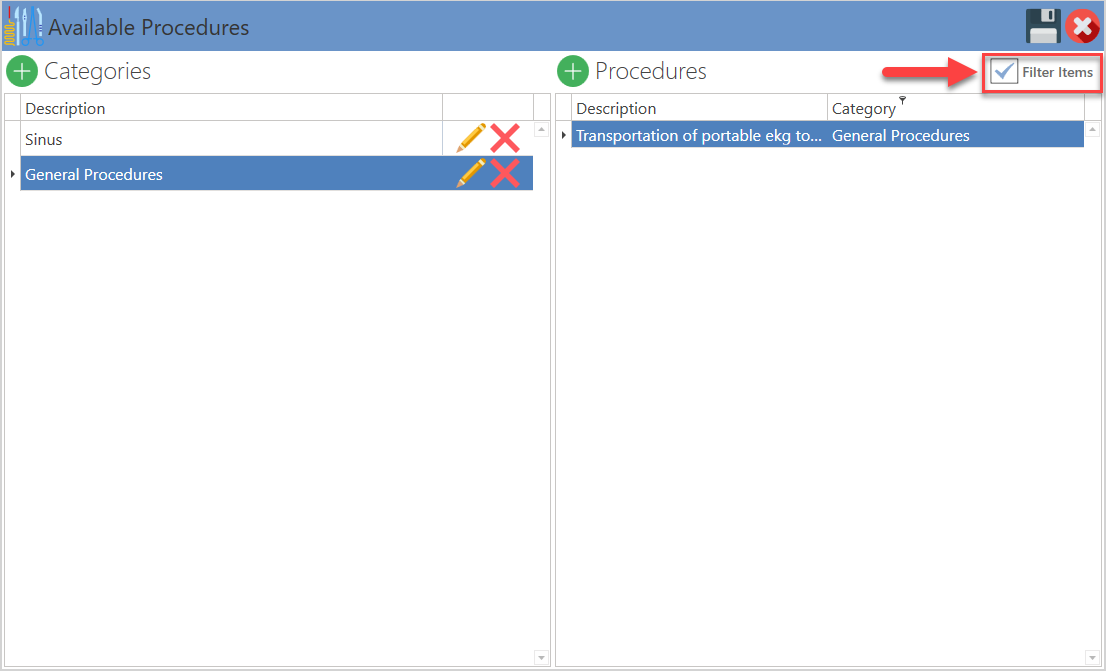
- To view only the procedures in a specific category, select the Filter Items checkbox located at the top right of the screen.
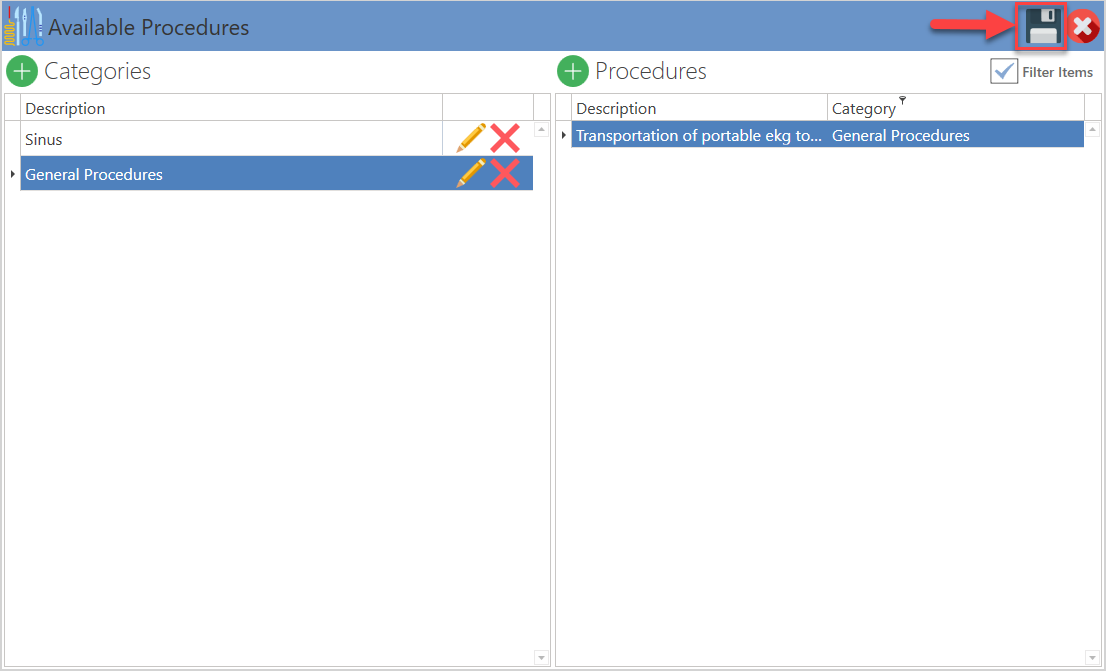
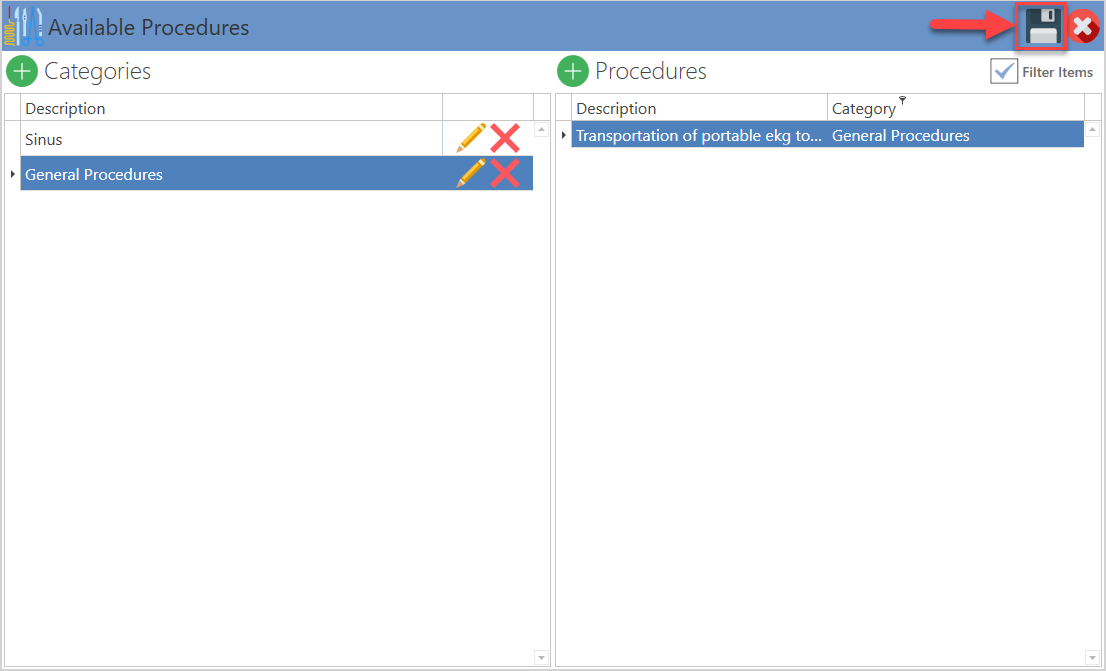
- Then, press the Save button to save the configured procedures.
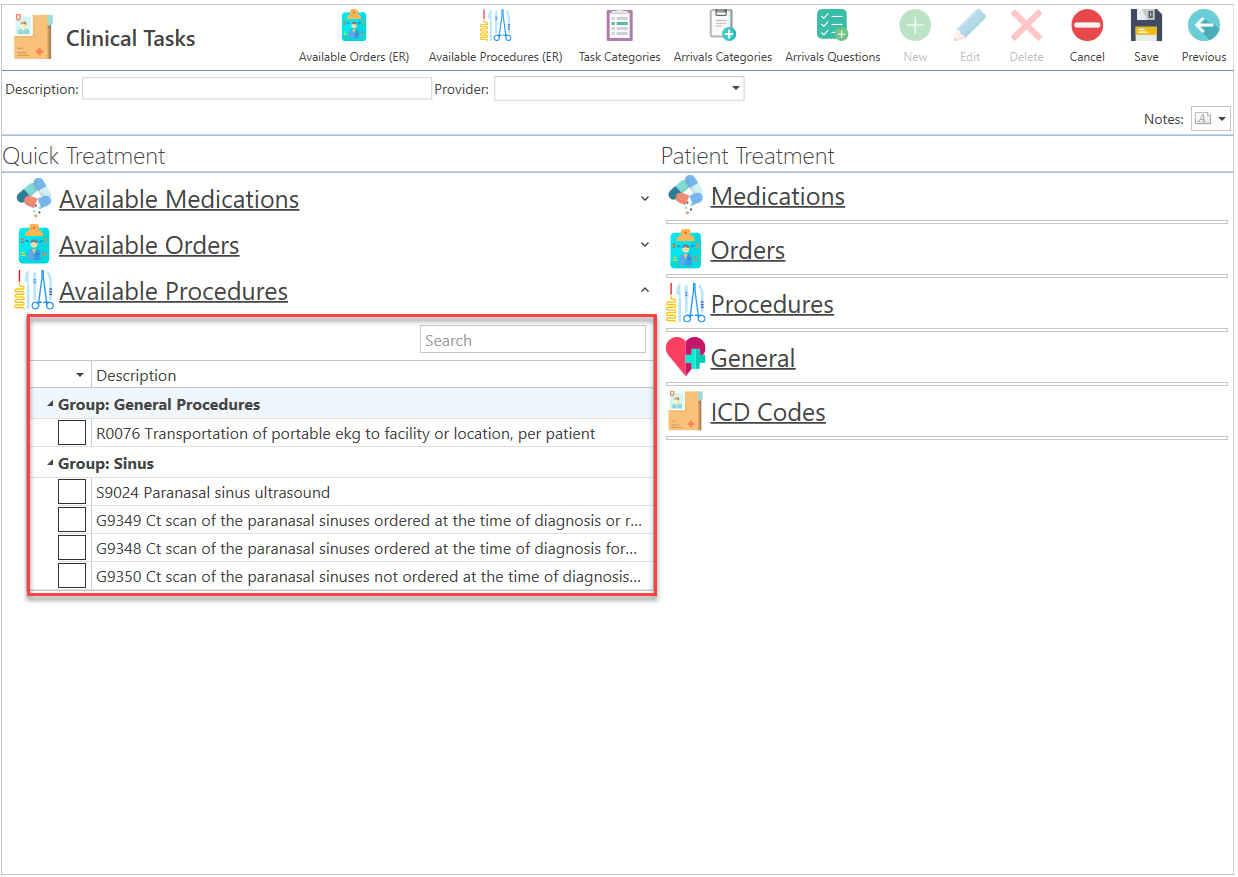
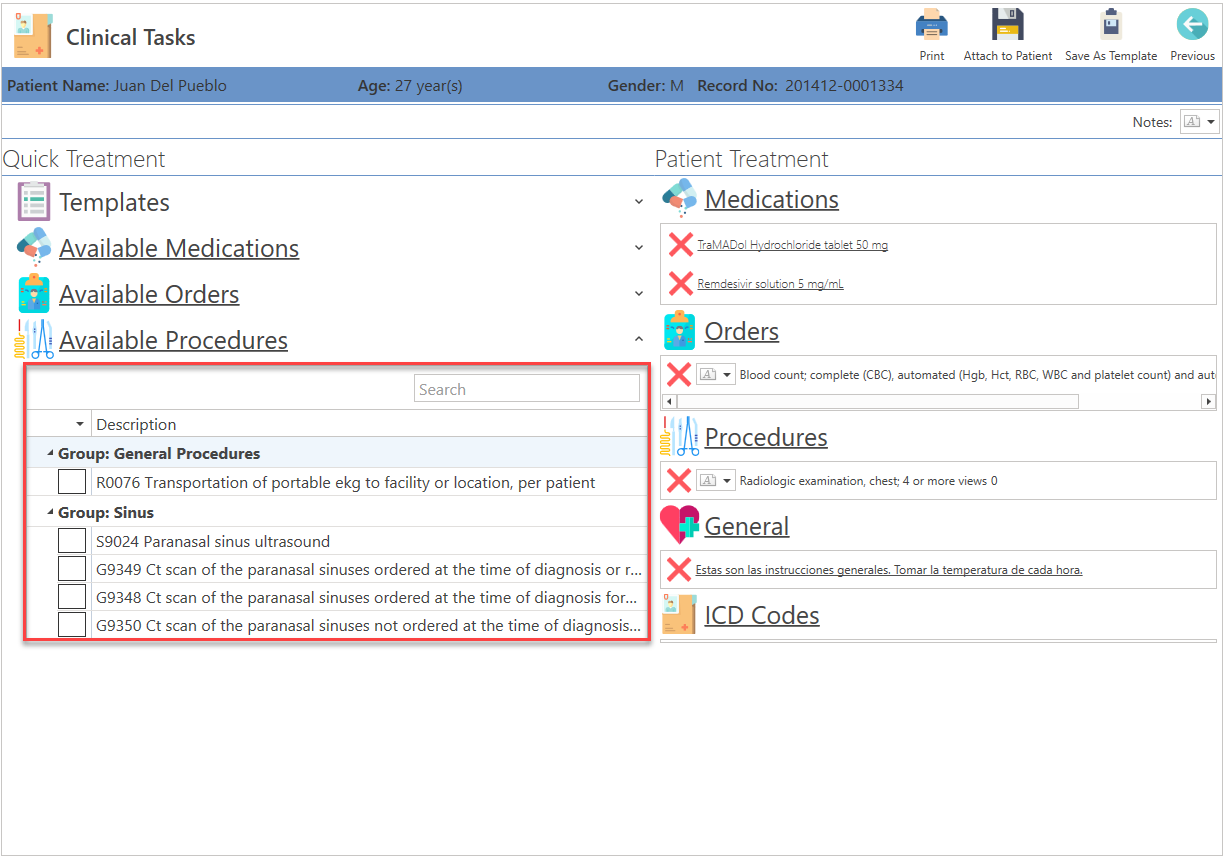
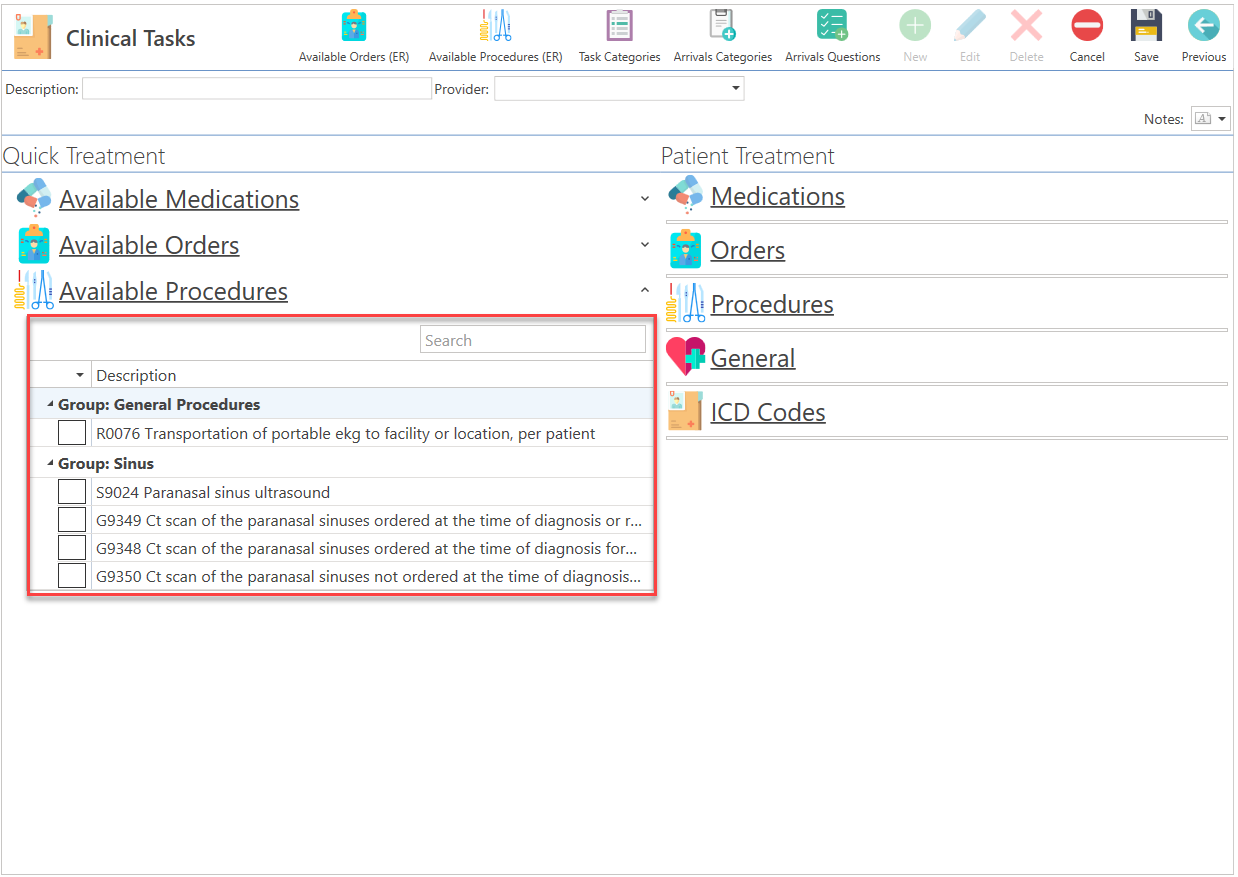
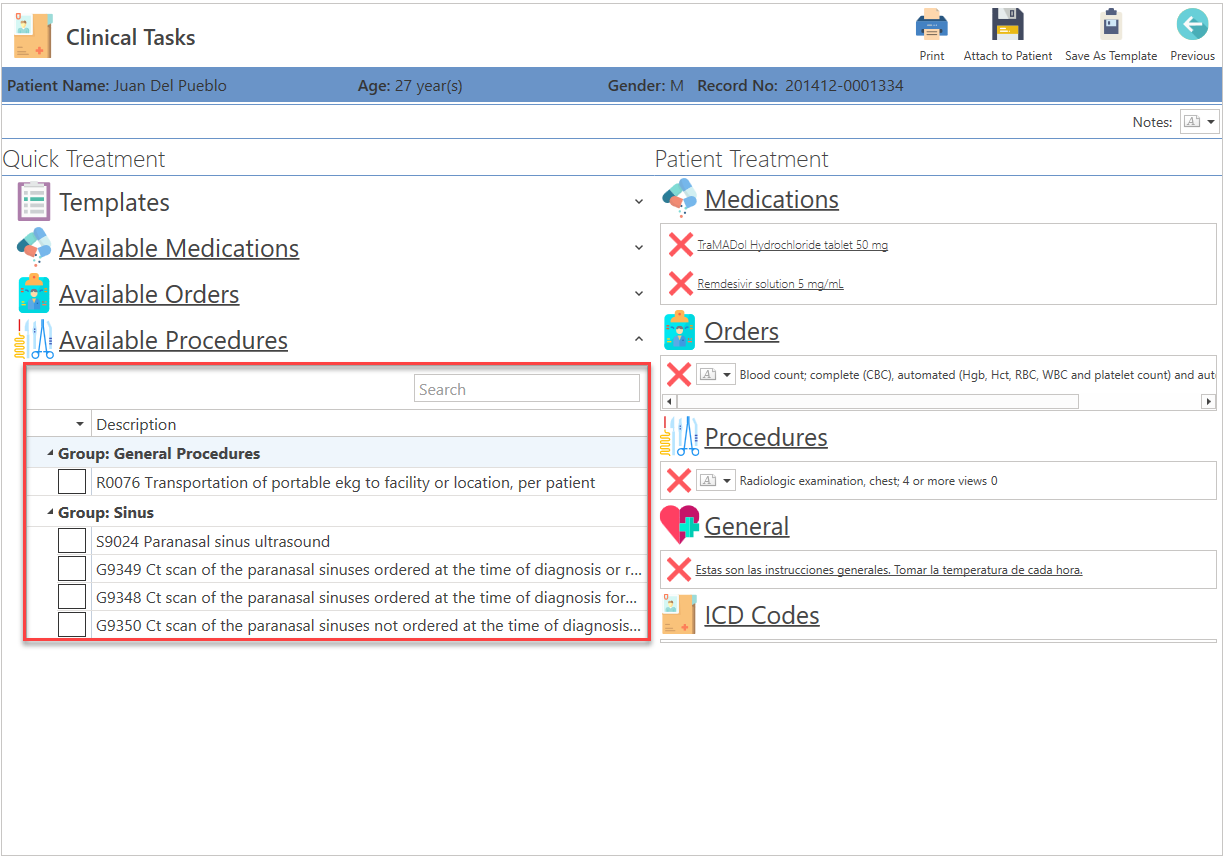
- The configured procedures will be displayed in the Clinical Tasks Settings and Clinical Tasks screens.
Option #2
- Press the Settings button in the main menu.
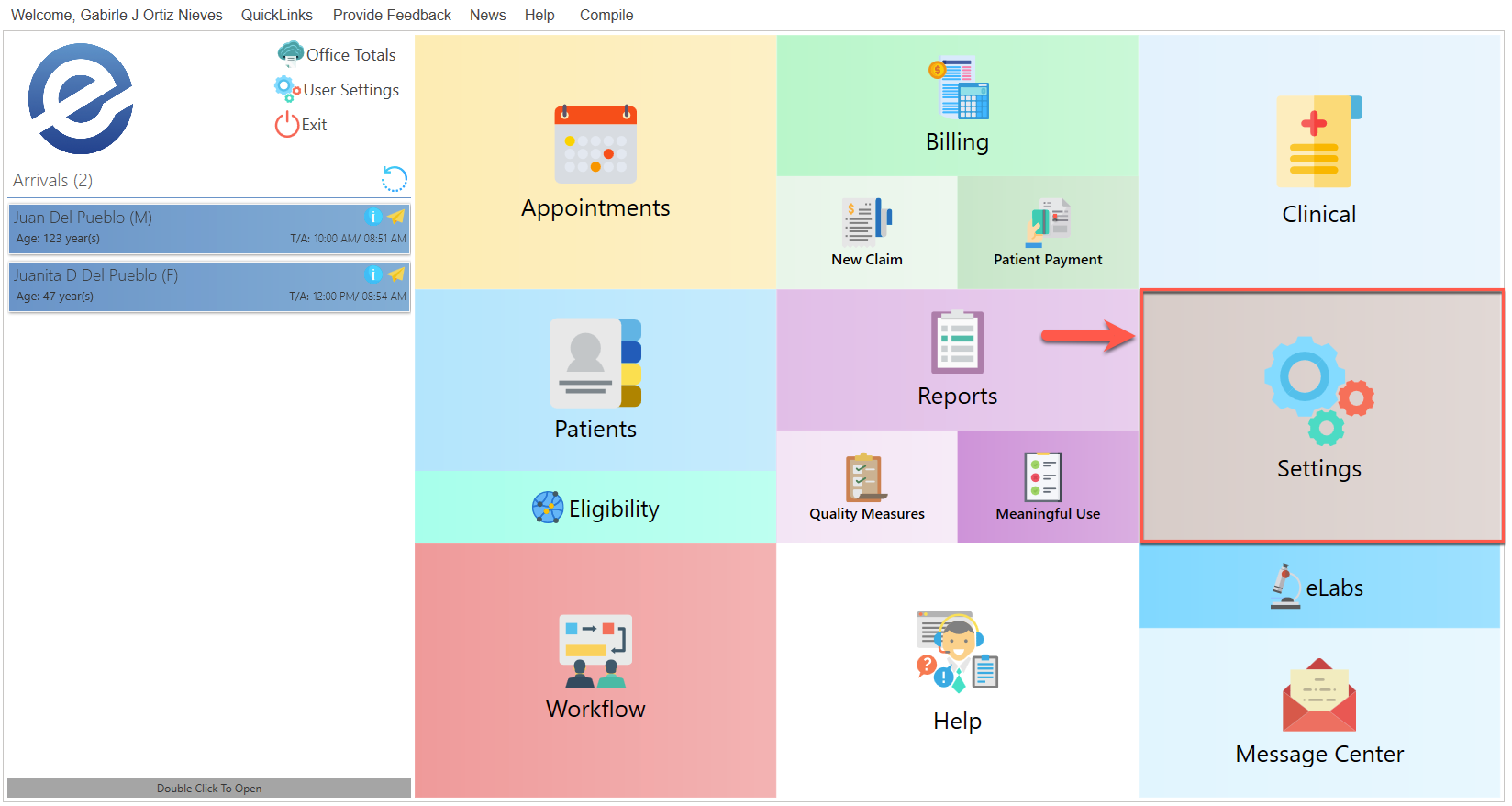
- The following screen will be displayed:
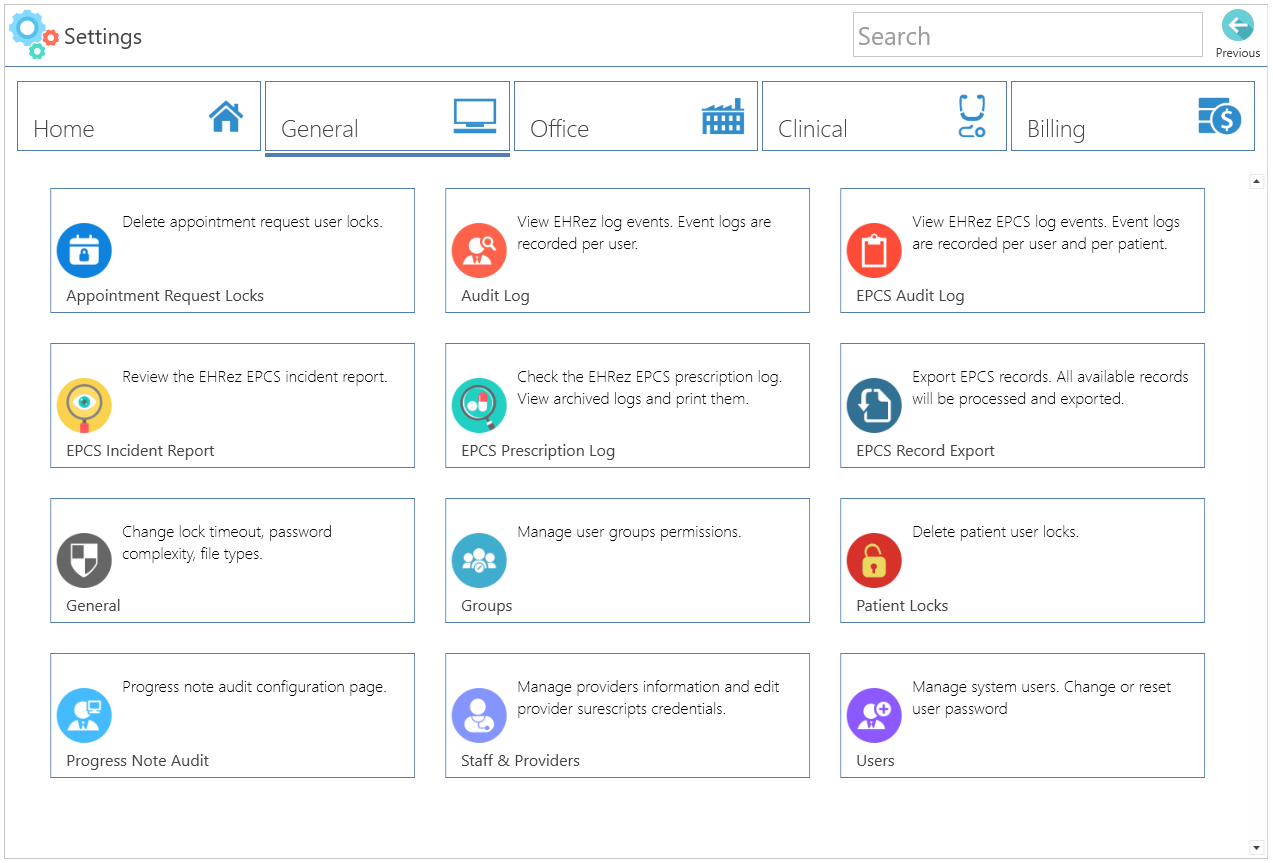
- Click on the Clinical button and then select the Clinical Task Templates option.
- The following screen will be displayed:
- To configure the available procedures, press the Available Procedures button, located at the top of the screen.
- The following screen will be displayed:
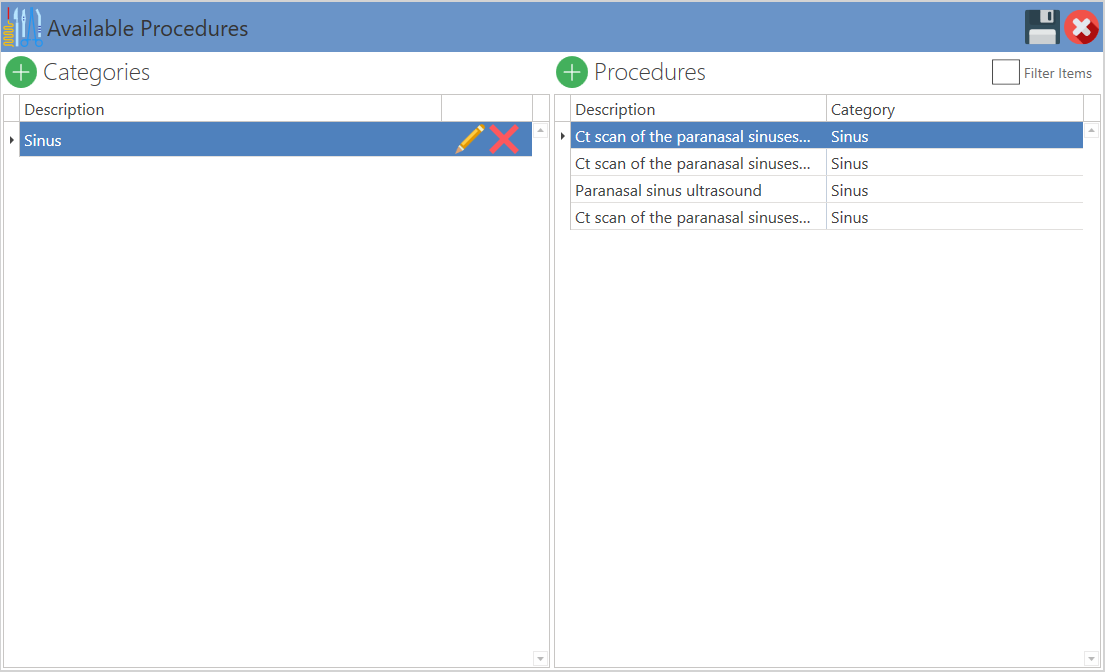
- Click on the Add button in the Categories section to configure a procedure category.
- Type the description of the category, which you want to add.
- Then, press the Save button to save the category description.
- To add procedures to the configured or previously configured category, select it in the Categories column and then press the Add button in the Procedures section.
- The following confirmation message will be displayed:
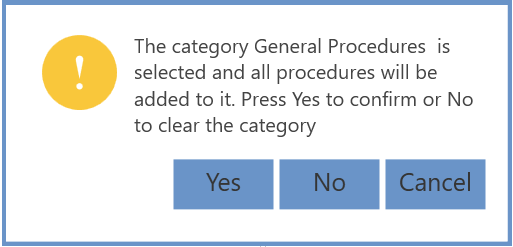
- Press the Yes button to add the procedure to be configured in the selected category.
- Press the No button to not add the order to be configured in the selected category.
- Press the Cancel button to cancel the action.
- If you press the Yes button, the following screen will be displayed:
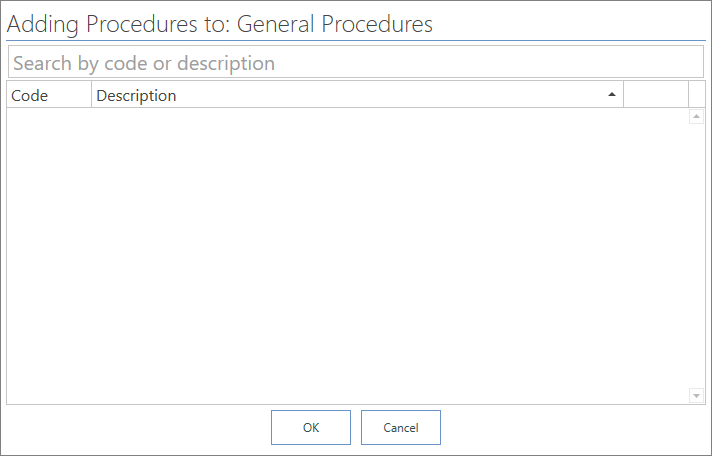
- Search for the procedure to be added to the selected category.
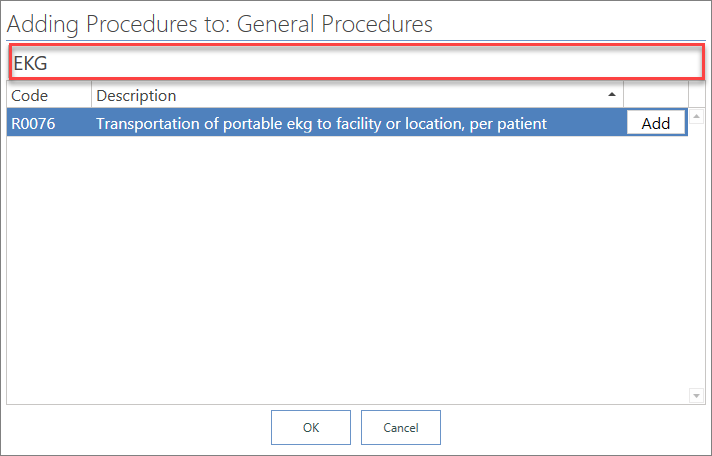
- Once selected, press the OK button.
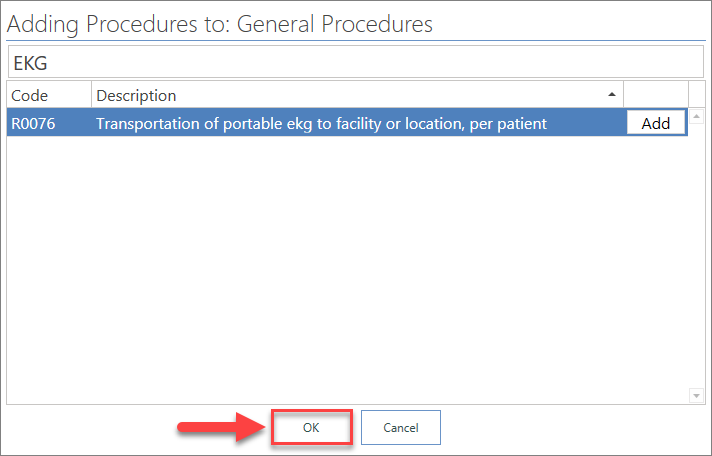
- Automatically, the procedure in the selected category will be displayed.
- To view only the procedures in a specific category, select the Filter Items checkbox located at the top right of the screen.
- Then, press the Save button to save the configured procedures.
- The configured procedures will be displayed in the Clinical Tasks Settings and Clinical Tasks screens.
Did you find it helpful? Yes No
Can you please tell us how we can improve this article?